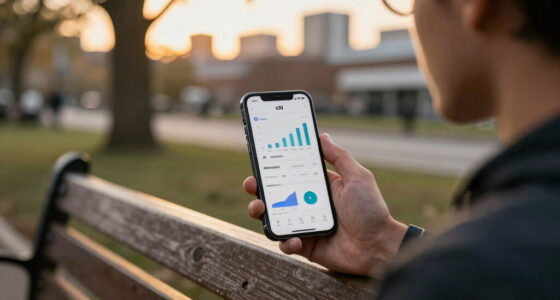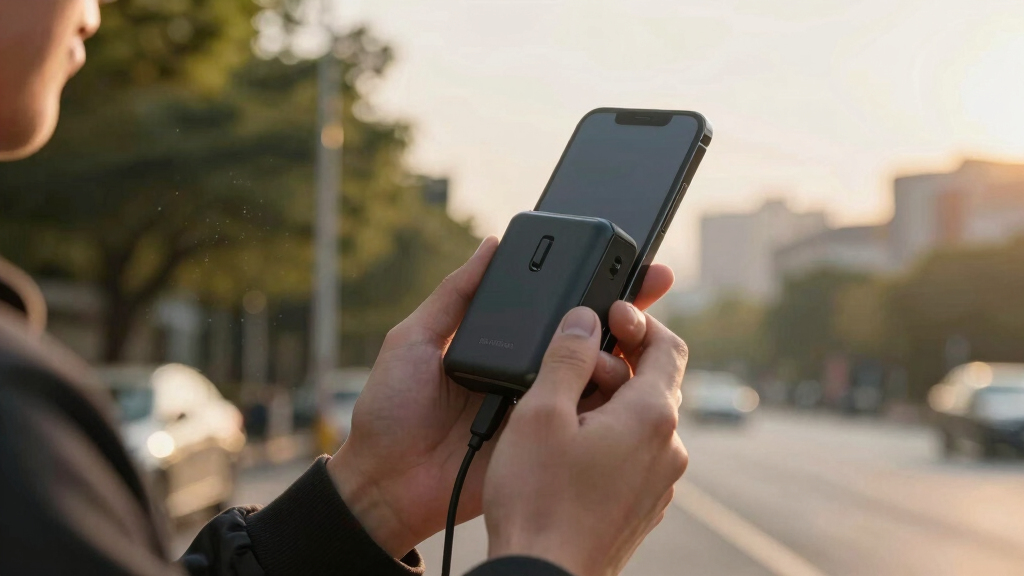

This guide helps you choose and use a compact portable charger to keep your smartphones, tablets, or other devices charged when away from power outlets. Suitable for beginners, it covers selecting the right device, charging it properly, and maintaining its performance. Follow these steps for reliable power on the move.

Get the latest gadgets delivered free with Prime
- Fast, free delivery on millions of items
- Prime Video, Amazon Music and more included
- Member-only deals all year
Difficulty: Beginner | Time: 10-15 minutes for selection and initial charging; ongoing use as needed
What You’ll Need
Tools & Materials:
- Device to charge (smartphone, tablet, etc.)
Knowledge:
- Basic understanding of device charging and battery capacity
Ensure your device is compatible with USB charging or the specific port of the portable charger you choose.
As an affiliate, we earn on qualifying purchases.
Before You Start
Check your device’s charging port and battery needs. Decide on capacity based on how many charges you need per day. Be aware of current battery levels so you can fully charge your portable charger before first use.
As an affiliate, we earn on qualifying purchases.
Step-by-Step Instructions
Step 1: Determine your charging needs
Assess how many devices and how often you’ll need charging. Calculate the approximate total power requirement based on your device’s battery capacity and daily usage.
Tip:
For daily travel, a 5000mAh to 10,000mAh charger usually suffices for one or two charges.
Check:
You know your needs if you select a charger with enough capacity to reliably power your devices for your typical day.
Step 2: Select a compact portable charger
Choose a charger with the appropriate capacity, size, and port options. Look for lightweight, slim models with at least one USB-C or USB-A port.
Tip:
Read reviews for reliability and check for safety certifications like UL or FCC.
Check:
The charger fits comfortably in your hand or pocket and has the necessary ports for your devices.
Step 3: Charge the portable charger fully before first use
Connect the charger to a power source using its included cable. Charge until the indicator shows full capacity, usually indicated by a LED or display.
Tip:
Use a wall outlet for faster, more reliable charging.
Check:
The charger’s indicator confirms a full charge, ensuring maximum capacity for use.
Step 4: Connect your device to the portable charger
Use the appropriate cable to connect your device to the portable charger’s port. Turn on the charger if it has a power button.
Tip:
If your device doesn’t start charging immediately, disconnect and reconnect the cable, or press the power button on the charger.
Check:
Your device shows charging status and battery level increases over a few minutes.
Step 5: Monitor and maintain the portable charger
Keep the portable charger in a cool, dry place. Recharge it when it drops below 20% capacity or after every few uses to maintain battery health.
Tip:
Avoid exposing the charger to extreme temperatures or moisture.
Check:
The charger consistently provides reliable power and maintains full capacity after recharging.
best slim portable charger for travel
As an affiliate, we earn on qualifying purchases.
As an affiliate, we earn on qualifying purchases.
Common Mistakes to Avoid
- Not fully charging the portable charger before first use — Always charge the charger completely before its first use to ensure maximum capacity.
- Using incompatible or poor-quality cables — Use cables recommended by the portable charger manufacturer to avoid charging issues or damage.
- Overloading the charger with multiple devices simultaneously beyond its capacity — Check the charger’s maximum output and avoid connecting more devices than it can handle at once.
- Exposing the charger to extreme temperatures or moisture — Store and use the charger in a cool, dry environment to preserve battery life.
UL certified portable phone charger
As an affiliate, we earn on qualifying purchases.
As an affiliate, we earn on qualifying purchases.
Troubleshooting
Problem: Device is not charging when connected
Solution: Ensure the charger is fully charged, the cable is secure, and your device is compatible. Try another cable or port if needed.
Problem: Charger indicator shows low battery but still works intermittently
Solution: Recharge the portable charger fully and avoid draining it completely before recharging again.
Problem: Device charges slowly or not at all
Solution: Use a higher-output charger or cable, and confirm that your device’s charging port is clean and undamaged.
What Success Looks Like
The portable charger is fully charged and can power your device at least once, with the device showing an increasing battery level. The charger’s indicator confirms full capacity. Your device remains powered during your activities.
Next Steps
Regularly recharge the portable charger after use or when capacity drops below 20%. Keep it clean and store in a protected case. Consider purchasing additional chargers for different needs or backup. Check for firmware updates if applicable.
Frequently Asked Questions
How long does a portable charger typically last?
Most portable chargers maintain their capacity for 300-500 full charge cycles before capacity diminishes significantly.
Can I use a portable charger while charging my device?
Yes, many chargers support pass-through charging, but check the specifications to confirm compatibility and avoid overheating.
What is the best capacity for daily use?
A 5000mAh to 10000mAh charger usually balances size and power for daily needs without adding bulk.
Are there safety certifications I should look for?
Look for certifications like UL, FCC, or CE to ensure safety and quality standards.
Halloween Picks
halloween
As an affiliate, we earn on qualifying purchases.