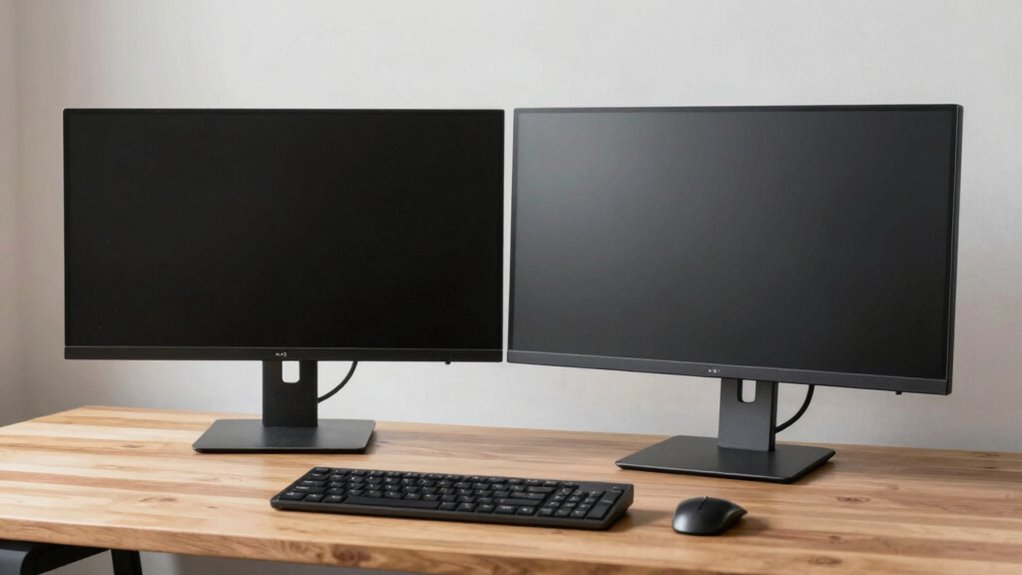

To guarantee neck comfort and focus with dual monitors, position both screens at eye level and at the same height to prevent neck strain. Keep them about an arm’s length away and slightly angled toward you. Place your primary monitor directly in front and the secondary slightly to the side. Use adjustable stands or arms for precise positioning. Small setup adjustments can make a big difference—continue exploring for expert tips.

Get the latest gadgets delivered free — and shop member deals
- Fast, free delivery on millions of items
- Access to Prime Big Deal Days deals on October 6–7
- Prime Video, Amazon Music and more included
Key Takeaways
- Position both monitors at eye level to maintain a neutral neck position and reduce strain.
- Place primary monitor directly in front, with secondary monitor slightly to the side, angled toward you.
- Keep monitors at an arm’s length distance (20-30 inches) for clear visibility and reduced eye fatigue.
- Ensure monitor tops are aligned at the same height to prevent uneven neck tilting.
- Use adjustable stands or arms for precise height, tilt, and distance modifications for optimal comfort.
As an affiliate, we earn on qualifying purchases.
Why Proper Dual Monitor Placement Matters for Neck Comfort
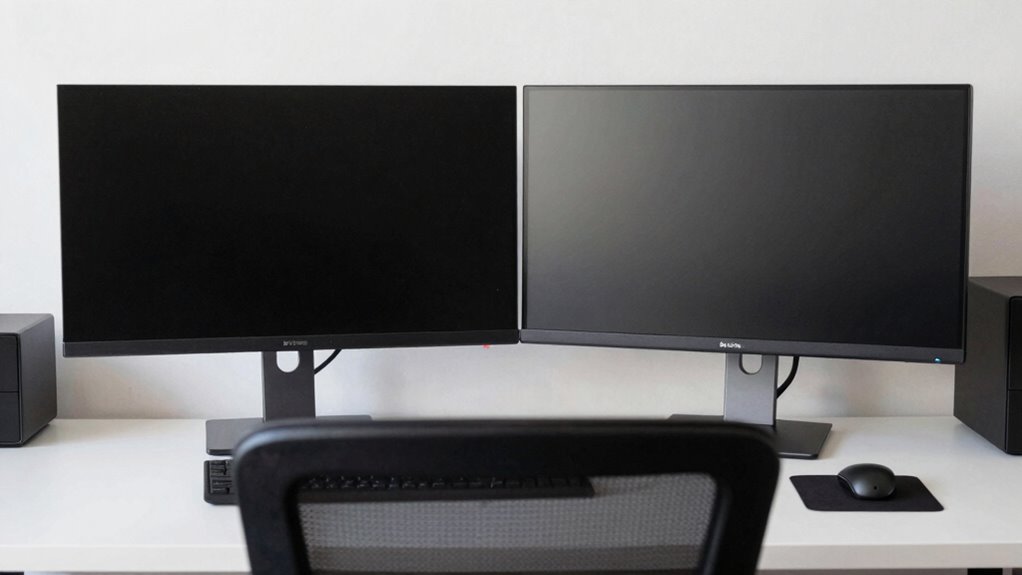
Proper placement of dual monitors is essential because it directly impacts your neck comfort throughout the workday. When monitors are set correctly, you avoid unnecessary strain and maintain good posture. Using ergonomic chairs helps support your back and encourages proper alignment, reducing the risk of neck pain. Keep your monitors at eye level and close enough to prevent you from leaning forward or tilting your head. Good keyboard ergonomics also play a role; keep your keyboard and mouse positioned so your wrists stay neutral, reducing overall tension. If your monitors are too low or too high, you’ll constantly adjust your neck, leading to discomfort over time. Prioritizing correct placement minimizes strain, boosts productivity, and keeps you comfortable during long work sessions. Regularly checking your setup ensures optimal ergonomics, preventing long-term discomfort. Additionally, being aware of monitor positioning guidelines can help you make small adjustments that significantly improve your comfort. Incorporating proper setup practices can further enhance your overall ergonomic health and reduce fatigue. Remember that monitor distance also influences your neck and eye strain; positioning monitors at an appropriate distance can further improve comfort. To achieve this, consider periodically adjusting your workspace to maintain optimal ergonomic positioning throughout your workday.
adjustable monitor arm for dual screens
As an affiliate, we earn on qualifying purchases.
As an affiliate, we earn on qualifying purchases.
How to Measure Your Workspace for a Perfect Setup
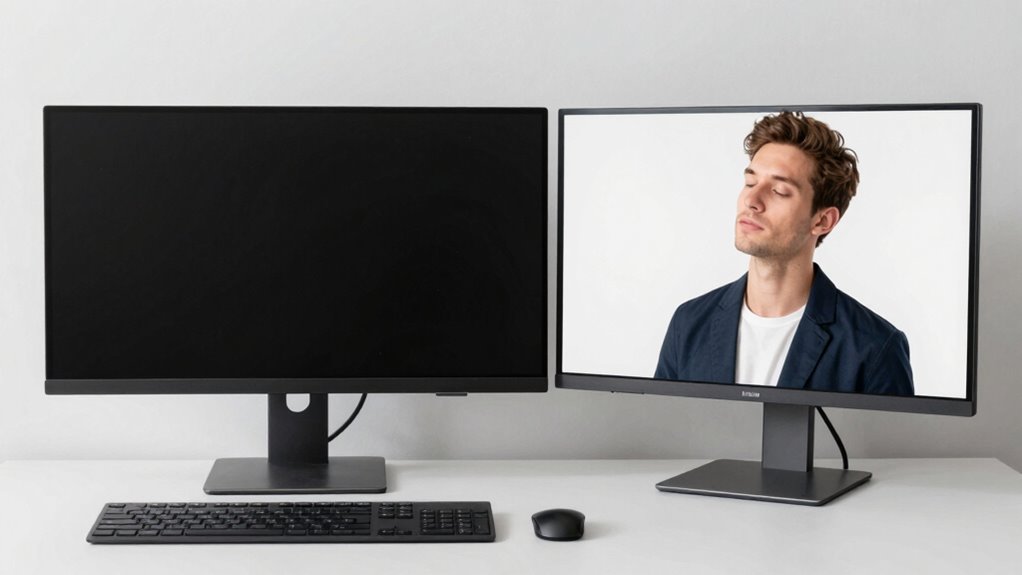
To set up your dual monitors correctly, start by measuring your workspace to guarantee everything fits comfortably. Begin with your desk dimensions—ensure it’s wide enough for both monitors and your essentials. Adjust your chair height so your feet rest flat and your knees are at a 90-degree angle. Use a tape measure to check the space between your monitors and your seating position, making sure you have enough room to move freely without feeling cramped. Here’s a quick guide to help visualize your setup:
| Aspect | Measurement Tips | Ideal Range |
|---|---|---|
| Desk Dimensions | Measure width and depth | Enough for monitors + accessories |
| Chair Height | Adjust so feet rest flat | Knee at 90°, thighs parallel to floor |
| Monitor Spacing | Distance between monitors | Shoulder-width apart |
Additionally, consider ergonomic principles to optimize your monitor placement for neck comfort and focus. Proper monitor height can also help reduce neck strain. Ensuring proper posture alignment can further reduce strain and improve your overall workspace ergonomics. Incorporating adjustable monitor stands can help achieve optimal height and angle for sustained comfort throughout the day. Being mindful of visual ergonomics will help you maintain focus and reduce eye fatigue during long work sessions.
As an affiliate, we earn on qualifying purchases.
What Is the Ideal Height and Distance for Your Monitors?
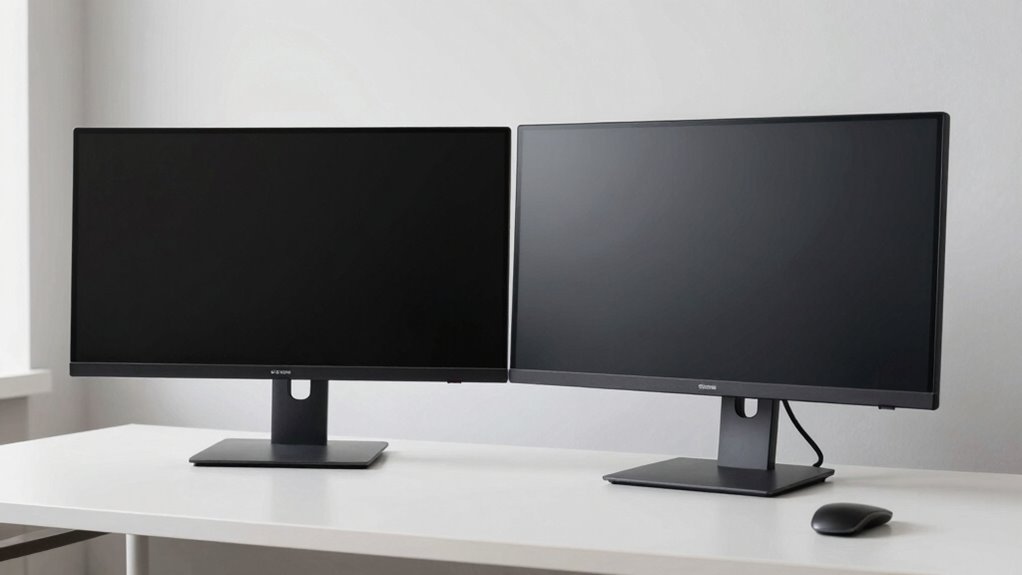
Finding the right height and distance for your monitors is essential to prevent strain and boost comfort. Your monitor height should place the top of the screen at or slightly below eye level, so you avoid tilting your head up or down. This helps maintain a neutral neck position. The monitor distance should be about an arm’s length away, typically 20 to 30 inches, to reduce eye strain and make viewing comfortable. Keep the monitors directly in front of you to prevent unnecessary head turning. Adjust the height and distance until you feel relaxed and can view the screens without effort. Proper monitor placement minimizes neck and eye strain, allowing you to focus more comfortably on your work. Additionally, maintaining ergonomic alignment can further enhance comfort and reduce discomfort during extended periods of screen use. Ensuring your setup includes mount leveling kits can help achieve precise positioning and further improve ergonomic alignment. Regularly adjusting your monitor setup can also help prevent long-term discomfort and promote better posture. Incorporating proper ergonomic techniques during setup can lead to sustained comfort over time, especially when considering workplace ergonomics principles to optimize your overall workspace.
dual monitor mount for ergonomic setup
As an affiliate, we earn on qualifying purchases.
As an affiliate, we earn on qualifying purchases.
How to Position Monitors for Better Posture and Less Strain
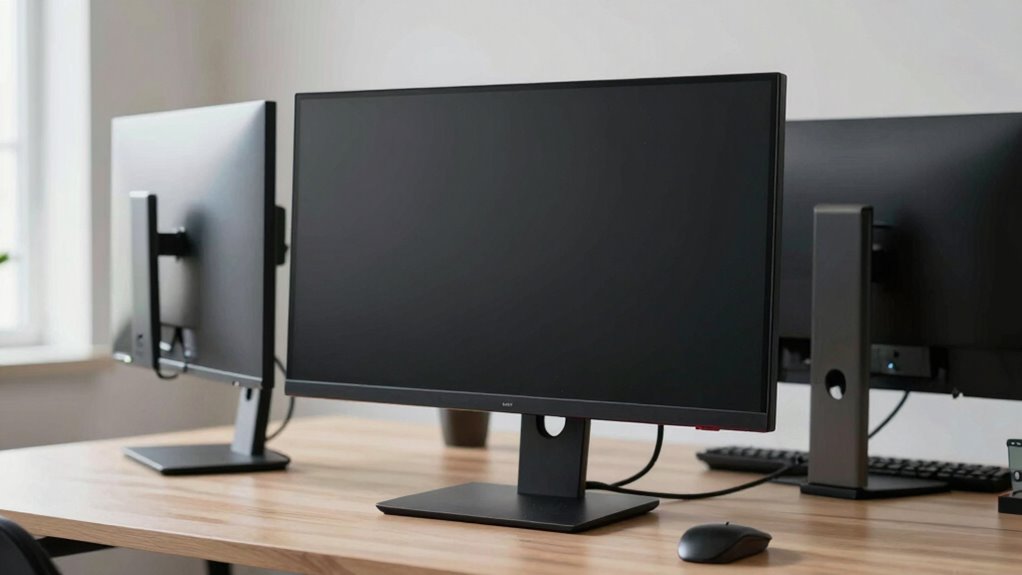
To improve your posture and reduce strain, you need to position your monitors correctly. Ensuring the screens are at the right height, distance, and alignment helps you stay comfortable during long work sessions. Let’s explore how to optimize each of these points for better ergonomics. Additionally, considering proper monitor placement can prevent issues like neck pain and fatigue, much like how the right flywheel and engine upgrades enhance vehicle performance.
Ideal Monitor Height
Position your monitor so that the top of the screen is roughly at eye level, ensuring you don’t have to tilt your head up or down. This helps maintain a neutral neck position, reducing strain. The ideal monitor height aligns the screen with your eye level, preventing you from looking too high or low. To visualize this, consider the following:
| Monitor Height | Posture Effect |
|---|---|
| At eye level | Keeps neck neutral |
| Slightly below | Reduces upward tilt |
| Slightly above | Prevents downward tilt |
| Too high | Strains neck and shoulders |
Keeping your monitor at the right height enhances comfort and focus, supporting better posture throughout your workday. Additionally, choosing the appropriate monitor type can further improve ergonomic alignment and reduce fatigue. Proper monitor placement is essential for maintaining long-term neck health and comfort. Ensuring your ergonomic setup includes proper monitor placement is essential for long-term neck health.
Optimal Monitor Distance
Ensuring your monitors are at the ideal distance from your eyes can greatly reduce eye strain and improve overall comfort. Position your screens about an arm’s length away, roughly 20 to 30 inches, so you don’t have to lean forward or strain your neck. Keep your ergonomic lighting in mind—avoid glare and reflections by adjusting ambient light and monitor placement. Your desk height plays a role too; your monitors should be slightly below eye level, allowing your neck to stay relaxed. This setup minimizes muscle tension and encourages good posture. Regularly check that your monitors aren’t too close or too far, as both can cause discomfort over time. Proper distance ensures you maintain focus without unnecessary strain, making your workspace more comfortable and efficient. Additionally, incorporating wall art trends, such as digital frames or interactive murals, can create a more stimulating environment that promotes focus and reduces fatigue over long periods. Maintaining an appropriate monitor placement also helps prevent long-term musculoskeletal issues and enhances your overall workspace ergonomics. Being mindful of digital literacy in your setup can also encourage healthier screen habits and improve overall productivity. Proper ergonomic adjustments, including monitor height and angle, are essential for preventing discomfort and supporting long-term health. Remember that adjustable monitor stands can help you fine-tune your monitor height and angle for optimal comfort.
Proper Screen Alignment
Proper screen alignment is key to maintaining good posture and reducing strain during long work sessions. You should position your monitors so that the top of the screens are at or just below eye level, minimizing neck tilt. Keep the monitors directly in front of you to avoid twisting your neck or torso. Adjust the monitor tilt to reduce screen glare and reflections, which can cause eye strain and discomfort. Confirm both screens are at an equal height and angle to promote a natural, relaxed viewing posture. Proper alignment decreases the need to crane your neck or lean forward, helping you stay comfortable and focused. Regularly check and tweak your monitor positions to maintain ideal screen alignment throughout your workday.
Arranging Your Monitors to Maximize Focus and Workflow
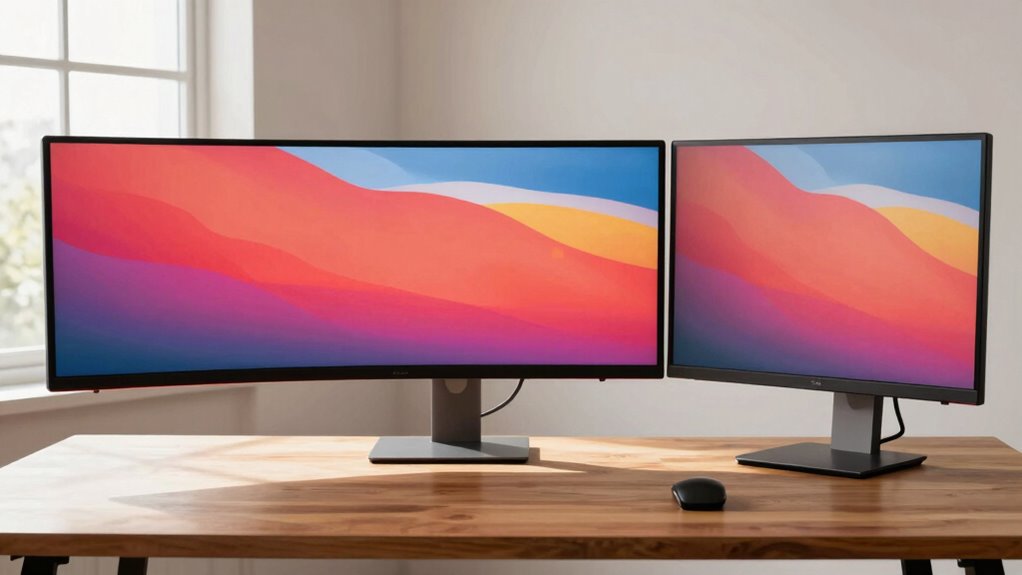
To maximize focus and streamline your workflow, arranging your monitors thoughtfully is essential. Position your primary monitor directly in front of you at eye level, ensuring your ergonomic chair supports a comfortable posture. Place your secondary monitor slightly to the side, angled toward you to minimize neck strain. Keep your keyboard centered and close to your body, with your monitors aligned to reduce head turning. This setup helps you switch focus smoothly between screens without unnecessary movement. Maintain consistent height and distance for both monitors to prevent eye fatigue. Additionally, incorporating cultural awareness into your workspace can promote a sense of well-being and connection to Indigenous wellness principles. Being mindful of ergonomic principles when setting up your monitors can further enhance comfort and prevent strain. By optimizing monitor placement relative to your ergonomic chair and keyboard, you create a workspace that promotes better concentration, reduces discomfort, and enhances overall productivity.
Ergonomic Accessories That Help Improve Monitor Positioning
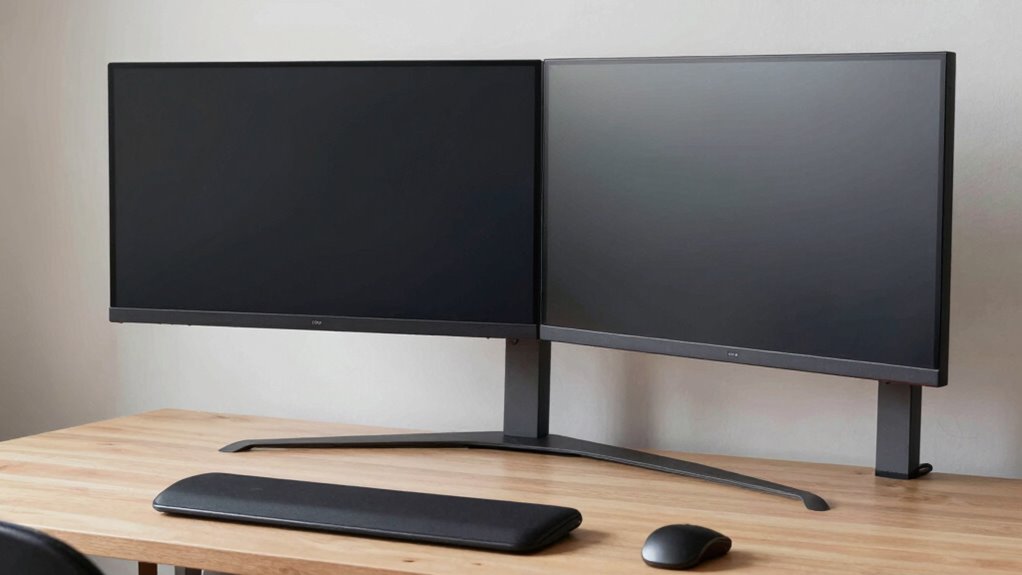
Ergonomic accessories can substantially enhance your monitor positioning by allowing for precise adjustments and better support. Using the right monitor accessories, you can reduce neck strain and improve focus. First, adjustable monitor arms let you fine-tune height, tilt, and distance easily. Second, ergonomic cushions provide added comfort and help position your monitors at the ideal eye level, reducing neck tension. Third, monitor stands with height-adjustable platforms enable quick customization for different setups. These accessories ensure your monitors stay aligned and at the correct angle, supporting healthy posture. Incorporating these tools into your workspace makes it easier to maintain proper ergonomic habits, ultimately boosting comfort and productivity during long work sessions.
Common Mistakes to Avoid When Setting Up Dual Monitors
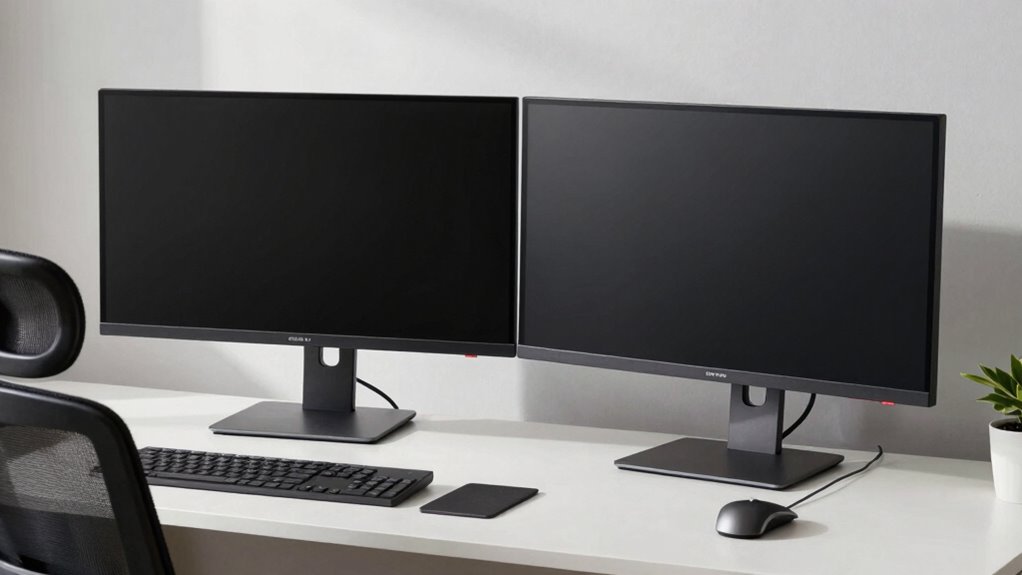
When setting up dual monitors, it’s easy to make mistakes that can strain your neck, eyes, or back. One common error is neglecting proper monitor calibration, which can cause uneven brightness or color differences, leading to eye fatigue. Avoid placing monitors too far apart or at mismatched heights, as this forces awkward neck positions. Poor cable management can create clutter, making it harder to position monitors correctly and increasing the risk of accidental tugs or falls. Don’t overlook the importance of aligning the top of both screens at eye level; misalignment can cause neck strain over time. Failing to address these issues can lead to discomfort and decreased focus. Proper calibration and tidy cable management are simple but essential steps to prevent these common setup mistakes.
Tips for Adjusting Your Dual Monitor Setup Over Time
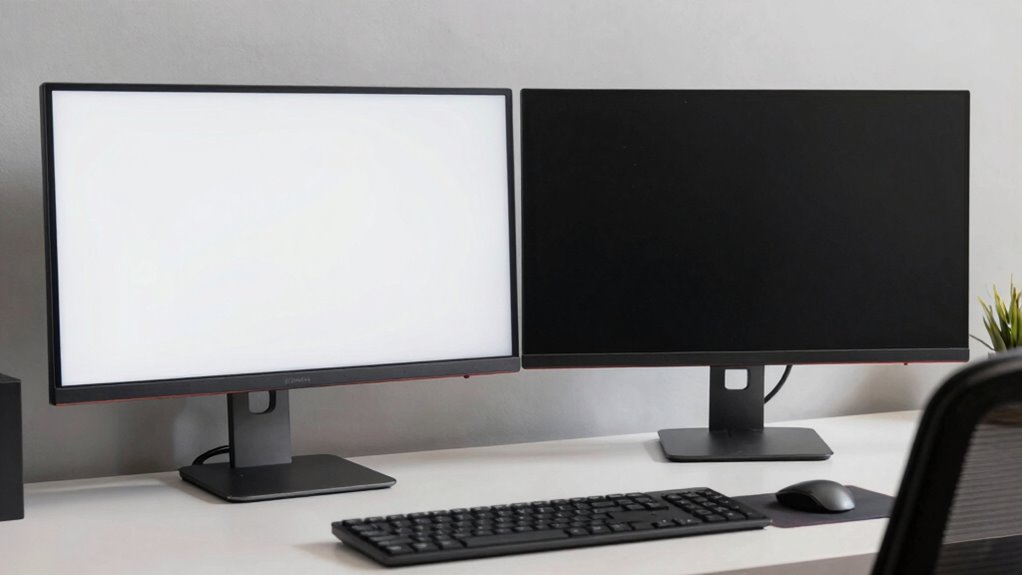
To keep your dual monitor setup comfortable, regularly check their positions to avoid strain. Adjust the monitors as your work habits and visual needs change over time. Making these small tweaks can substantially improve your overall comfort and productivity.
Regular Monitor Position Checks
Regularly checking your monitor positions guarantees your setup stays comfortable and efficient. Over time, small shifts can cause neck strain or eye fatigue. To stay on top of your setup:
- Perform eye exercises daily to reduce strain and identify if your monitors are causing discomfort.
- Adjust your chair ergonomics, ensuring your seat height and back support promote proper posture.
- Reassess monitor height and distance; your screens should be at eye level and about an arm’s length away.
Adjust For Visual Comfort
As you continue using your dual monitors, making small adjustments over time can considerably improve your visual comfort. Regularly evaluate your setup to minimize screen glare and optimize ergonomic lighting. Adjust monitor heights and angles to match your eye level, reducing strain. Use adjustable lighting to prevent reflections and harsh shadows. Consider the table below for effective tweaks:
| Adjustment | Purpose | Tips |
|---|---|---|
| Monitor tilt | Reduce glare and eye strain | Tilt screens to minimize reflections |
| Lighting placement | Improve ergonomic lighting | Use diffused, indirect light |
| Screen brightness | Match ambient light | Adjust brightness to avoid contrast issues |
Small, consistent changes make a big difference in visual comfort and focus.
Additional Ergonomic Tips for Keeping Your Neck Healthy While Working
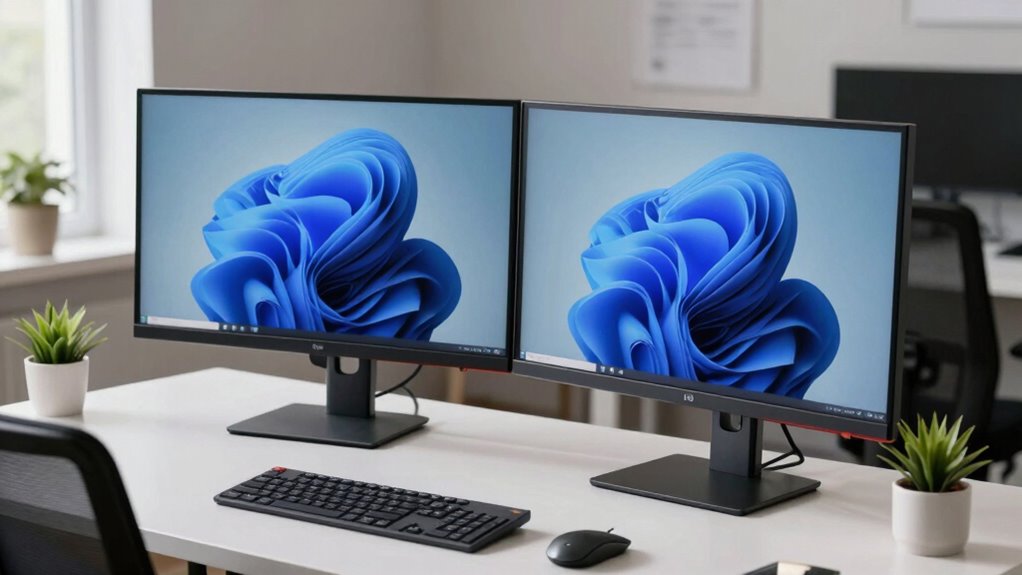
Maintaining proper neck health while working requires more than just good monitor placement; it also involves mindful ergonomic habits. Incorporate these tips to stay comfortable and prevent strain:
- Do regular neck stretches throughout the day, gently tilting your head side to side and rotating your neck to loosen tight muscles.
- Practice eye exercises to reduce eye strain, which can lead to unnecessary neck tension, by focusing on distant objects or blinking frequently.
- Take short breaks every 30 minutes to stand, move around, and reset your posture, ensuring your neck stays relaxed and aligned.
Frequently Asked Questions
How Can I Reduce Glare on Dual Monitors Effectively?
To reduce glare on your dual monitors, start by adjusting their angles and positions to minimize reflections. Use anti-glare screens or monitor hoods to block out excess light. Additionally, control ambient lighting by dimming or repositioning lamps and windows. These steps help prevent glare from straining your eyes and improve focus, creating a more comfortable workspace. Regularly clean your screens to prevent dust buildup that can cause additional glare.
What Are the Best Monitor Types for Ergonomic Setup?
Imagine your workspace as a well-tuned orchestra—your monitors are the instruments. Opt for an adjustable monitor height and size to harmonize with your vision, reducing strain and boosting focus. Look for models with ergonomic features like tilt, swivel, and height adjustability. These monitors cradle your neck comfortably and adapt to your needs, transforming your workspace into a symphony of productivity and comfort.
How Often Should I Adjust My Monitor Positions?
You should adjust your monitor positions whenever you notice discomfort or your monitor height and alignment aren’t ideal. Ideally, check your monitor setup at least once a week and make small tweaks to maintain eye level and proper alignment. If you change your seating or workspace, reassess more frequently. Consistent adjustments help prevent neck strain and keep your focus sharp while working.
Are There Specific Chair Adjustments Needed for Dual Monitor Use?
You need to fine-tune your ergonomic chair for superior dual monitor use. Adjust your chair to guarantee your feet are flat on the floor and your knees are at a 90-degree angle. Then, set your monitor height so your eyes are level with the top of the screens. This simple tweak can prevent neck strain and keep your focus sharp, revealing the secret to all-day comfort.
How Do I Prevent Eye Strain With Multiple Screens?
To prevent eye strain with multiple screens, you should regularly practice eye exercises like focusing on distant objects and blinking often. Adjust your screen brightness to match your ambient lighting, avoiding glare and harsh contrast. Take frequent breaks using the 20-20-20 rule: every 20 minutes, look at something 20 feet away for at least 20 seconds. These habits help reduce eye fatigue and keep your vision comfortable.
Conclusion
Think of your workspace as a well-tuned orchestra, where each monitor plays a essential role. When you position them correctly, your neck stays in harmony, and your focus flows seamlessly like a gentle river. Avoid the discord of strain and discomfort by following these rules, turning your dual monitors into a symphony of comfort and productivity. With mindful placement, you’ll keep your neck healthy and your mind sharp—your perfect work rhythm.
Halloween Picks
halloween
As an affiliate, we earn on qualifying purchases.