
TL;DR

Get the latest gadgets delivered free with Prime
- Fast, free delivery on millions of items
- Prime Video, Amazon Music and more included
- Member-only deals all year
An XDA Developers contributor found an old HDMI cable limited an ultrawide monitor to 60Hz, while the monitor’s bundled cable allowed 100Hz. Cable capability is only one possible cause: Windows settings and the monitor’s port can also cap refresh rates.
An older HDMI cable kept an Alienware AW3423DW ultrawide monitor at 60Hz until an XDA Developers contributor replaced it with the cable supplied with the display, which restored the option to run at 100Hz. The account highlights a practical cause of missing high-refresh-rate options, while also noting that Windows settings and monitor-port limits can produce similar symptoms.
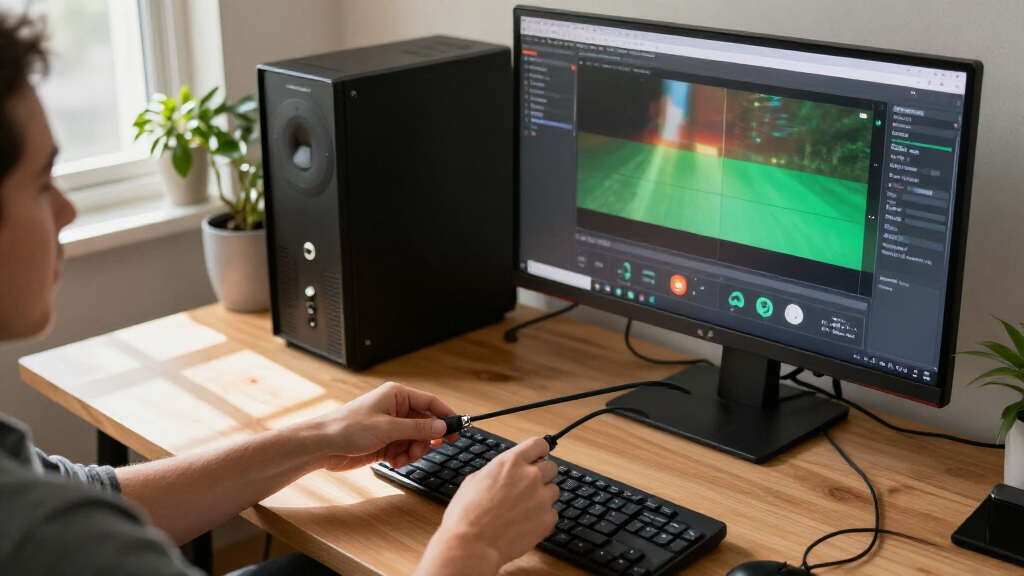
The contributor had moved the AW3423DW to secondary-monitor duty and connected it to an RTX 4090 using an old HDMI cable from a drawer. The cable’s sleeve said “High Speed,” but Windows offered no option above 60Hz. The contributor had expected HDMI to limit the monitor to 100Hz, rather than the 175Hz available through the DisplayPort connection previously used, but the display could not reach that expected rate with the old cable.
According to the XDA account, the cable was rated for up to 10.2Gbps, a bandwidth level associated with HDMI 1.4-era cabling. The contributor says it did not have enough capacity for the display’s 3440-by-1440 resolution at 100Hz. Replacing it with the monitor’s bundled HDMI cable, rated for up to 18Gbps, made 100Hz selectable in Windows without other changes.
The reported test involved one setup, so it does not establish that an old cable is the cause whenever a monitor is stuck at 60Hz. XDA also notes that Windows may default to 60Hz and that the display’s HDMI port may impose a ceiling. A higher-rated cable cannot override those limits.
Could Your HDMI Cable Be Keeping Your Monitor at 60Hz?
An XDA Developers contributor found that replacing an older cable restored the 100Hz option on an ultrawide monitor. Cable, port, and Windows settings can all affect the available refresh rate.
What changed in the reported test
The same monitor and setup offered a higher refresh rate after a cable swap.
- Rated up to 10.2Gbps
- Windows offered up to 60Hz
- Rated up to 18Gbps
- 100Hz became selectable
Cable ratings in context
Higher ratings can support more demanding display modes, when the rest of the connection supports them too.
Check the whole connection
The account describes one setup; a cable swap is not a diagnosis for every 60Hz cap.
See whether a faster refresh rate is available but not selected.
Check the specific HDMI port’s limit for your resolution.
Compare it with the bandwidth needed for your target mode.
Why a 60Hz Cap Can Be Misleading
A monitor connected at 60Hz may still display an image normally, which can make a bandwidth restriction easy to miss. Someone accustomed to 60Hz may not immediately notice that a higher refresh rate is unavailable; a user expecting smoother motion can instead spend time troubleshooting the wrong part of the setup. Checking the cable’s rating is a relatively simple step before buying a replacement monitor or assuming the display is faulty.
The practical point is that resolution and refresh rate both affect bandwidth needs. A cable that works without problems at 1080p and 60Hz may not support a higher-resolution display at a much faster refresh rate. But the rating alone is not a guarantee that the whole system can reach a target mode: the graphics card connection, monitor port, display settings and cable all need to support it.
That distinction matters when shopping, too. Buying a 48Gbps Ultra High Speed HDMI cable may be appropriate for a compatible high-bandwidth setup, but it will not make a port capable of a refresh rate its hardware does not support. The useful troubleshooting goal is to identify the limiting link rather than assume every missing refresh-rate option calls for a new cable.
Products Worth Considering
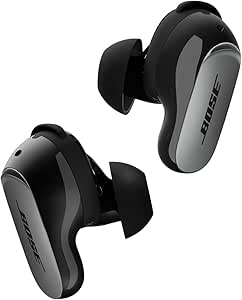
Bose QuietComfort Ultra Earbuds (2nd Gen) – Wireless Noise‑Cancelling Earbuds with Mic, Immersive Audio, USB‑C Charging, Up to 6 Hours Batte

Amazon Kindle Scribe (64GB) with Premium Pen, Metallic Jade

LG UltraGear 32GS60QC-B 32-inch Curved QHD Gaming Monitor (180Hz, 1ms, 1000R, AMD FreeSync, HDR10)
As an affiliate, we earn on qualifying purchases.
The Cable Ratings Behind the Test
HDMI cable labels can be confusing because the words printed on a cable do not necessarily mean it supports the latest displays. In the account, High Speed referred to a cable rated up to 10.2Gbps; a Premium High Speed cable is rated up to 18Gbps. XDA says the latter was enough for the AW3423DW’s HDMI 2.0 connection to offer the expected 100Hz at its ultrawide resolution.
The article describes Ultra High Speed HDMI cables as rated up to 48Gbps and says they are needed to take full advantage of HDMI 2.1 ports for demanding modes such as 4K at 144Hz. Those figures describe cable bandwidth ratings, not a promise that any monitor connected with that cable will support a particular resolution and refresh rate. The monitor and graphics hardware must support the mode as well.
The contributor’s newer Alienware AW2725DF illustrates that caveat. Although it has an HDMI 2.1 port, the account says that port supports up to 144Hz at 1440p because the monitor uses TMDS signaling rather than FRL. The contributor uses DisplayPort to reach 360Hz. In other words, an HDMI version label alone may not tell the whole story about the modes available on a specific display.
““High Speed””
— XDA Developers contributor
What Could Still Limit Refresh Rate
The account describes one monitor, one graphics card and a specific cable swap; it does not show that the same cable rating will produce the same result on every display. The precise limit depends on the monitor’s supported modes and port implementation, as well as the connected hardware and settings. The article does not provide independent testing across cable models or manufacturers.
It is also not clear from the account whether every setup that offers only 60Hz is being limited by bandwidth. XDA says Windows can select 60Hz by default, and a monitor port may support a lower maximum than the display’s DisplayPort connection. Before blaming a cable, users need to check the selected Windows refresh rate and the exact capabilities of the port they are using.
Checks Before Replacing a Cable
For a display that appears stuck at 60Hz, first check Windows display settings to see whether a faster refresh rate is available but simply not selected. Then confirm the monitor’s stated limit for the specific HDMI port and resolution. If those checks do not explain the cap, compare the cable’s printed rating with the bandwidth needed for the target mode, or test with a suitable cable already known to work.
XDA’s account does not announce a product change or a broader investigation. Its practical takeaway is to match the cable to the display mode, while remembering that a cable swap cannot bypass a port limit. Anyone considering an upgrade should check the monitor maker’s specifications for the intended connection and refresh rate, rather than relying on the cable label alone.
Key Questions
Can an old HDMI cable keep a monitor at 60Hz?
Yes. In the XDA account, an older cable rated for up to 10.2Gbps left a 3440-by-1440 monitor at 60Hz, while the bundled 18Gbps cable allowed 100Hz. Other causes are possible, so this is not a diagnosis for every setup.
Does a monitor showing a picture mean the cable is fast enough?
No. A cable can carry a signal at one mode while lacking the bandwidth for a higher resolution or refresh rate. A working picture does not by itself confirm that the connection is using the display’s fastest available mode.
What should I check if Windows only offers 60Hz?
Check whether a faster rate is available in Windows display settings, confirm the maximum rate supported by the monitor’s specific port, and review the cable’s rating. Testing with a suitable cable can help isolate whether the cable is the limiting component.
Will an Ultra High Speed HDMI cable guarantee 4K at 144Hz?
No. XDA describes Ultra High Speed cables as rated up to 48Gbps, but the monitor, its HDMI port and the graphics hardware must also support 4K at 144Hz. A cable cannot raise the limit of another component.
Source: XDA Developers