To fix Bluetooth dropouts without replacing devices, start by keeping your gadgets close and removing physical barriers like walls or metal objects. Update your device firmware and Bluetooth drivers, and reset and re-pair your devices to clear glitches. Reduce interference by moving away from Wi-Fi routers and other electronics, and optimize power and Bluetooth settings for stability. Adjusting connection modes and testing different channels can also help. Explore these steps further to achieve a more reliable Bluetooth experience.
Key Takeaways
- Keep devices within 33 feet and minimize physical barriers to strengthen Bluetooth signals.
- Perform device resets and re-pair devices to clear glitches and improve stability.
- Update device firmware and software regularly to fix bugs and enhance compatibility.
- Reduce interference by keeping Bluetooth devices away from Wi-Fi routers, microwaves, and crowded environments.
- Switch Bluetooth modes or channels to optimize connection stability without replacing hardware.

TP-Link USB Bluetooth Adapter for PC, Bluetooth 5.3 Long Range Receiver, Plug and Play, Adjustable Antenna, Supports Windows 11/10/8.1/7 for Desktop, Laptop, Keyboard, Mouse, etc (UB500 Plus)
𝐁𝐥𝐮𝐞𝐭𝐨𝐨𝐭𝐡 𝟓.𝟑 𝐒𝐮𝐩𝐩𝐨r𝐭 – Applies the latest Bluetooth 5.3 plus EDR technology and is backward compatible with Bluetooth…
As an affiliate, we earn on qualifying purchases.
As an affiliate, we earn on qualifying purchases.
Why Do Bluetooth Devices Drop Out and How Can I Fix It?
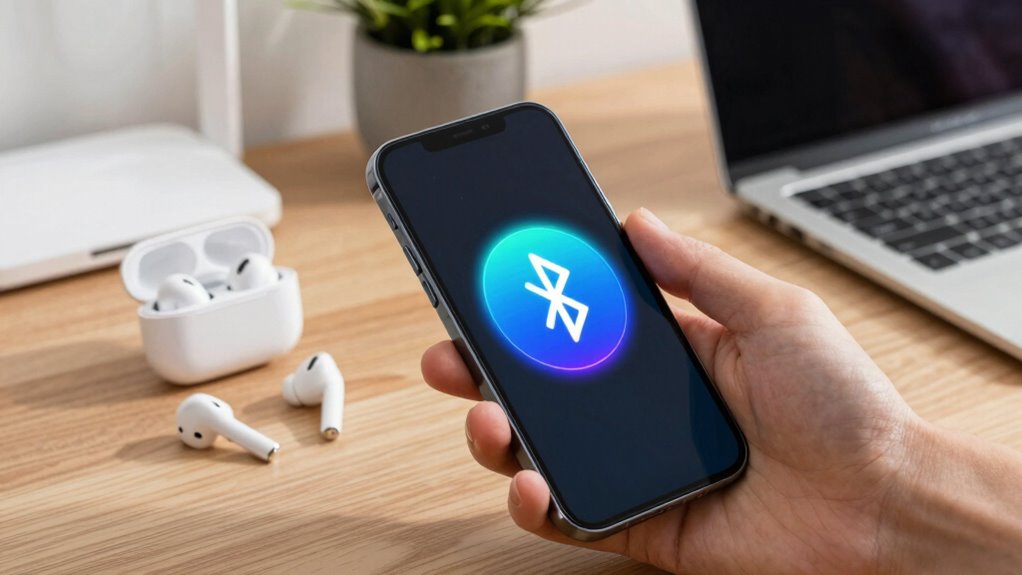
Bluetooth devices drop out for several reasons, often related to interference, distance, or signal obstructions. One common cause is weak Bluetooth signal strength, which occurs when you’re too far from the device or there’s interference from other wireless gadgets. Poor signal strength can lead to frequent dropouts and connection instability. Device pairing issues also play a role; if your devices aren’t properly paired or the connection isn’t stable, dropouts become more likely. To fix this, confirm you’re within the ideal range—usually about 33 feet—and minimize obstacles like walls or metal objects between devices. Resetting the Bluetooth connection or repairing the devices can also improve pairing stability and strengthen the signal, reducing dropout frequency and keeping your devices connected reliably. Additionally, understanding Bluetooth technology can help you troubleshoot and optimize your device setup for more stable connections. Being aware of wireless interference sources nearby, such as Wi-Fi routers or microwaves, can also help you prevent dropouts by adjusting your device placement. Recognizing common interference sources can significantly improve your connection stability, especially when considering the impact of radio frequency congestion in your environment. Furthermore, choosing devices with better signal processing capabilities can help maintain a stronger and more consistent connection.

BlueDriver Bluetooth Pro OBDII Scan Tool for iPhone & Android – No Subscription Fee – OBD2 Car Scanner and Code Reader – Diagnose Check Engine, ABS, SRS, Airbag & 7000+ Issues on Vehicles 1996+
[Pro OBD2 Scanner] – BlueDriver is the easiest way to scan and understand your vehicle like a professional…
As an affiliate, we earn on qualifying purchases.
As an affiliate, we earn on qualifying purchases.
Update Your Bluetooth Drivers to Prevent Dropouts
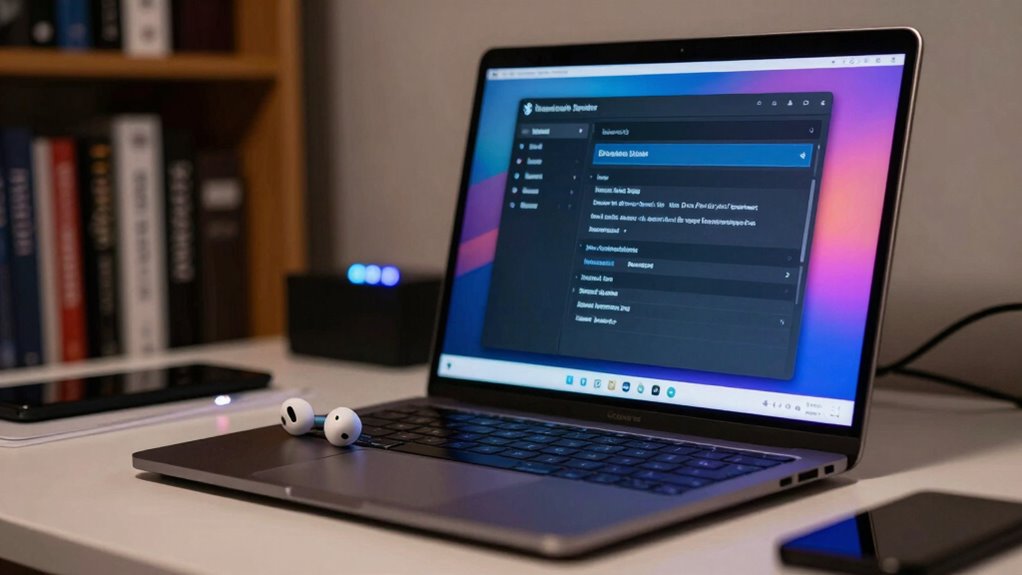
Outdated or faulty drivers can cause connection issues and lead to frequent dropouts. When your Bluetooth drivers aren’t up to date, it can disrupt the Bluetooth pairing process, making it harder to maintain a stable connection. To fix this, check for driver updates through your device’s device manager or manufacturer’s website. Updating your Bluetooth drivers ensures you have the latest features and bug fixes that improve stability and compatibility. After installing the latest driver updates, restart your device and reconnect your Bluetooth devices. This simple step often resolves dropout problems caused by driver-related issues, providing a more reliable Bluetooth connection. Keeping your drivers current is an essential part of maintaining a smooth, consistent Bluetooth experience without needing to replace any hardware. Additionally, understanding the importance of driver updates in electric bikes can help improve overall device performance and connectivity stability. Regularly updating drivers can also prevent connection interruptions caused by outdated software components.

Volam 11'' Wireless Carplay Screen for Car Built-in Net-Flix YouTube Apps, Portable Touchscreen Car Stereo with Android Auto, Backup Camera, OTA Updates, Bluetooth, Voice Control, GPS Navigation,FM
【11" CarPlay Screen with Net-flix & YouTube Apps】Turn your car into the ultimate entertainment hub. Built-in Net-flix and…
As an affiliate, we earn on qualifying purchases.
As an affiliate, we earn on qualifying purchases.
Reduce Wireless Interference for a More Stable Connection
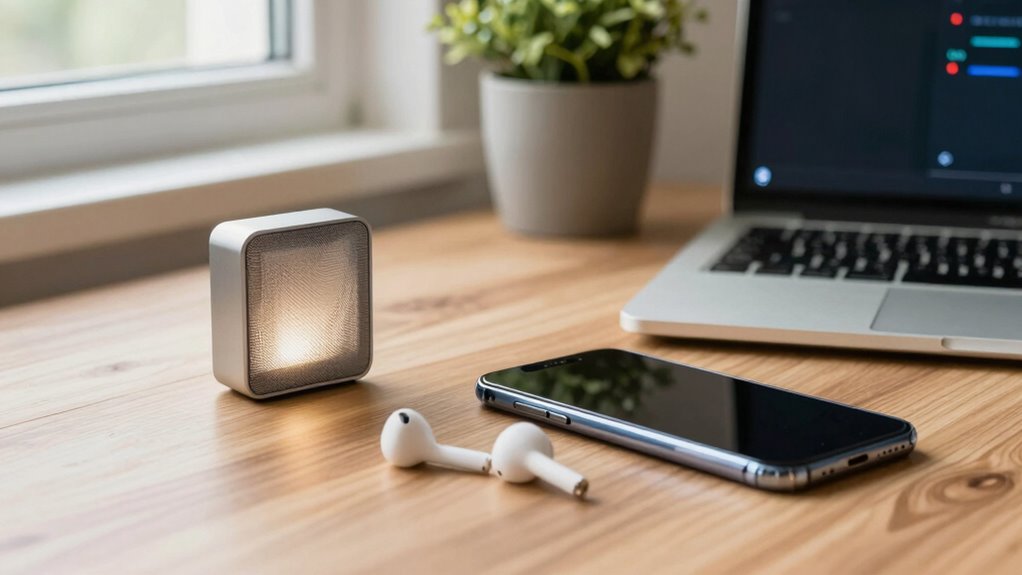
Reduce Wireless Interference for a More Stable Connection. To improve your Bluetooth connection, start by reducing Wi-Fi congestion around your devices. Keep your Bluetooth gadgets away from other wireless electronics and routers to minimize interference. Additionally, choose interference-free channels to guarantee a more stable and reliable connection. Proper gear maintenance can also help ensure your devices function optimally and maintain a strong signal. Being aware of pollution impact on wireless signals can further assist in optimizing your setup for better performance. Ensuring your smart lock or office gear is compatible with your environment can also help prevent connectivity issues. Regularly checking your wireless environment can reveal sources of interference you might not have considered. Maintaining device firmware updates can also help prevent connectivity issues caused by outdated software.
Minimize Wi-Fi Congestion
Have you noticed your Bluetooth device dropping connections more often when your Wi-Fi is active? Wi-Fi congestion can cause channel interference, weakening signal strength and disrupting Bluetooth stability. To minimize this, switch your Wi-Fi to less crowded channels. Use your router’s settings or apps to identify ideal channels. Also, consider moving your router to a central location to improve overall signal strength. Reducing Wi-Fi congestion helps prevent interference that overlaps with Bluetooth’s frequency, resulting in a more reliable connection. Additionally, being aware of wireless interference sources can help you better optimize your setup. Understanding radio frequency overlap can further assist in troubleshooting connectivity issues. Furthermore, selecting appropriate channels can significantly decrease the likelihood of signal interference. Being mindful of wireless spectrum usage can also contribute to a more stable Bluetooth experience. For example, recognizing the impact of frequency overlap on device performance can guide better setup choices. Here’s a quick overview:
| Wi-Fi Channel | Interference Level |
|---|---|
| 1 | High |
| 6 | Moderate |
| 11 | Low |
| 36 | Minimal |
Adjusting these settings can considerably improve Bluetooth stability.
Keep Devices Apart
Keeping your Bluetooth devices apart is essential for reducing wireless interference and ensuring a stable connection. Proper device placement helps minimize signal conflicts caused by overlapping frequencies. Maintain at least a few feet of device separation to prevent signals from competing or causing dropouts. Avoid stacking devices or placing them too close on the same surface, as this can increase interference. Instead, position your Bluetooth gadgets with some space between them, especially if they operate on similar channels. This simple step reduces the chances of signal clashes and improves overall stability. Additionally, being aware of wireless interference sources can help you better manage your device setup for optimal performance. Recognizing market manipulation patterns can also help you stay informed about potential disruptions in wireless device performance caused by external factors. Monitoring device placement strategies can further enhance your Bluetooth connection reliability and prevent dropouts. Paying attention to signal strength and adjusting device positions accordingly can make a significant difference in maintaining a steady connection.
Use Interference-Free Channels
Interference from other wireless devices can disrupt your Bluetooth connection, causing dropouts and lag. To improve signal clarity, switch your Bluetooth devices to interference-free channels. Many modern devices automatically select the best channel, but you can manually change the settings on some devices or routers to avoid crowded frequencies. Using interference-free channels reduces interference from Wi-Fi networks, microwaves, and other wireless gadgets, ensuring a more stable connection. You can also manage wireless channels on your router to further optimize performance. This is especially important when choosing devices with suitable capacity and watt-hours for your needs. Checking your device’s settings or firmware updates can help you identify and select ideal channels. Additionally, understanding wireless spectrum allocation can help you better optimize your network environment. By actively managing channel selection, you create a more stable environment for your Bluetooth devices, reducing dropouts and maintaining a smoother connection. Incorporating interference mitigation techniques can further enhance connection reliability in busy wireless environments. Moreover, using quality of service (QoS) settings can prioritize Bluetooth traffic to improve stability.

UCandy Faraday Fabric, 43" × 100" Faraday Fabric EMP Proof Military Grade, Faraday Cloth can Block Cellular Signals,WiFi, Bluetooth, GPS, and RF Signals and electromagnetic Interference
Efficient Protection: UCandy Faraday fabric, made with copper, nickel, and polyester fibers, effectively blocks 99% of wireless frequencies,…
As an affiliate, we earn on qualifying purchases.
As an affiliate, we earn on qualifying purchases.
Reset Bluetooth Devices and Re-Pair Them to Fix Dropouts
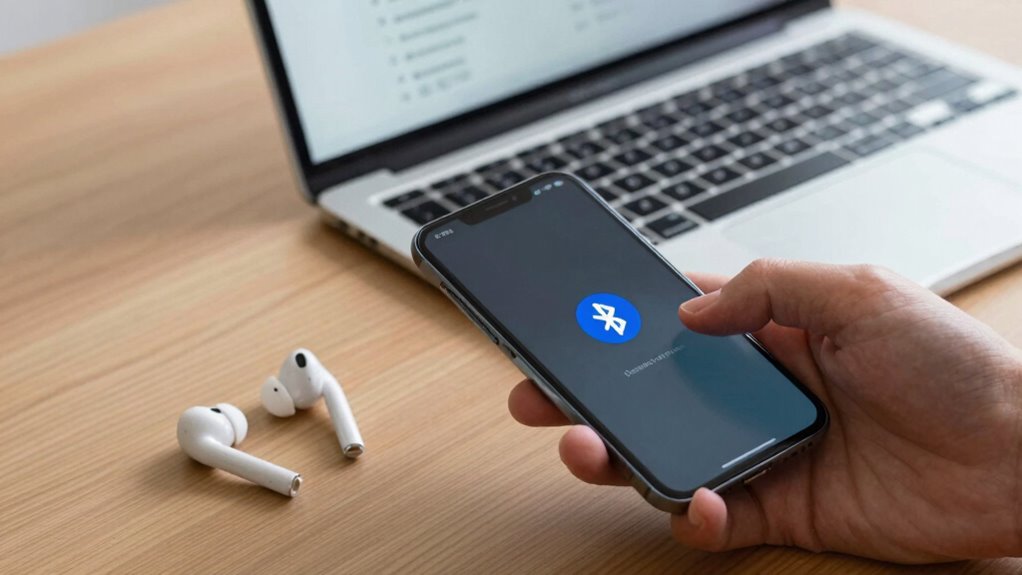
Resetting your Bluetooth devices and re-pairing them often resolves dropouts by establishing a fresh connection. Start by performing a device reset, which clears current settings and resolves minor glitches. Once reset, remove the device from your Bluetooth list on your phone or computer. Then, put the device back into pairing mode and reconnect it. During Bluetooth pairing, ensure no other devices interfere and that both devices are close together. Re-pairing refreshes the connection, often fixing stability issues caused by outdated or corrupted data. This simple step can eliminate dropout problems without needing hardware replacements. Remember, a proper device reset followed by re-pairing creates a clean, secure link, markedly improving Bluetooth performance and ensuring a more stable audio or data transfer.
Optimize Power Settings on Your Devices for Better Bluetooth Stability
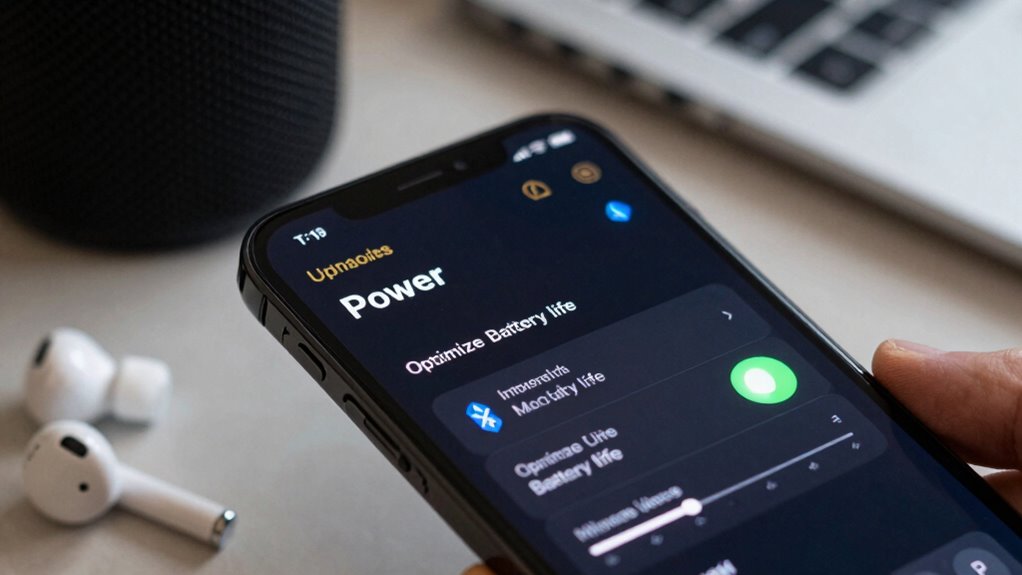
To improve Bluetooth stability, you should start by adjusting your device’s power saving modes to prevent it from shutting down Bluetooth functions. Disable any unnecessary features that might interfere with Bluetooth connections, and make sure your devices stay charged, especially during use. These simple steps can considerably reduce dropouts and keep your connections steady.
Adjust Power Saving Modes
Since power saving modes can sometimes interfere with Bluetooth performance, adjusting these settings can considerably improve stability. Many devices prioritize battery optimization by reducing background activity, which may disable or limit Bluetooth connections during sleep mode. To fix this, access your device’s power settings and disable or modify sleep mode options that restrict Bluetooth activity. Turning off aggressive power-saving features guarantees Bluetooth remains active and stable, especially during long calls or streaming. Avoid setting your device to maximize battery life at the expense of Bluetooth performance. Instead, find a balanced power mode that maintains connectivity without draining your battery unnecessarily. Properly managing these settings prevents your device from entering low-power states that interrupt Bluetooth signals, ensuring a more reliable connection.
Disable Unnecessary Features
Disabling unnecessary features on your device can considerably enhance Bluetooth stability by reducing background activity that may interfere with connections. Features like location services, Wi-Fi scanning, or automatic app updates can cause interference during device pairing or while maintaining Bluetooth profiles. Turning these off guarantees your device isn’t constantly switching between multiple tasks that disrupt Bluetooth signals. Additionally, some devices have settings that optimize power usage, which may limit Bluetooth performance. By disabling or adjusting these features, you minimize potential conflicts and improve connection consistency. Remember, maintaining a clean Bluetooth environment helps prevent dropouts and ensures smoother communication between your devices. Focus on limiting background processes so your Bluetooth connection remains stable and reliable.
Keep Devices Charged
Ensuring your devices are properly charged and optimizing their power settings can substantially improve Bluetooth stability. When your device’s battery health declines, it may reduce performance, causing dropouts. Keep your device well-charged to maintain consistent Bluetooth connections. Also, pay attention to device positioning; keep your device and Bluetooth source within a reasonable range and avoid low battery states that might limit functionality.
To optimize power settings:
- Turn off power-saving modes that limit Bluetooth activity
- Keep your device charged above 20% for stable performance
- Adjust device positioning to minimize interference and ensure a good connection
Keep Firmware and Device Software Up to Date
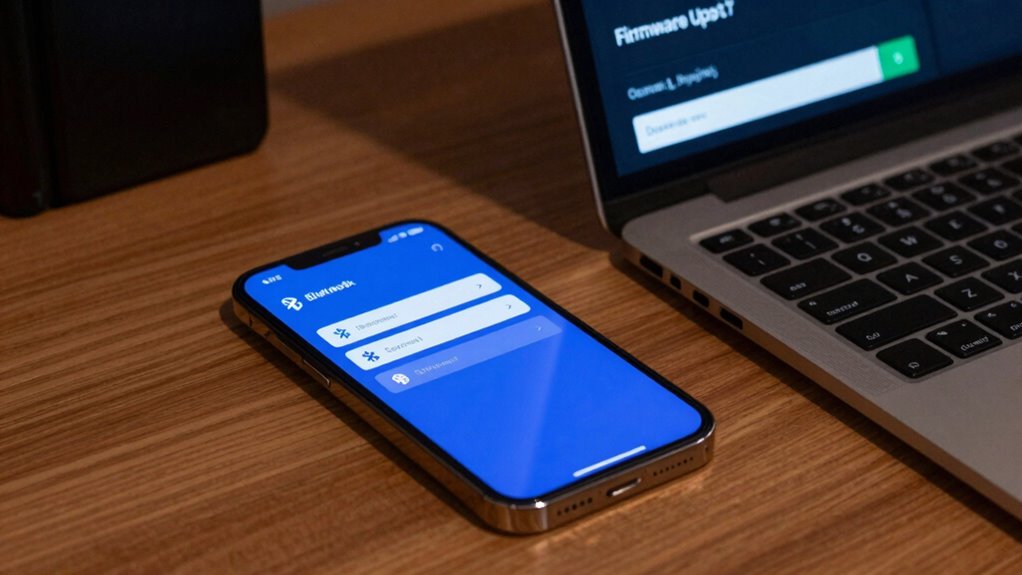
Keeping your device firmware and software up to date is essential for maintaining a stable Bluetooth connection. Firmware updates often include bug fixes and improvements that can resolve connectivity issues, while updated device software guarantees compatibility with other devices. Regularly check your device manufacturer’s website or app store for the latest updates. Installing these updates promptly can prevent bugs that cause dropouts and improve overall Bluetooth performance. Remember, outdated firmware or software can create conflicts or communication errors, leading to unstable connections. By staying current, you reduce the chances of interference or software glitches disrupting your Bluetooth experience. Make it a habit to verify updates periodically, especially after major OS releases or device updates, to keep your Bluetooth connection as reliable as possible.
Adjust Bluetooth Codec Settings for a More Reliable Connection
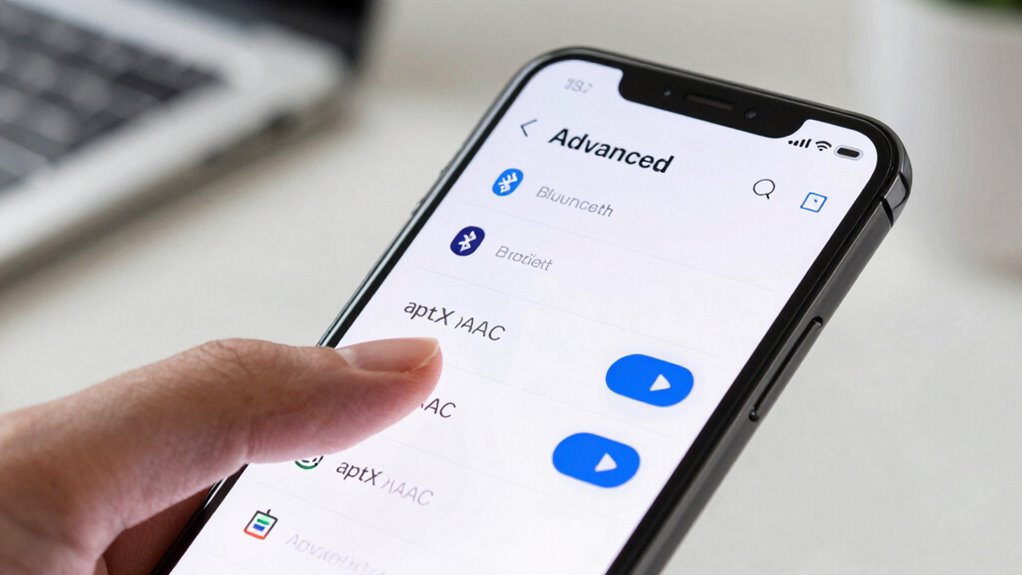
Adjusting your Bluetooth codec settings can make a noticeable difference in connection stability. The Bluetooth codec determines how audio data is compressed and transmitted, impacting both connection reliability and audio quality. Different codecs, like SBC, AAC, aptX, and LDAC, offer varying balances between sound quality and stability. To improve your connection, you can:
Adjusting Bluetooth codecs can boost connection stability and audio quality.
- Switch to a more stable codec like aptX or AAC if your devices support it
- Prioritize reliability over high-resolution audio when stability is an issue
- Experiment with different codec settings in your device’s Bluetooth options
Reduce Distance and Obstructions Between Devices
To enhance your Bluetooth connection, keep your devices close together and avoid physical barriers like walls or furniture. Obstructions can weaken signals, causing dropouts or interruptions. By minimizing barriers and maintaining proximity, you can guarantee a more stable and reliable connection.
Minimize Physical Barriers
Physical barriers like walls, furniture, and other obstructions can substantially weaken Bluetooth signals. These physical barriers cause signal attenuation, reducing the strength and quality of your connection. To improve stability, keep your devices close and clear of obstructions.
- Move devices closer to each other to strengthen the connection.
- Remove or rearrange furniture that blocks direct signal pathways.
- Avoid placing devices behind thick walls or large metal objects.
Maintain Close Proximity
Keeping your devices close together helps guarantee a strong Bluetooth connection. When devices are within a few feet, the signal strength remains robust, reducing dropouts. Proper device placement is key—avoid placing devices behind objects or inside bags, as obstructions weaken the signal. Keep your Bluetooth source and target device in the same room or nearby areas. If possible, hold devices close during use, especially if you notice intermittent dropouts. Minimizing the distance between devices helps improve signal quality and ensures consistent audio or data transfer. Remember, the closer the devices are, the less chance there is for interference or signal degradation, making your Bluetooth experience smoother and more reliable.
Switch Bluetooth Connection Modes for Improved Stability
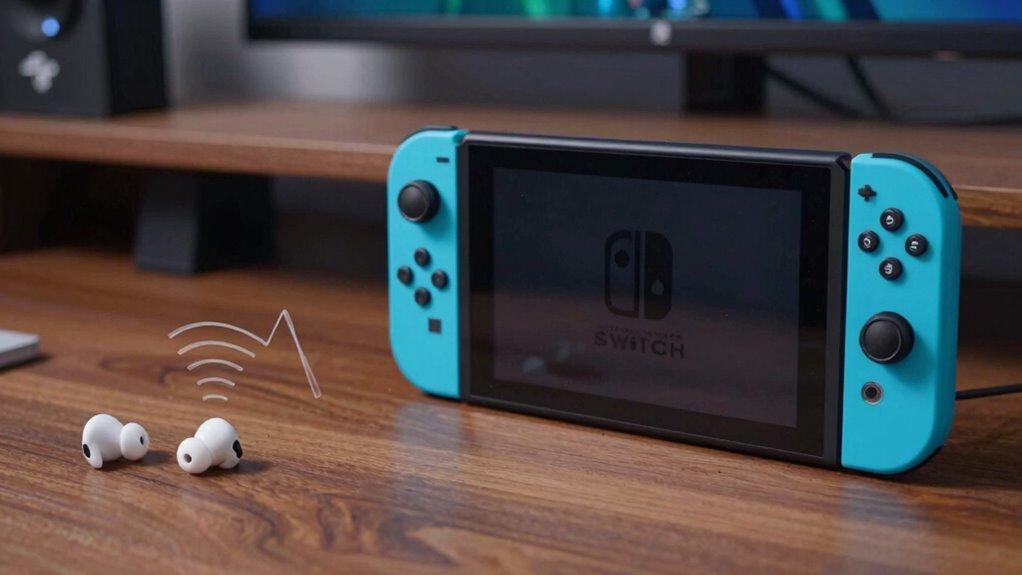
Switching between Bluetooth connection modes can markedly boost stability and reduce dropouts. If you’re experiencing frequent disconnects, changing how your device connects may improve connection stability. Many devices support different modes, such as Bluetooth Classic and BLE (Bluetooth Low Energy).
Try these tips:
- Switch to a different Bluetooth mode in your device settings, especially if pairing issues persist.
- Use Bluetooth pairing in a mode optimized for audio or data transfer, depending on your device.
- Test connecting via the latest Bluetooth version your device supports for better stability.
Troubleshoot Compatibility Issues and Test Alternative Devices
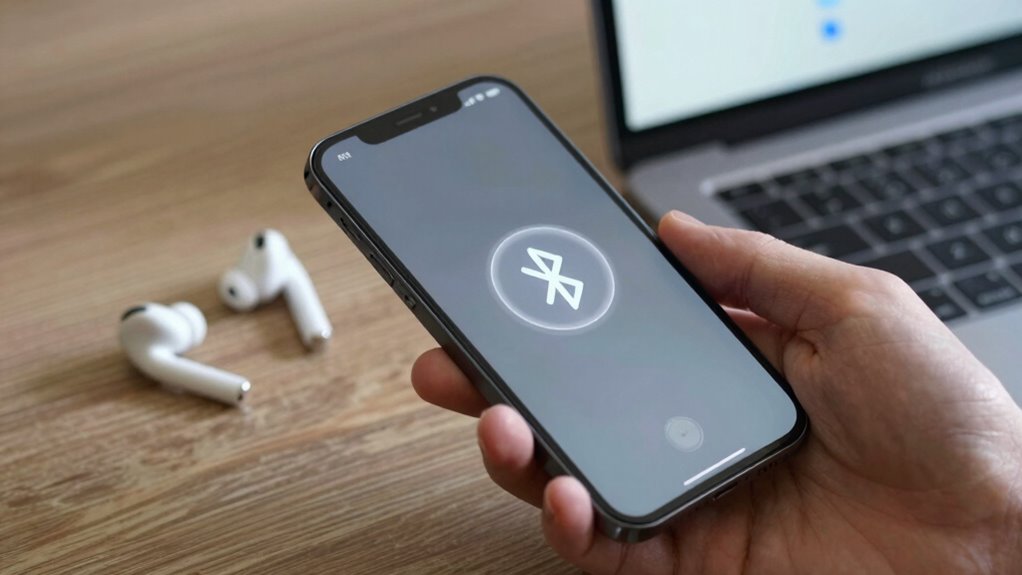
If you’re still experiencing Bluetooth dropouts after trying different connection modes, the next step is to troubleshoot compatibility issues and test alternative devices. Compatibility issues can cause intermittent connections, especially if your device isn’t fully compatible with your Bluetooth accessories. Start by checking the device specifications and firmware updates for both devices. If problems persist, perform device testing by connecting different Bluetooth devices to see if dropouts occur across multiple gadgets. This helps determine whether the issue lies with a specific device or your overall Bluetooth setup. Testing alternative devices also reveals if certain models or brands provide more stable connections. By identifying compatibility issues through device testing, you can better understand the root cause and find a solution without replacing your entire setup.
Frequently Asked Questions
Can Bluetooth Dropouts Be Caused by Hardware Defects?
Yes, hardware defects can cause Bluetooth dropouts. If you’ve tried hardware troubleshooting like checking for loose connections or damaged components, the issue might be hardware-related. To improve connectivity, verify your device’s firmware updates are current, as updates can fix hardware compatibility issues. If problems persist after troubleshooting and updates, consider that a hardware defect might be the root cause, requiring repair or replacement.
How Does Environmental Noise Impact Bluetooth Connection Stability?
They say “a noise in the air can be a noise in your connection,” and it’s true for Bluetooth. Environmental noise impact, especially from other wireless devices or thick walls, causes wireless signal interference, leading to dropouts. To improve stability, keep your device away from sources of interference, reduce environmental noise, and guarantee a clear line of sight. This way, your Bluetooth connection stays strong like a trusty handshake.
Are There Specific Device Brands More Prone to Bluetooth Issues?
Some device brands are more prone to Bluetooth issues due to inconsistent brand reliability and device compatibility. You might notice that lesser-known or budget brands often face more dropouts or connection problems. To minimize these, stick with reputable brands known for strong Bluetooth performance, like Sony, Bose, or Apple. Always verify your devices are compatible with your Bluetooth accessories and keep firmware updated to enhance stability.
Do Bluetooth Versions Affect Dropout Frequency?
A chain is only as strong as its weakest link, and Bluetooth versions definitely matter. Newer Bluetooth versions, like 5.0 and above, offer better signal stability and higher data transfer rates, reducing dropout frequency. To improve your connection, guarantee Bluetooth version compatibility between devices and mitigate signal interference by keeping devices close and away from Wi-Fi routers or other electronics. Upgrading your devices or adjusting settings can make a significant difference.
Can Adjusting Device Placement Prevent Bluetooth Interference?
Yes, adjusting your device placement can prevent Bluetooth interference. Keep your device and Bluetooth accessories close and avoid obstacles like walls or metal objects that block signals. Place devices away from Wi-Fi routers, microwaves, or cordless phones, which can cause interference. Clear line-of-sight and ideal device placement help maintain a strong connection, reducing dropouts and ensuring seamless audio or data transfer during use.
Conclusion
Think of your Bluetooth connection as a delicate dance. When you clear interference, optimize settings, and keep devices close, you’re guiding each step smoothly. By tuning your environment and devices, you create a harmonious rhythm that prevents dropouts. Remember, stability isn’t about replacing parts but about fine-tuning the dance floor. With a little patience and care, your Bluetooth connection can glide seamlessly, turning a jarring stumble into a graceful, uninterrupted performance.