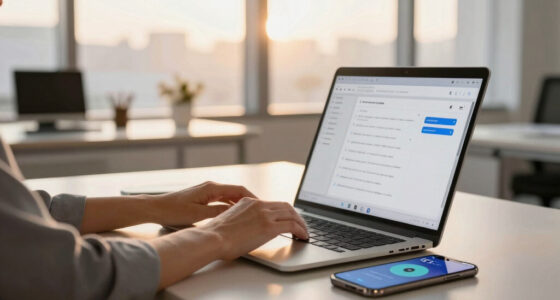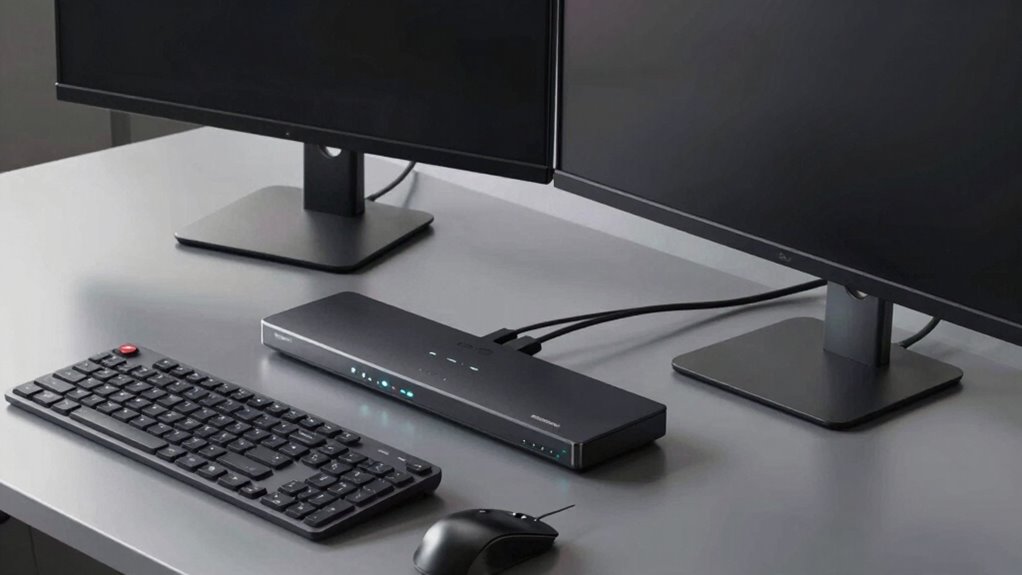

A KVM switch allows you to control two computers with a single keyboard, monitor, and mouse, making your desk setup more efficient. By connecting both computers to the switch with the appropriate cables, you can easily toggle between devices using buttons, hotkeys, or automatic modes. The right choice depends on your needs—like resolution support or audio. Keep in mind common setup tips and troubleshooting tricks; exploring the details can help you optimize your workspace further.

Get the latest gadgets delivered free — and shop member deals
- Fast, free delivery on millions of items
- Access to Prime Big Deal Days deals on October 6–7
- Prime Video, Amazon Music and more included
Key Takeaways
- A KVM switch allows you to control two computers with one keyboard, monitor, and mouse, sharing peripherals seamlessly.
- Connect both computers to the switch using compatible video, audio, and USB cables, following proper setup procedures.
- Switch between computers manually via buttons, hotkeys, or automatically based on activity, reducing workspace clutter.
- Ensure device and cable compatibility for smooth video, audio, and data transfer, and troubleshoot connection issues as needed.
- Proper organization, ergonomic placement, and regular maintenance optimize workspace efficiency when sharing devices between two computers.
As an affiliate, we earn on qualifying purchases.
What Is a KVM Switch and How Does It Work?
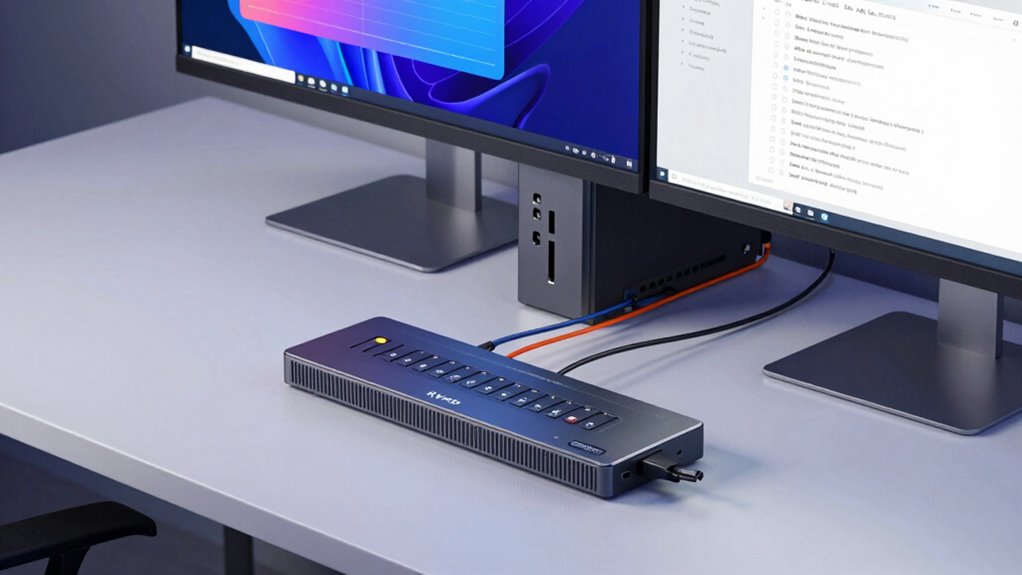
A KVM switch is a device that allows you to control multiple computers with a single keyboard, monitor, and mouse. It connects to each computer using different cable types, like HDMI, DisplayPort, USB, or VGA, depending on your setup. These cables transmit video, audio, and data signals, enabling seamless switching between devices. You can switch modes manually with a button, hotkey, or automatically based on activity. Some switches support hotkey switching, which lets you toggle between computers quickly. The switch modes vary: some operate via hardware buttons, while others use software controls. This flexibility makes it easier to manage multiple systems without clutter or extra peripherals, streamlining your workspace and boosting efficiency. Understanding compatibility is essential to ensure your devices work smoothly with the switch, especially regarding video signal formats and connection standards. Being aware of your hardware specifications helps prevent issues with connection types and ensures proper functioning across your devices. Additionally, setup considerations can influence how effectively your KVM switch integrates into your workspace. A thorough understanding of cable types and their capabilities can help optimize your setup for best performance.
USB HDMI VGA KVM switch with audio
As an affiliate, we earn on qualifying purchases.
As an affiliate, we earn on qualifying purchases.
How to Choose the Best KVM Switch for Your Setup?
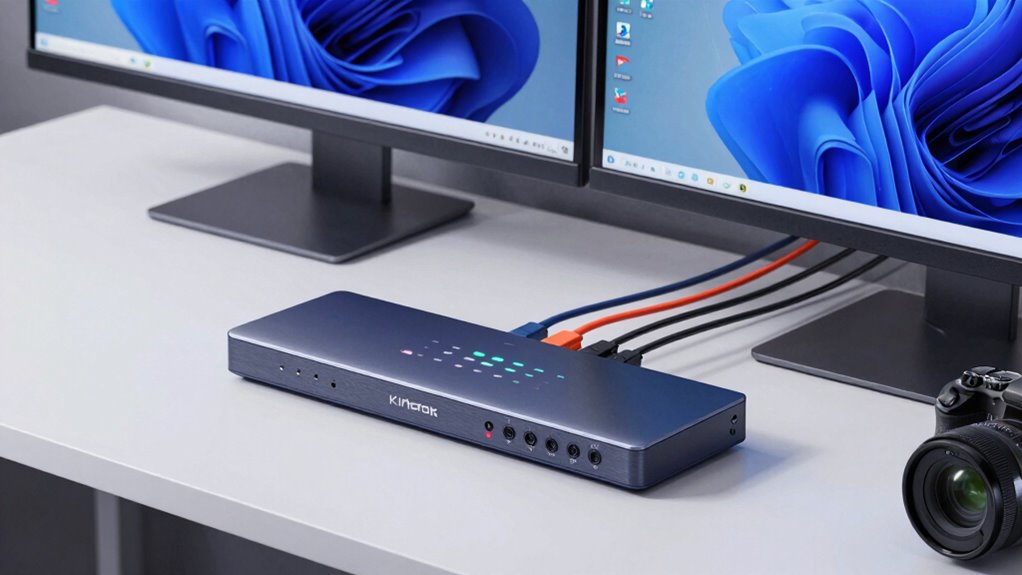
Choosing the right KVM switch for your setup starts with evaluating your specific needs and equipment. Consider the number of computers you want to connect and whether you need features like audio support or USB hubs. Think about ergonomic benefits, such as easy switching and comfortable placement, which can reduce strain and improve your workflow. Pay attention to compatibility with your devices and resolution requirements to ensure seamless performance. If you work with high-resolution displays, opt for a KVM switch that supports 4K or higher. Additionally, choosing a switch with quick-switching capabilities can boost productivity by minimizing downtime. Ultimately, selecting a KVM switch tailored to your setup helps you work more efficiently while maintaining comfort and reducing clutter. Also, understanding battery inverter generators can be useful if you need portable power options for your workspace. Being aware of device compatibility ensures your equipment functions smoothly and without issues.
As an affiliate, we earn on qualifying purchases.
How to Set Up a KVM Switch in Your Workspace?
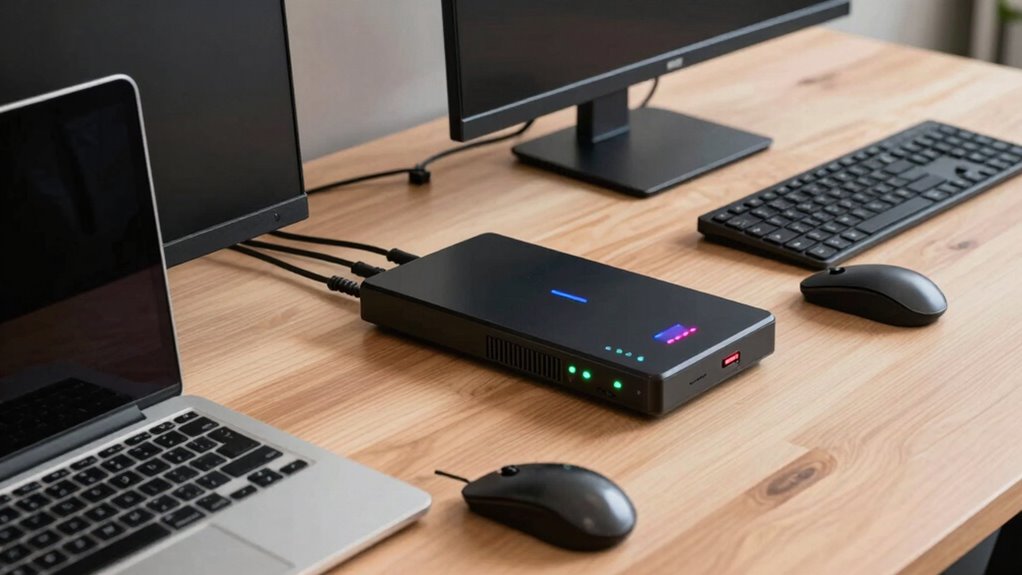
Setting up a KVM switch in your workspace involves connecting your devices correctly and following specific hardware steps. You’ll need to plug your keyboard, mouse, and monitors into the switch as instructed. Once everything is connected properly, you can test the setup to guarantee smooth switching between your computers. Ensuring your devices are compatible with the hardware specifications of the KVM switch can help prevent connection issues. Additionally, verifying device compatibility beforehand can save time and avoid troubleshooting later. Checking software requirements can also ensure that your operating systems support the KVM switch functions effectively. Confirming that your setup adheres to cabling guidelines can improve overall stability and performance. Paying attention to proper setup procedures can further enhance your experience and reduce potential problems.
Hardware Setup Steps
To begin setting up your KVM switch, first make certain all your equipment is powered off to prevent any electrical issues. Next, position your devices for optimal ergonomic positioning, ensuring comfort during use. Connect the monitor, keyboard, and mouse to the KVM switch’s designated ports, paying attention to cable management to keep your workspace tidy and safe. Carefully route cables to avoid tangles and strain. Secure connectors firmly to prevent disconnections. Remember, a clean setup improves efficiency and reduces frustration. Take a moment to double-check that all connections are correct before powering on your devices. This simple step guarantees a smooth transition between computers and prolongs your equipment’s lifespan. With everything in place, you’re ready for seamless multi-computer control at your desk.
Connecting Devices Properly
After positioning your devices and confirming all equipment is powered off, the next step is to connect each device properly to the KVM switch. Start by matching the cables to their corresponding ports on the switch, paying attention to device compatibility to avoid connection issues. Use cable management techniques to keep cords organized and prevent tangling, which makes setup safer and easier to troubleshoot later. Ensure that each monitor, keyboard, and mouse are securely connected to the appropriate ports. Double-check that the cables are plugged in firmly without forcing them. Properly managing your cables not only improves workspace neatness but also helps maintain reliable connections. Additionally, application instructions can guide you through specific device configurations for optimal performance. Implementing proper cable organization techniques can significantly reduce setup time and improve overall system stability. Furthermore, understanding connection protocols ensures that your devices communicate effectively with the switch. Incorporating device compatibility considerations can help prevent setup issues and ensure seamless operation. To further enhance your workspace, consider incorporating smart home safety features that can monitor your environment during setup. Once everything is connected and organized, you’re ready to power on your devices and test the setup.
As an affiliate, we earn on qualifying purchases.
Common KVM Switch Problems and How to Fix Them?
You might encounter connection issues, audio or video glitches, or power and compatibility problems with your KVM switch. These issues can disrupt your workflow and are often fixable with simple troubleshooting steps. Let’s explore how to identify and resolve these common problems effectively. Additionally, understanding the fabrication challenges involved in nanotech components can help in selecting more reliable hardware and troubleshooting more complex issues. Recognizing early detection signs in related fields emphasizes the importance of timely intervention to prevent further complications. Being aware of hardware limitations can also guide preventive maintenance and upgrades, reducing downtime and improving overall performance. Monitoring sound quality and video output regularly can help detect issues early before they impact productivity. Regularly checking for compatibility issues can prevent many common failures and ensure seamless operation.
Common Connection Issues
Connection issues are among the most common problems users face with KVM switches, often resulting in a frustrating experience. You might encounter no display, unresponsive controls, or flickering screens. These problems usually stem from cable compatibility or port issues. Using properly certified cables can help prevent connection failures. To fix them, check that your cables match your switch’s specifications, ensuring compatibility. Inspect ports for dust, damage, or loose connections. Sometimes, switching to a different port or reconnecting cables firmly solves the problem. Additionally, verifying power supply stability can prevent intermittent issues caused by insufficient power. Ensure that your device compatibility aligns with the switch model to avoid conflicts. It’s also helpful to confirm that your firmware is up to date, as outdated firmware can cause communication issues. Keep in mind:
- Faulty or incompatible cables can cause signal loss and headaches
- Damaged or dirty ports lead to intermittent connection issues
- Port conflicts or improper setup can prevent proper switching
Addressing these basics quickly restores your setup and minimizes downtime.
Audio and Video Glitches
Are audio and video glitches disrupting your KVM switch setup? If you notice audio lag or video stutter, it’s often due to signal interference or bandwidth limitations. Check your cables for damage or loose connections, as these can cause synchronization problems. Make certain your KVM switch supports the resolution and refresh rate of your monitors and that your computers meet the switch’s specifications. Updating your graphics and audio drivers can also reduce glitches. If problems persist, try reconnecting the cables or switching to higher-quality, shielded cables to minimize interference. Keep in mind that longer cable runs can introduce latency, so keep cables as short as possible. Regular maintenance and proper cable management help maintain a smooth, glitch-free experience.
Power and Compatibility Fixes
Power and compatibility issues are common causes of KVM switch problems, but most can be resolved with straightforward fixes. If your devices aren’t switching properly, start by checking the power supply—ensure your KVM switch is plugged into a reliable outlet and that all cables are secure. Device compatibility can also cause headaches; verify that your peripherals and computers meet the switch’s specifications. To fix these issues, you can:
- Use a powered KVM switch to ensure consistent power delivery
- Update device drivers and firmware for better compatibility
- Replace any damaged or incompatible cables immediately
These simple steps can save you time and frustration, restoring seamless control over your computers without needing costly repairs or replacements.
Tips to Maximize Your Dual-Computer Workspace?
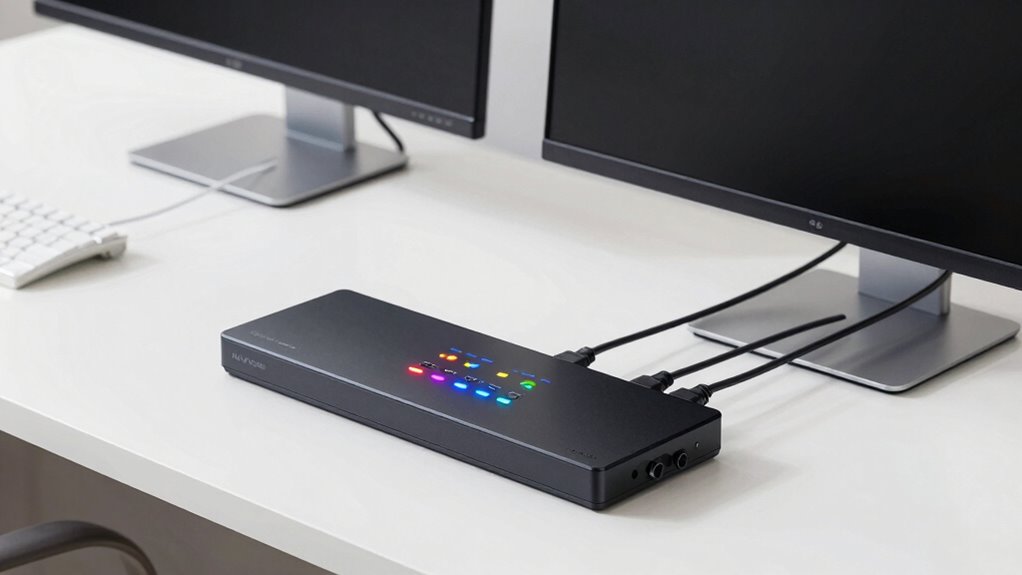
To make the most of your dual-computer setup, start by organizing your workspace for efficiency. Ensure your monitors are at eye level to promote ergonomic positioning, reducing neck strain. Use cable management solutions like clips or sleeves to keep cords tidy and prevent clutter. This not only looks cleaner but also minimizes accidental unplugging. Place frequently used devices within easy reach, and keep your desk clear of unnecessary items. Consider investing in a dual-monitor stand to free up surface space. Use labels for cables to quickly identify connections. Regularly assess your setup for comfort and organization, adjusting as needed to maintain productivity and reduce fatigue.
| Tip | Benefit |
|---|---|
| Ergonomic positioning | Prevents strain and promotes comfort |
| Cable management | Keeps workspace tidy and safe |
| Easy access placement | Boosts efficiency and ease of use |
Final Thoughts: Making the Most of Your KVM Switch
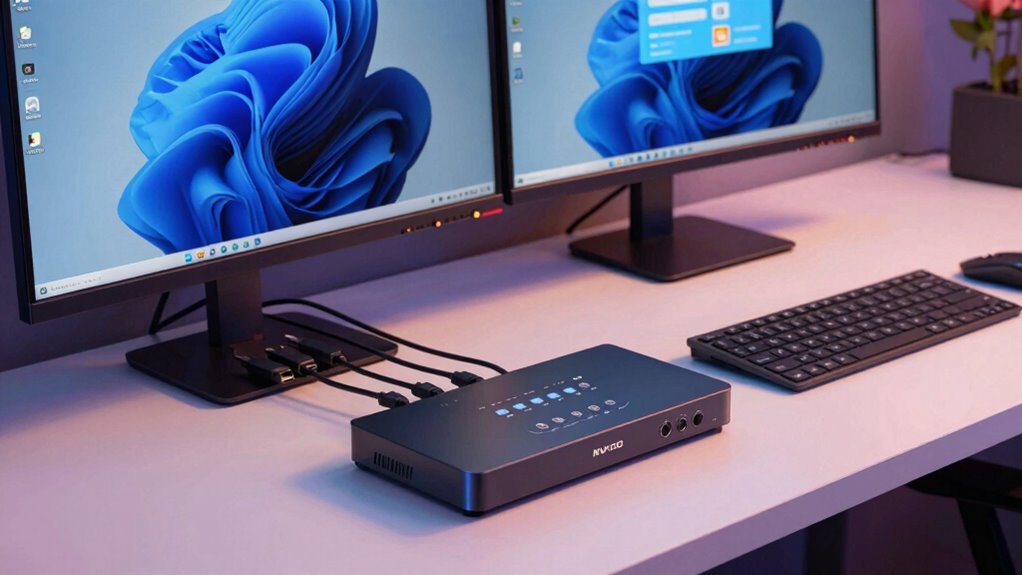
Maximizing your dual-computer workspace involves more than just organization; it requires efficient tools like a KVM switch to streamline your workflow. To truly make the most of it, focus on ergonomic benefits and productivity enhancements. A well-chosen KVM switch minimizes clutter, reduces strain, and lets you switch seamlessly between devices. This helps you stay focused and comfortable throughout your workday.
A quality KVM switch reduces clutter, enhances comfort, and streamlines device switching for a more efficient workspace.
Remember, the goal is to create a setup that feels natural and boosts efficiency.
- Feel the satisfaction of a clutter-free, organized desk.
- Experience the ease of quick device switching.
- Enjoy improved comfort and reduced fatigue.
Frequently Asked Questions
Can a KVM Switch Support Different Monitor Resolutions?
Yes, a KVM switch can support different monitor resolutions. When choosing one, check its monitor resolution compatibility to guarantee it handles your displays properly. Keep in mind that switching between resolutions may affect graphics performance, especially if your graphics card needs to adapt to different settings quickly. Select a KVM switch designed for your specific resolutions to maintain ideal image quality and smooth performance across both computers.
Is It Possible to Connect More Than Two Computers With One KVM Switch?
You can connect more than two computers with one KVM switch by choosing an expandable configuration. For example, a tech enthusiast might start with a dual setup but later add a third or fourth PC using a multi-computer KVM switch designed for expandability. These switches support multiple computers, making it easy to manage a larger multi computer setup without needing multiple devices. Just verify the switch you select supports your desired number of connections.
Do All KVM Switches Support Audio and USB Peripherals?
Not all KVM switches support audio and USB peripherals. When shopping, check for models with audio compatibility and USB support to guarantee seamless connection of your speakers, microphones, keyboard, and mouse. Some switches only handle video, so verify these features first. If you need both audio and USB peripherals shared between computers, choose a switch specifically designed for that purpose. This way, your setup remains simple and efficient.
How Secure Is Data Transfer Through a KVM Switch?
Data transfer through a KVM switch varies in security depending on the model. Many high-end switches use encryption protocols to protect your information from interception, but basic models might lack this feature. To improve security, verify the switch is physically secure, preventing unauthorized access. Combining encryption with physical security measures gives you a stronger defense, making your data transfer safer and reducing the risk of breaches during switch operation.
Can a KVM Switch Be Used With Wireless Keyboards and Mice?
Yes, a KVM switch can be used with wireless keyboards and mice. Look for models with wireless compatibility and broad peripheral support. Many modern KVM switches support USB wireless receivers, allowing you to connect your wireless peripherals seamlessly. Just make certain the switch has the necessary ports and supports the wireless technology your peripherals use. This setup keeps your workspace tidy while maintaining easy control over multiple computers.
Conclusion
Remember, a well-chosen KVM switch can transform your workspace, saving you time and clutter. With the right setup, you can seamlessly switch between two computers and boost your productivity. Don’t forget, “A stitch in time saves nine,” so troubleshoot issues early and keep everything running smoothly. Embrace these tips, and you’ll make the most of your dual-computer setup—making your workspace more efficient and enjoyable.
Fall Picks
fall essentials
As an affiliate, we earn on qualifying purchases.