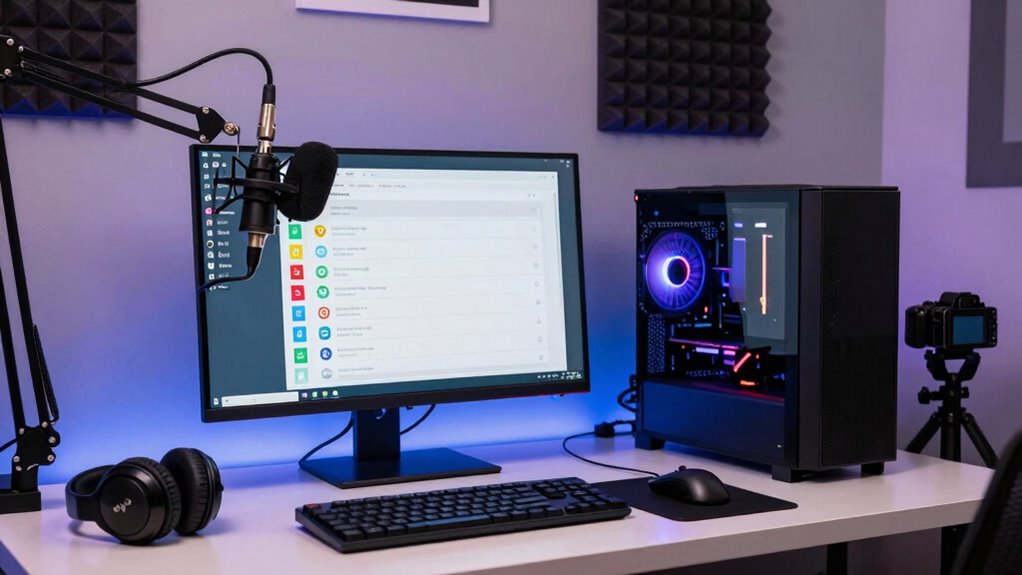

To guarantee smoother playback, check that your internet speed meets streaming requirements with a reliable, wired connection if possible. Optimize your hardware, use quality cameras, and set up good lighting. Use clear audio with a decent microphone, and configure your streaming software to match your bandwidth. Test your setup before going live, adjusting video and audio settings as needed. For more tips on perfecting your stream, keep exploring this checklist.
Key Takeaways
- Test and ensure your internet bandwidth meets the requirements for your desired streaming resolution.
- Use high-quality cameras and proper lighting to enhance video clarity and consistency.
- Optimize audio by positioning microphones correctly and minimizing background noise.
- Configure streaming software settings, including resolution and bitrate, for smooth playback.
- Continuously monitor and troubleshoot your stream to fix issues like lag, buffering, or audio-video sync.

Logitech Brio 101 Full HD 1080p Webcam for Meetings, Streaming, Desktop, Laptop, PC – Built-in Mic, Shutter, Works with Zoom, Microsoft Teams, Nintendo Switch 2’s new GameChat Mode, USB-A,-Black
Compatible with Nintendo Switch 2’s new GameChat mode
As an affiliate, we earn on qualifying purchases.
As an affiliate, we earn on qualifying purchases.
Ensure Your Internet Speed Supports Smooth Streaming
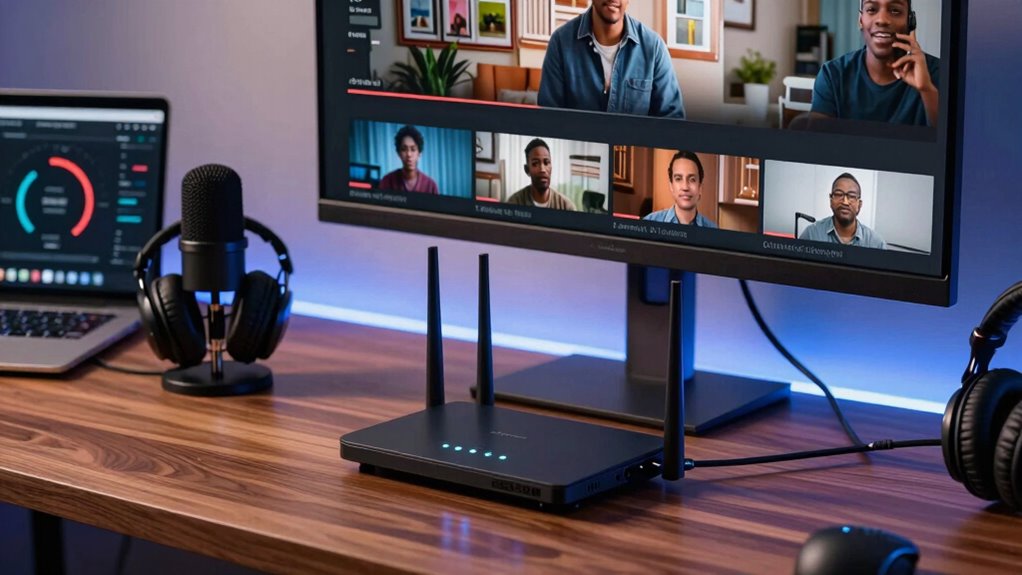
To enjoy smooth streaming without interruptions, you need a reliable internet connection that can handle your desired quality. Understanding bandwidth requirements is essential—higher quality streams demand more data transfer, so guarantee your internet plan provides sufficient speed. Check your current speed with online tests and compare it to the recommended bandwidth for your streaming resolution. Wi-Fi stability also plays a critical role; a stable connection prevents buffering and lag. Avoid congested networks or interference by placing your router in a central location and minimizing competing devices. If your Wi-Fi isn’t stable, consider upgrading your plan or switching to a wired Ethernet connection for consistent performance. Additionally, network congestion management can help optimize your connection during peak usage times. Ensuring your internet speed supports your streaming needs is key to delivering a seamless viewing experience, especially as digital content formats continue to evolve in complexity. Staying informed about internet speed requirements can help you make better decisions for your streaming setup. Moreover, understanding the impact of router quality on connection stability can further enhance your streaming experience.
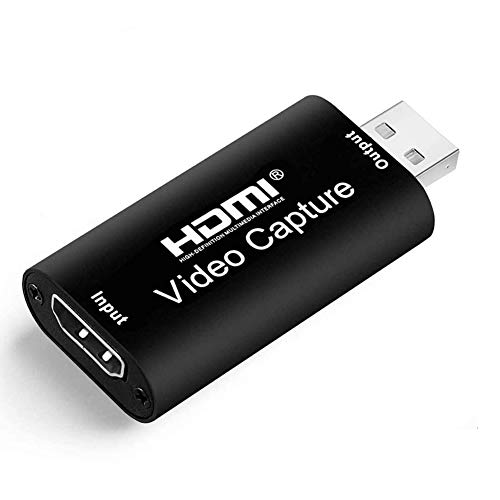
HDMI Video Capture Card, 4K HDMI to USB Capture Card Full HD 1080P 30fps, Record via DSLR, Camcorder, Action Cam for Live Streaming, Compatible with Nintendo Switch, PS4, Xbox One, PC
【Stunning 1080P Video Quality】The HDMI capture card support max input resolution 4K @30Hz, max output resolution 1080P @30Hz
As an affiliate, we earn on qualifying purchases.
As an affiliate, we earn on qualifying purchases.
Choose the Right Hardware and Cameras for Streaming
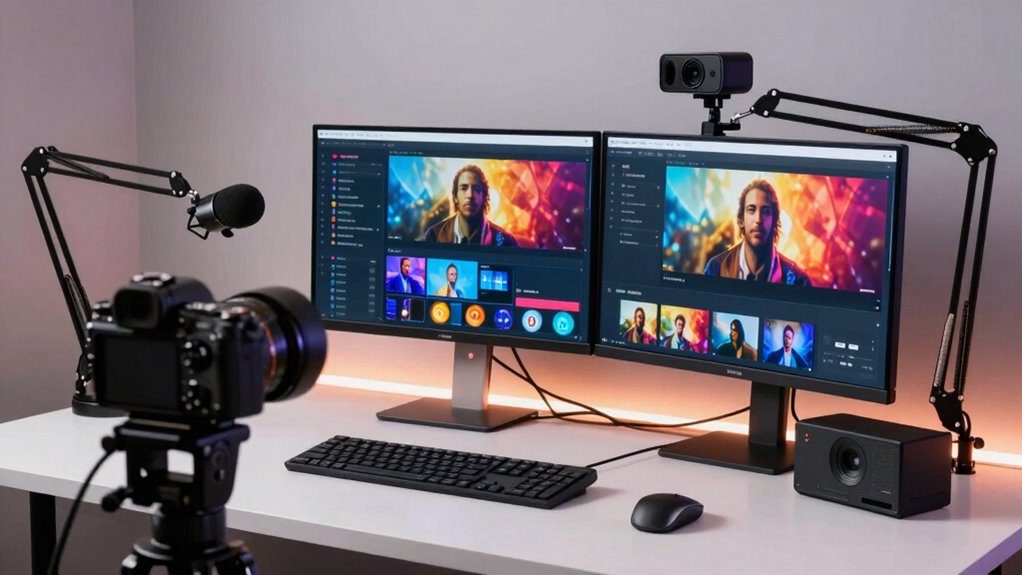
Selecting the right hardware and cameras is essential for delivering high-quality streams that engage your audience. Focus on hardware compatibility to guarantee your devices work seamlessly together. For camera placement, position your camera at eye level for natural engagement, avoiding shaky shots. Choose a webcam or DSLR that matches your streaming needs, considering resolution and frame rate. Here’s a quick overview:
| Hardware Type | Ideal Features |
|---|---|
| Webcam | 1080p resolution, good autofocus |
| DSLR | High-quality, versatile positioning |
| Capture Card | Compatible with your camera |
Careful camera placement and hardware compatibility create a professional look and smooth streaming experience. Investing in reliable cabling and mount leveling kits can prevent issues like signal loss or shaky footage, ensuring a seamless broadcast. Additionally, understanding streaming setup essentials can help you troubleshoot common technical issues and optimize your broadcast quality. Paying attention to technical specifications when selecting equipment ensures compatibility and reliable performance, which is crucial for a polished stream. Being aware of power management can also prevent unexpected shutdowns during your broadcast. Invest wisely to avoid technical issues and deliver polished content.

FIFINE XLR/USB Gaming Microphone Set, Dynamic PC Mic for Streaming Podcasting, Computer RGB Mic Kit with Boom Arm Stand, Mute Button, Headphones Jack, for Recording Vocal Voice-Over-AmpliGame AM8T
USB/XLR Connectivity-AM8T comes with a dynamic microphone and a boom arm stand. Versatile PC gaming microphone kit with…
As an affiliate, we earn on qualifying purchases.
As an affiliate, we earn on qualifying purchases.
Set Up Lighting and Sound for a Clear, Professional Look
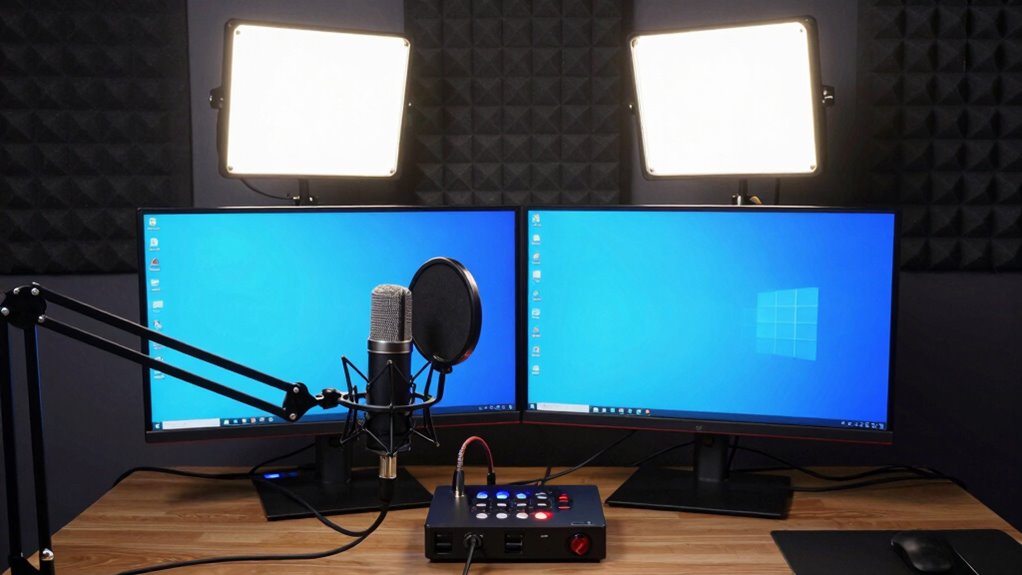
Good lighting and clear audio are essential for a professional stream. You should use proper lighting techniques to avoid shadows and guarantee your face is well-lit, while investing in quality audio equipment to eliminate background noise. When both elements are set up correctly, your viewers will enjoy a polished, distraction-free experience. Additionally, understanding the importance of studio dividers and other acoustic solutions can help you create a calm and engaging environment for your audience. Incorporating smart home safety features like ambient lighting controls and noise reduction devices can further enhance your streaming setup by creating a more comfortable and controlled environment. Paying attention to accessibility features can also ensure your stream is more inclusive for all viewers.
Proper Lighting Techniques
Proper lighting is essential for achieving a clear, professional look in your streaming setup. Good lighting enhances your studio aesthetics and makes your video more engaging. Position soft, diffused lights at eye level to illuminate your face evenly, avoiding harsh shadows. Use multiple light sources to create balanced coverage and reduce glare. Adjust the color temperature to match your environment, which simplifies color correction in post-production. Consistent lighting guarantees your background remains visually appealing and doesn’t distract viewers. Invest in adjustable LED panels or ring lights for versatility. Proper positioning and brightness control help you achieve a natural, polished appearance, elevating your stream’s quality. Well-lit scenes make it easier for viewers to focus on you, boosting professionalism and engagement. Additionally, understanding studio setups can help optimize your entire lighting arrangement for maximum effect.
Clear Audio Equipment
Clear audio is just as important as good lighting when creating a professional streaming setup. To achieve this, focus on proper microphone placement; position your mic close to your mouth, but avoid direct contact to prevent popping sounds. Use noise reduction tools, like filters or software, to minimize background noise and echo. Make certain your microphone is mounted securely to prevent movement that can cause inconsistent sound. Test your audio levels beforehand to avoid distortion or low volume. Additionally, consider using a pop filter or windscreen to improve clarity. Regularly check your equipment for dust or damage. Ensuring your sound environment is optimized can significantly enhance audio quality. Incorporating soundproofing techniques can further reduce unwanted noise. Being aware of ambient noise levels helps maintain a clear audio experience for viewers. Proper microphone placement and noise reduction techniques are essential for professional sound quality. By paying attention to microphone placement and noise reduction, you’ll deliver crisp, clear sound that enhances your overall streaming quality. Maintaining a consistent audio setup can help prevent technical issues during your broadcasts.

UBeesize 12'' LED Ring Light with 62'' Tripod Stand, Selfie Ring Light for Video Recording, Live Streaming, TikTok & YouTube, Compatible with iPhone & Android (Black)
【12” Powerful LED Ring Light with 240 LEDs】This upgraded 12-inch ring light features 240 high-efficiency LEDs delivering 10W…
As an affiliate, we earn on qualifying purchases.
As an affiliate, we earn on qualifying purchases.
Select and Configure Streaming Software for Optimal Performance
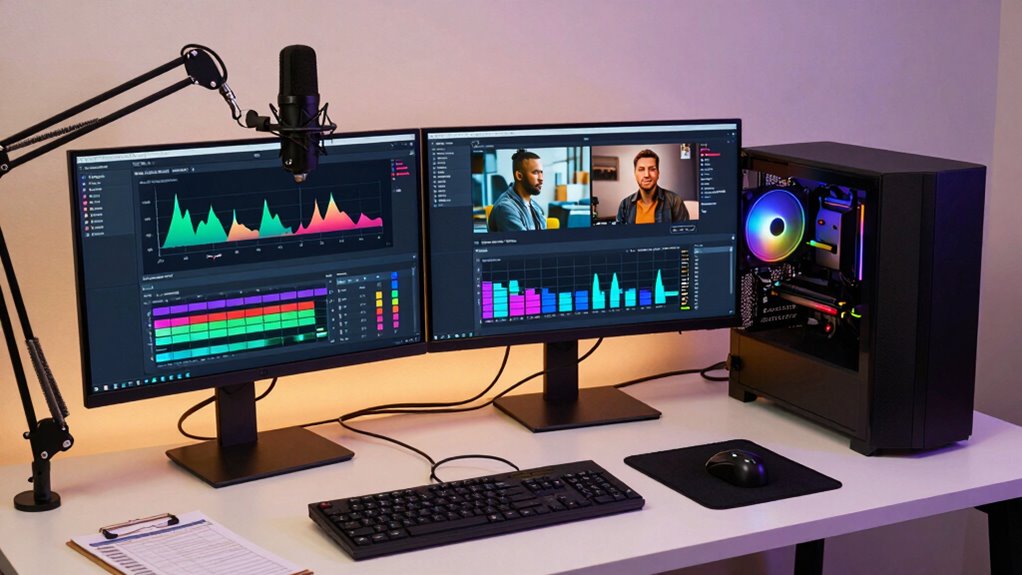
Choosing the right streaming software is vital for a smooth broadcast, so pick one that fits your needs and skill level. Once you’ve selected your software, you can fine-tune the settings to guarantee your stream runs efficiently without lag or quality issues. Properly configuring your software will help deliver a professional viewer experience every time. Additionally, understanding smart strategies for effective personal finance planning can help you manage your streaming setup costs and plan your budget more effectively.
Choosing the Right Software
Have you ever wondered how to pick the best streaming software for your setup? Choosing the right software is vital for smooth playback and ease of use. Focus on software compatibility with your hardware and operating system, ensuring it runs seamlessly. The user interface should be intuitive, so you can navigate settings effortlessly during streams. Consider these key points:
- Compatibility with your hardware and OS
- User-friendly interface for quick adjustments
- Support for your streaming platform
Optimizing Settings for Performance
Once you’ve selected streaming software that suits your setup, the next step is fine-tuning its settings to guarantee smooth performance. Start by adjusting audio calibration to ensure clear sound without lag or distortion, which enhances viewer experience. Next, focus on graphics optimization by lowering resolution or bitrate if your hardware struggles, preventing dropped frames or buffering. Set your encoder to balance quality and performance, choosing hardware encoding when available. Reduce unnecessary background processes and disable overlays or notifications that could tax your system. Test your stream at different settings to find the most suitable balance. Properly configuring these parameters helps maintain consistent playback, minimizes lag, and delivers a professional-quality stream that keeps viewers engaged.
Test Your Internet and Streaming Setup Before Going Live
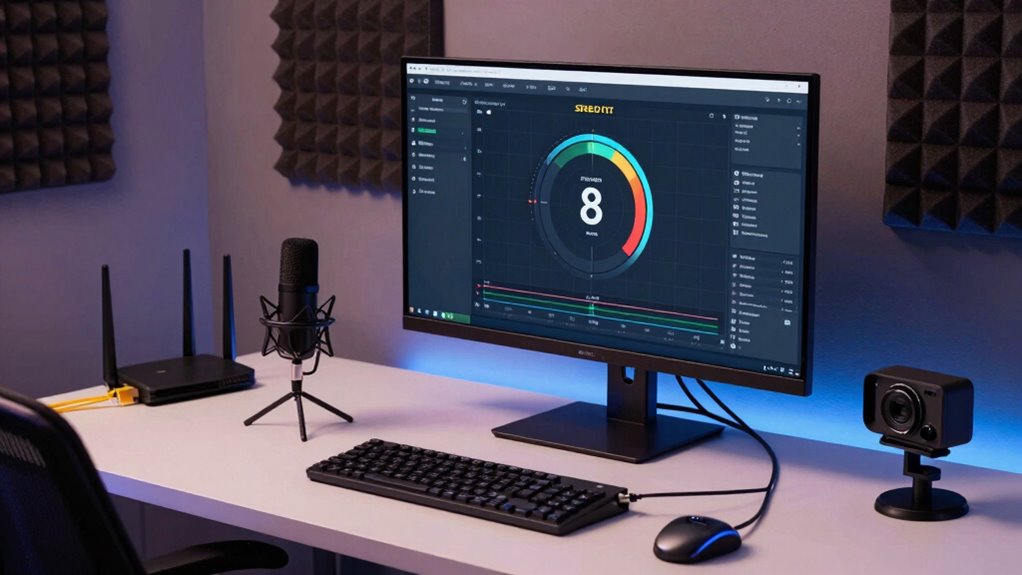
Before going live, it’s vital to thoroughly test your internet and streaming setup to guarantee everything runs smoothly. This step ensures you meet bandwidth requirements and optimize latency for a seamless broadcast. Perform speed tests at your streaming location to verify your upload speed can handle your stream’s quality. Check your connection stability to avoid sudden drops. Consider running a live test to identify any issues with latency, which can cause lag or buffering. Additionally, understanding internet culture & trends can help you stay aware of common issues and solutions faced by streamers today. Being aware of technology updates can also help you adapt quickly to any changes that might impact your stream’s performance. Staying informed about network management best practices can further improve your setup’s reliability and security.
Adjust Video and Audio Settings to Match Your Internet Speed
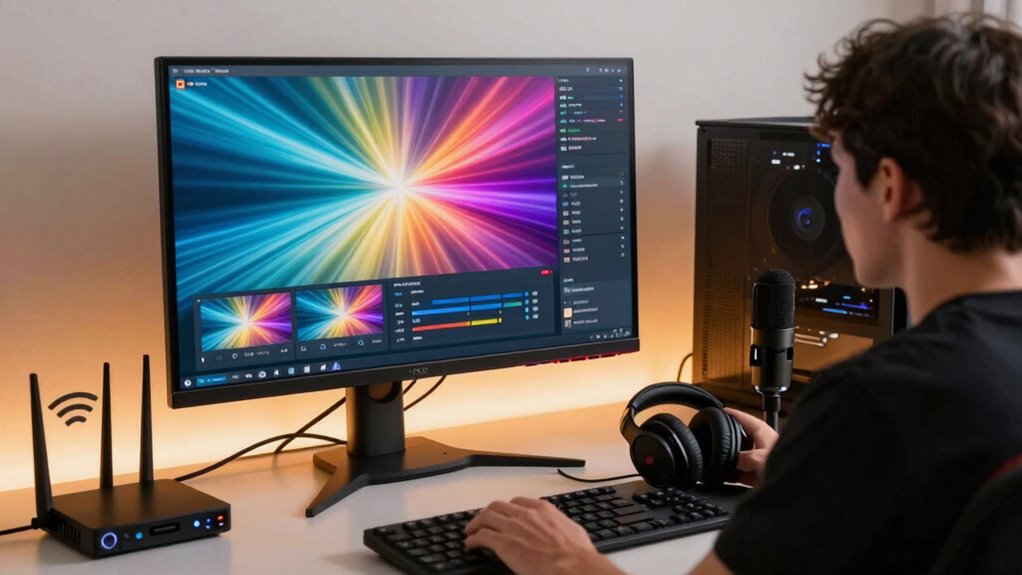
Adjusting your video and audio settings to match your internet speed is essential for delivering a smooth streaming experience. Start by setting your video resolution lower if your connection isn’t fast enough, reducing buffering and lag. For example, switch from 1080p to 720p or 480p if needed. Simultaneously, adjust your audio bitrate to ensure clear sound without overloading your bandwidth. Higher audio bitrates improve quality but require a stable connection; lower bitrates help prevent dropouts. Keep an eye on your upload speed and tweak these settings accordingly. Don’t forget, balancing resolution and bitrate helps maintain consistent playback, avoiding unnecessary interruptions. Fine-tuning these parameters ensures your stream stays smooth, no matter your internet speed. Understanding bandwidth limitations can help you make better adjustments for optimal streaming quality. Additionally, being aware of your internet connection stability can prevent unexpected disruptions during playback.
Use Encoders and Streaming Platforms to Keep Playback Smooth
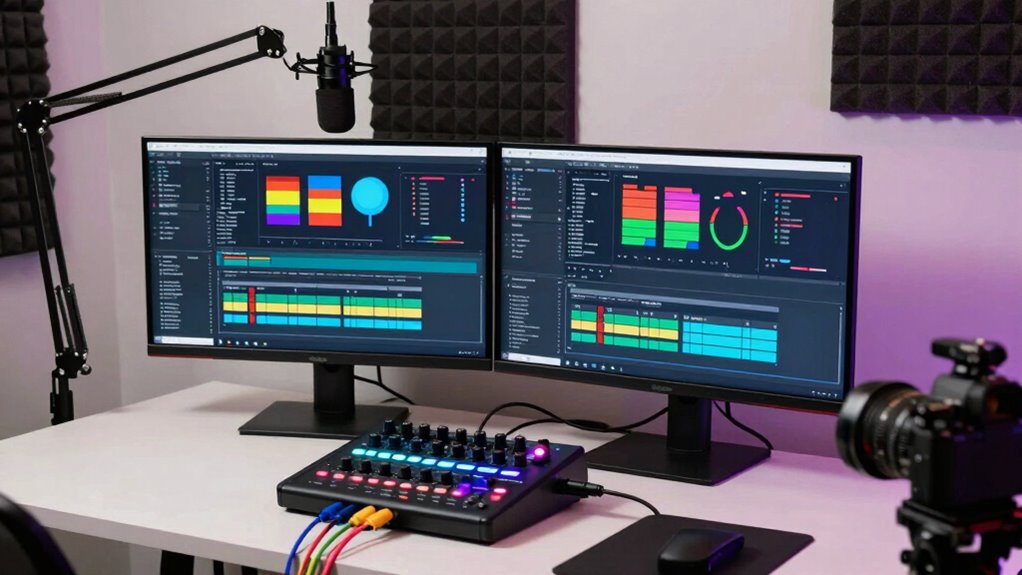
Using the right encoder settings and streaming platform can substantially improve your stream’s stability and quality. Proper encoder configurations enhance your video data for smooth playback and minimal buffering. Choose a streaming platform that offers robust features like adaptive bitrate streaming, low-latency options, and reliable server infrastructure. These platform features guarantee your stream adapts to viewers’ internet speeds, maintaining clarity without interruptions. To maximize performance, adjust your encoder settings for your hardware and internet connection, balancing quality and stability.
- Select an encoder with customizable configurations tailored to your setup
- Use streaming platforms that support adaptive bitrate and low-latency streaming
- Regularly update encoder software and platform features for ideal performance
Troubleshoot Common Streaming Issues to Maintain Consistent Quality
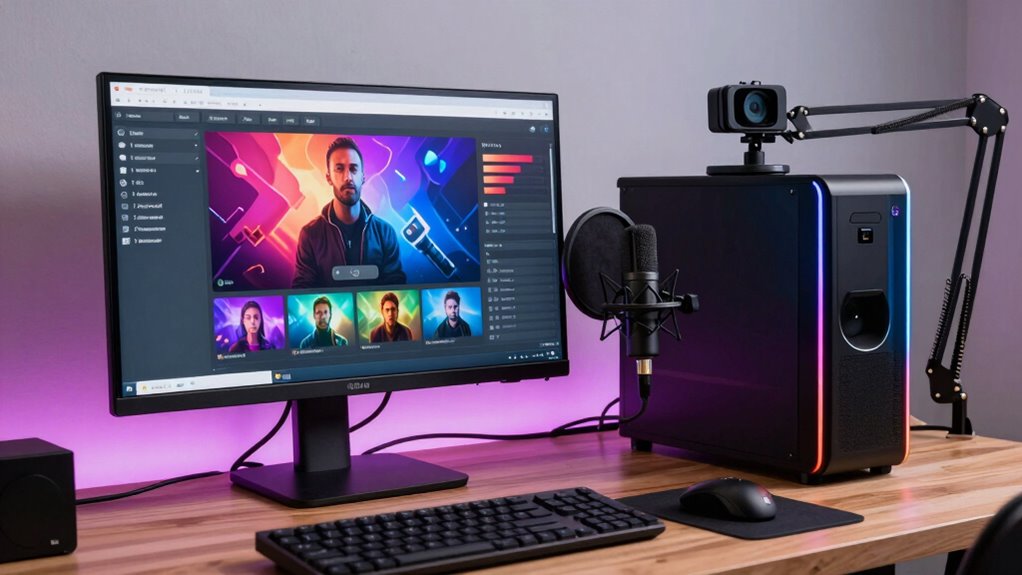
Even with optimized encoder settings and a reliable streaming platform, issues can still arise that disrupt your broadcast. To keep quality consistent, troubleshoot common problems like audio calibration errors and excessive streaming latency. If your audio sounds off or out of sync, verify your audio calibration to ensure levels are balanced and clear. High streaming latency can cause delays between your broadcast and viewers, resulting in lag or buffering. To address this, lower your streaming latency settings if possible, or switch to a more stable server. Regularly monitor your stream for visual or audio glitches, and adjust your setup as needed. Staying proactive with these troubleshooting steps helps maintain a smooth, professional broadcast, keeping your audience engaged and satisfied.
Frequently Asked Questions
How Can I Prioritize My Network for Streaming Traffic?
To prioritize your network for streaming traffic, focus on bandwidth management and quality prioritization. Use Quality of Service (QoS) settings on your router to assign higher priority to streaming devices or applications. Limit other bandwidth-heavy activities during streams, and consider setting bandwidth caps for non-essential devices. This guarantees your streaming traffic gets the necessary bandwidth, reducing buffering and improving overall playback quality.
What Are the Best Backup Options if My Internet Fails?
If your internet fails, you should have a backup internet option like a mobile hotspot ready. This allows you to switch quickly and keep streaming uninterrupted. Consider investing in a reliable mobile hotspot device with a good data plan, and keep it charged and accessible. Using backup internet guarantees your stream stays live, avoiding disruptions and maintaining a smooth viewing experience for your audience.
How Do I Choose the Right Streaming Resolution for Viewers?
Did you know that 66% of viewers leave a stream if video quality drops? To choose the right streaming resolution, consider your audience’s internet speeds and device types. Use video compression wisely to balance quality and bandwidth. Lower resolutions like 720p work well for viewers with slower connections, boosting viewer engagement. Test different options and monitor feedback to find the idal resolution that keeps your audience watching without buffering.
What Accessories Improve Audio Quality During Live Streams?
To improve your audio quality during live streams, focus on proper microphone placement to capture clear sound and reduce background noise. Invest in quality microphones suited for your environment, like cardioid mics for focused pickup. Additionally, use acoustic treatment, such as foam panels or diffusers, to mitigate echo and room noise. Combining these accessories ensures your audience hears you clearly, creating a more professional and engaging streaming experience.
How Can I Monitor Stream Performance in Real-Time?
You can monitor your stream performance in real-time by using built-in platform tools and third-party applications. Keep an eye on real-time analytics and stream health monitoring dashboards, which provide instant data on viewer engagement, bitrate, latency, and dropped frames. Regularly checking these metrics helps you identify issues early, ensuring smooth playback and a better experience for your audience. Stay proactive to maintain peak stream quality throughout your broadcast.
Conclusion
Now that you’ve got your streaming setup dialed in, aren’t you excited to captivate your audience with smooth, professional-quality broadcasts? Remember, a little preparation goes a long way—test everything beforehand and stay ready to troubleshoot. With the right gear, settings, and mindset, you can turn your streaming space into a seamless experience. So, why not imagine your viewers hanging on every moment, captivated by your flawless playback? Start streaming confidently today!