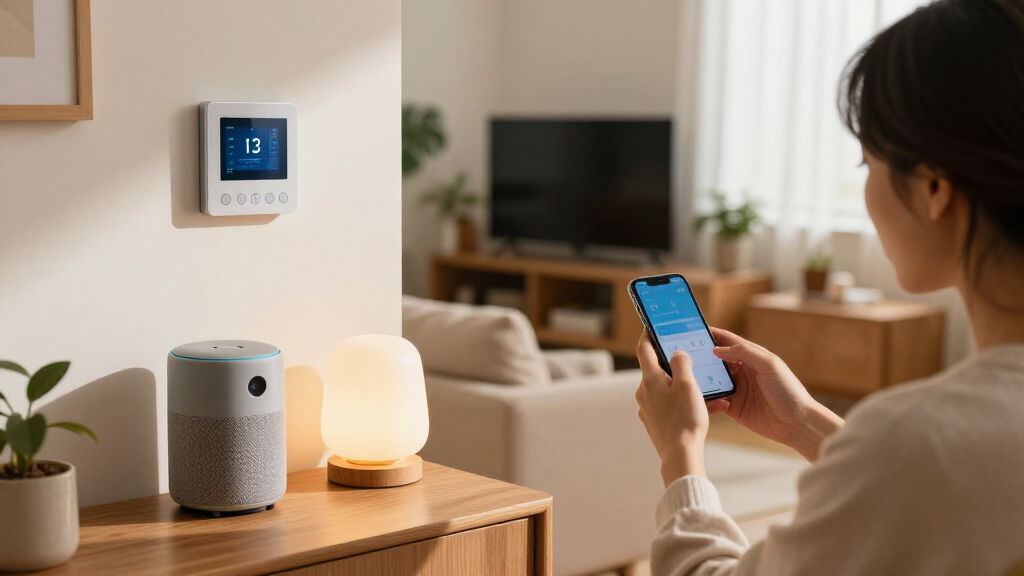

This checklist is for anyone planning a smarter, more connected home in 2026, whether you are adding one device or bringing several rooms together. The picks cover everyday controls, home monitoring, climate, Wi-Fi, and a central family hub.

Get the latest gadgets delivered free — and shop member deals
- Fast, free delivery on millions of items
- Access to Prime Big Deal Days deals on October 6–7
- Prime Video, Amazon Music and more included
Each section focuses on a different job at home: smart plugs for connected appliances, cameras and a doorbell for monitoring, a thermostat for climate control, mesh Wi-Fi for network coverage, and a hub for household coordination.
Use the checklist to match each device to your existing setup and routines. Before buying, check platform compatibility, placement, power and connection needs, and whether the device fits the way your household will use it.
Smart plugs
A smart plug is a simple way to bring a compatible plugged-in device into a connected-home routine. The Linkind Matter Smart Plug names Apple Home, Alexa, Siri, and Google, making platform support the first detail to verify against the system you already use. Check the exact product listing and your platform’s current requirements before assuming that every feature or setup path works the same across ecosystems.
A common buying mistake is to focus only on the plug and overlook the outlet and the device it will control. Confirm that the plug’s shape leaves neighboring outlets usable, and check the appliance’s plug orientation and electrical requirements. A plug is not a substitute for a device-specific controller, so make sure the appliance is appropriate for simple on-and-off control. Consider where you will place it and whether your home network reaches that spot.
For multi-person households, think about who needs access and how the plug will fit into existing routines. Compatibility and placement matter more than adding a smart plug to every outlet. Start with one useful device, confirm that control behaves as expected in your chosen app, then expand if the setup proves convenient.
What to look for:
- Confirm support for your chosen smart-home platform
- Check plug dimensions against neighboring outlets
- Verify the connected appliance suits on-and-off control
- Check Wi-Fi coverage at the intended outlet
- Consider who needs access to control it
Linkind Matter Smart Plug, Works with Apple Home, Alexa, Siri, Google Home

The Linkind Matter Smart Plug allows remote control and scheduling of connected devices via popular smart home platforms. It supports voice commands, offers safety features, and maintains connectivity even during internet outages, making home automation convenient and reliable.
Pros:
- Compatible with multiple smart home platforms including Apple Home, Alexa, and Google Home
- Supports scheduling, timers, and remote control via app
- Offline communication within LAN ensures control during internet outages
- ETL & FCC certified with safety features
Cons:
- Only supports 2.4GHz Wi-Fi networks
- Requires a Matter-certified hub or controller for full platform integration
- Limited to North American plug type
Best for: Households choosing among Apple Home, Alexa, Siri, or Google
Not ideal for: People whose appliance needs more than on-and-off control
Bottom line: Choose the Linkind plug when its platform support and outlet fit match your setup.
Video doorbells
A video doorbell connects the front entrance with your home-monitoring setup, so placement and household routines deserve attention before you choose one. The Ring Battery Doorbell 4K Pro (2nd Gen) is identified as battery-powered in its name; check the listing for installation requirements and how the product fits your entryway. Consider whether visitors approach from a clear angle and whether the mounting position gives you the view you need.
A frequent mistake is to assume that a doorbell will suit any doorway without checking the physical fit. Look at the available mounting surface, the existing doorbell location, and whether nearby walls or trim affect placement. Confirm how the unit is charged or powered and what connectivity and app setup it requires. Also review which household members need access and whether its controls fit their phones and routines.
Before buying, compare the product’s stated features with the way you plan to use it, and check that your network reaches the entrance reliably. Entryway fit and connectivity are practical priorities: a device that is awkward to mount or connect can be harder to use consistently. Read the current product details rather than inferring capabilities from the model name alone.
What to look for:
- Check mounting space and doorframe clearance
- Verify the stated battery and charging requirements
- Confirm network coverage at the entrance
- Review app and household access needs
- Match listed features to your monitoring routine
Ring Battery Doorbell 4K Pro (2nd Gen) – Deep Silver

The Ring Battery Doorbell 4K Pro captures Retinal 4K video with up to 10x Enhanced Zoom and a wide 140° field of view. It features radar-powered 3D Motion Detection for precise alerts, two-way audio with Audio+, and a quick-release Ultra Battery Pack for fast charging.
Pros:
- High-resolution Retinal 4K video with significant zoom capabilities
- Precise 3D Motion Detection reduces false alerts
- Quick Release Ultra Battery Pack offers fast charging and easy removal
- Wide 140° field of view captures more of the entrance
Cons:
- Requires a paid Ring Protect subscription for advanced AI features and video storage
- Requires minimum 15 Mbps upload speed for optimal 4K performance
- Some AI features are unavailable in specific regions due to legislation
Best for: Households looking for a battery-powered Ring doorbell
Not ideal for: Entrances without a suitable mounting position or reliable connection
Bottom line: Choose this Ring doorbell after confirming the entryway fit, power needs, and network reach.
Indoor security cameras
An indoor camera is most useful when its location and movement suit the area you want to monitor. The eufy Security E30 4K Indoor Camera with Pan and Tilt names both a 4K camera and pan-and-tilt movement. Consider which room matters, where a camera can sit securely, and whether its view can cover the intended area without being blocked by furniture or other objects.
One common mistake is to assume that a camera’s stated resolution alone guarantees a useful view in a particular room. Check the product details, placement guidance, network needs, and how the camera is controlled. Think through privacy as well: decide when the camera should be active, who can access it, and where you are comfortable positioning it. A camera pointed at the wrong area may not serve your household’s purpose.
Before purchase, verify that your home network reaches the chosen spot and that the camera’s app and controls suit the people who will use it. Purposeful placement and privacy should guide the setup. Plan a location that gives the camera room to pan and tilt while keeping the intended view in mind, then review the listed requirements for the features you expect to use.
What to look for:
- Choose a room and monitoring purpose before placement
- Allow room for pan-and-tilt movement
- Check network reach at the intended location
- Review app access and privacy controls
- Verify listed setup and power requirements
eufy Security E30 4K Indoor Camera with Pan and Tilt

This indoor security camera records in 4K around the clock and offers two-way audio, 360-degree pan and tilt, and automatic tracking for people and pets. It includes AI detection, color and infrared night vision with a built-in spotlight, and local SD card storage without a required subscription.
Pros:
- 4K recording with 24/7 coverage
- AI detection and automatic tracking for people and pets
- Local storage and core features without a monthly subscription
- Works with major smart home platforms
Cons:
- SD card is sold separately
- HomeKit limits resolution to 1080p
- Optional cloud storage or premium features may require a subscription
Best for: Households wanting an indoor camera with pan and tilt
Not ideal for: People without a suitable location or clear privacy plan
Bottom line: Choose the eufy camera when its placement, network needs, and controls suit the room.
Smart thermostats
A smart thermostat becomes part of a home’s climate routine, so compatibility with the existing heating and cooling setup is essential. The ecobee Smart Thermostat Enhanced is described as programmable and Wi-Fi connected. Before choosing it, identify your current system and wiring, then compare those details with the product’s current compatibility guidance. Do not assume that a thermostat fits simply because the old unit has a similar shape.
A common mistake is to overlook installation constraints or the people who share control of the temperature. Check the wiring and system requirements before planning a replacement, and determine whether you are comfortable with the installation steps described by the manufacturer. Consider where the thermostat is mounted and whether that location reflects the rooms your household uses. Review how programming and app access will fit your routines.
Also confirm that the home network reaches the thermostat location and that everyone who needs to adjust settings can use the intended controls. System compatibility comes first; programming features matter only after the device is a suitable match for your equipment. Keep your existing system details handy while checking the product information so you can make a grounded decision.
What to look for:
- Match thermostat requirements to your heating and cooling system
- Check existing wiring before purchase
- Review installation guidance and your comfort level
- Consider thermostat placement relative to household routines
- Confirm Wi-Fi reach and needed app access
ecobee Smart Thermostat Enhanced, Programmable WiFi Thermostat

The ecobee Smart Thermostat Enhanced helps save up to 26% annually on energy costs by automatically adjusting temperature based on occupancy and preferences. It offers remote control via app, compatibility with major smart home systems, and easy installation with included accessories.
Pros:
- Saves up to 26% on energy costs annually
- Remote control via app and voice assistants
- Easy DIY installation with included accessories
- Compatible with major smart home systems
Cons:
- SmartSensors sold separately
- Requires WiFi connection for remote features
- Some users may find setup complex
Best for: Households whose system matches ecobee’s compatibility requirements
Not ideal for: Buyers who have not checked system wiring and compatibility
Bottom line: Choose this ecobee thermostat only after verifying your system and installation needs.
Mesh Wi-Fi systems
A mesh Wi-Fi system is a network choice for a home where coverage and device connections matter across multiple areas. The NETGEAR Orbi 970 Series WiFi 7 Mesh System (3-Pack) identifies a three-piece system and Wi-Fi 7. Before buying, consider your internet service, current router setup, connected devices, and the size and layout of the areas where you need coverage. Confirm that your devices and service can make use of the capabilities you want.
A frequent mistake is to treat the number of units as a guarantee of coverage. Walls, floors, and placement can affect how well a network reaches each room. Plan where the units could go and check that each location has power and a suitable connection to the network. Review the manufacturer’s setup guidance and confirm how the system fits with your existing equipment and internet provider’s hardware.
Think about who will manage the network and how new devices will be added. If you are replacing a working setup, identify which equipment will stay and which will be removed before starting installation. Home layout and system fit should shape the choice, along with the Wi-Fi needs of your devices. Use the product’s current specifications to check compatibility and setup details.
What to look for:
- Map rooms and areas that need network coverage
- Plan power and placement for all three units
- Check fit with your modem and existing network equipment
- Compare Wi-Fi 7 support with your connected devices
- Review setup and network-management requirements
NETGEAR Orbi 970 Series WiFi 7 Mesh System (3-Pack)
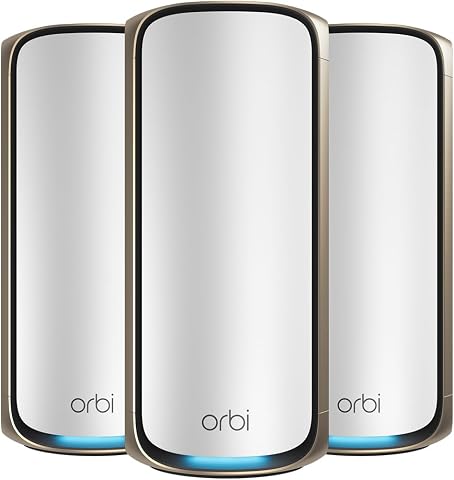
A three-unit mesh WiFi system (router plus two satellites) delivering WiFi 7 speeds up to 27 Gbps with coverage up to 10,000 sq ft and support for up to 200 connected devices. Features patented Quad-Band technology with a dedicated backhaul, 10 Gig and 2.5 Gig wired ports, easy app-based setup, and built-in security with NETGEAR Armor.
Pros:
- Massive whole-home coverage up to 10,000 sq ft with no dead zones
- WiFi 7 speeds up to 27 Gbps for 8K streaming, gaming, and VR
- High-speed 10 Gig and 2.5 Gig wired ports for demanding devices
- Easy guided setup and remote management via the Orbi app
Cons:
- NETGEAR Armor security requires a paid subscription after 30-day trial
- Real-world speeds vary with devices and internet plan
- Designed for use in the US only
Best for: Households seeking a three-piece Wi-Fi 7 mesh system
Not ideal for: Homes with a working setup that already meets their coverage needs
Bottom line: Choose the Orbi system when its requirements and placement suit your home network.
Smart home hubs
A family hub can give household plans and shared information a central place. The NORI Family Hub 15.6-Inch AI Digital Calendar names a 15.6-inch display and a digital calendar. Start by choosing where it will live and who needs to see or update the information. A convenient shared location can make a calendar easier to consult, while an unsuitable spot may leave it overlooked.
A common mistake is to buy a shared display without deciding how the household will maintain it. Check what the product listing says about calendar connections, accounts, setup, and the features you expect to use. Consider whether the people in your household use compatible calendars and whether they are comfortable managing information on a shared screen. Review the display’s power and placement requirements before settling on a location.
Think about privacy as well as visibility: decide which information belongs on a shared screen and who should have access. A hub is most helpful when it fits existing habits rather than creating a second calendar that no one updates. Shared routines and account fit are key checks. Confirm the product’s current details and choose a spot that works for daily household use.
What to look for:
- Choose a shared location with suitable power access
- Verify calendar and account compatibility
- Check who can view and update shared information
- Review setup requirements and listed features
- Plan what information is appropriate for a shared display
NORI Family Hub 15.6-Inch AI Digital Calendar

The NORI Family Hub is a 15.6‑inch touchscreen calendar that syncs Google, iCloud and Outlook calendars into one color‑coded view for the whole family. It includes routine scheduling, chore tracking with rewards, meal planning tools, and AI‑powered organization across the hub, mobile app and web without requiring a subscription.
Pros:
- All family calendars combined into one easy‑to‑read touchscreen view.
- Built‑in routine, chore and reward system encourages kids’ independence.
- Meal planning with nutrition details and shared shopping lists saves time.
- AI integration works across hub, app and web without a mandatory subscription.
Cons:
- May have a learning curve for families new to digital scheduling.
- Limited usefulness for single users or small households.
Best for: Households that want a central digital calendar display
Not ideal for: People whose family calendars or routines do not fit the listed setup
Bottom line: Choose the NORI hub when its calendar connections and placement work for your household.
Build your setup in a need-first order: start with the device that solves the most immediate problem, such as an outlet control, entryway monitor, indoor camera, or thermostat. Check compatibility and placement before adding a mesh system or central hub, especially if those choices depend on your wider network or shared household routines.
You do not need to connect every room at once. Choose one practical improvement, confirm it works with your home and the people who use it, and expand at a pace that feels manageable. A well-matched setup begins with clear needs and careful checks.
Fall Picks
fall essentials
As an affiliate, we earn on qualifying purchases.