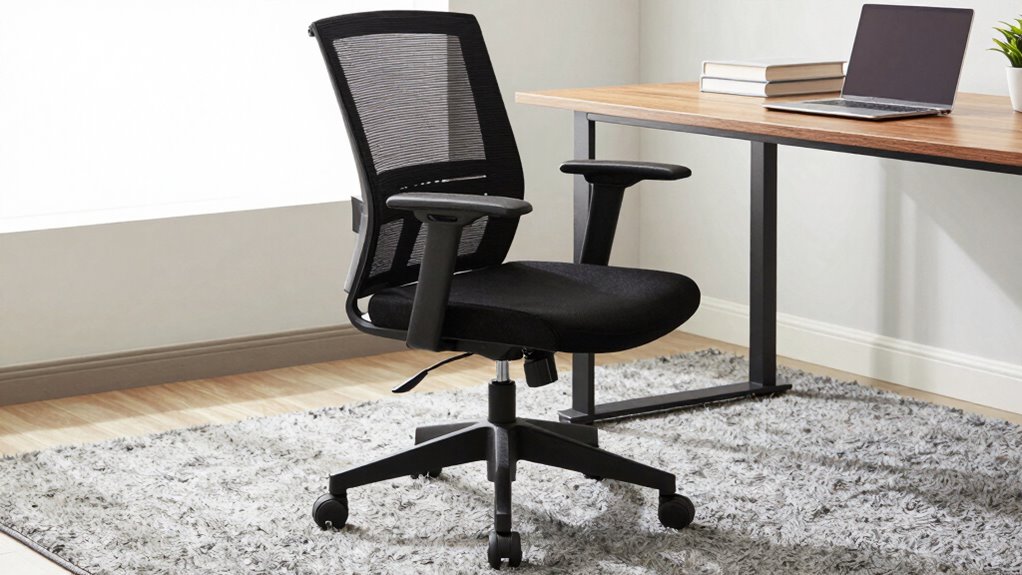

To set up your chair for long work sessions without fidgeting, start by adjusting the height so your feet rest flat on the floor and your knees are at a 90-degree angle. Support your lower back with lumbar support or a pillow, and make certain your armrests help keep your shoulders relaxed. Position your monitor at eye level and keep your keyboard close, with your elbows at about 90 degrees. Moving regularly and taking short breaks will also help maintain comfort. For more tips, keep exploring ways to optimize your setup.

Get the latest gadgets delivered free with Prime
- Fast, free delivery on millions of items
- Prime Video, Amazon Music and more included
- Member-only deals all year
Key Takeaways
- Adjust chair height so feet are flat, knees at a 90° angle, and thighs are parallel to the ground.
- Use lumbar support or pillows to maintain natural spinal curves and reduce back discomfort.
- Position monitor at eye level directly in front, keeping elbows at 90° and wrists straight for ergonomic alignment.
- Ensure armrests support arms without shoulder tension, and keep frequently used items within easy reach.
- Take regular breaks, stretch, and incorporate movement to prevent stiffness and reduce fidgeting.
ergonomic office chair with lumbar support
As an affiliate, we earn on qualifying purchases.
As an affiliate, we earn on qualifying purchases.
Why Proper Chair Setup Prevents Discomfort and Fidgeting
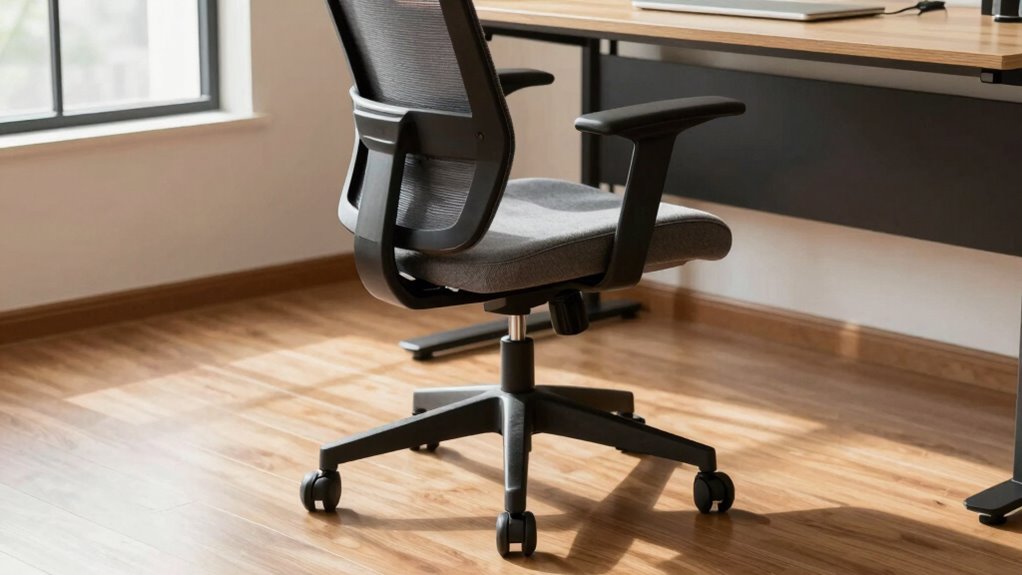
A proper chair setup is essential because it directly impacts your comfort during long work sessions. When you sit with an ergonomic posture, you minimize strain on your muscles and joints, helping prevent muscle fatigue. An correctly adjusted chair supports your lower back and encourages a natural spinal alignment, reducing pressure on your spine. This not only keeps you comfortable but also helps maintain focus, as discomfort can lead to fidgeting and distractions. When your chair is properly set up, you’re less likely to experience tension in your shoulders, neck, or legs. Incorporating ergonomic principles into your chair setup can further enhance your comfort and reduce the urge to fidget. Adjusting your chair’s lumbar support ensures better spinal alignment, which is crucial for long-term comfort. Additionally, adjusting your chair height and armrests to match your body ensures optimal posture support. Paying attention to chair stability can also prevent unnecessary adjustments and promote a more secure sitting experience. Overall, a well-arranged chair keeps you comfortable and focused, preventing discomfort from disrupting your productivity.
adjustable monitor stand for eye level
As an affiliate, we earn on qualifying purchases.
As an affiliate, we earn on qualifying purchases.
Adjust Your Chair Height for Better Support
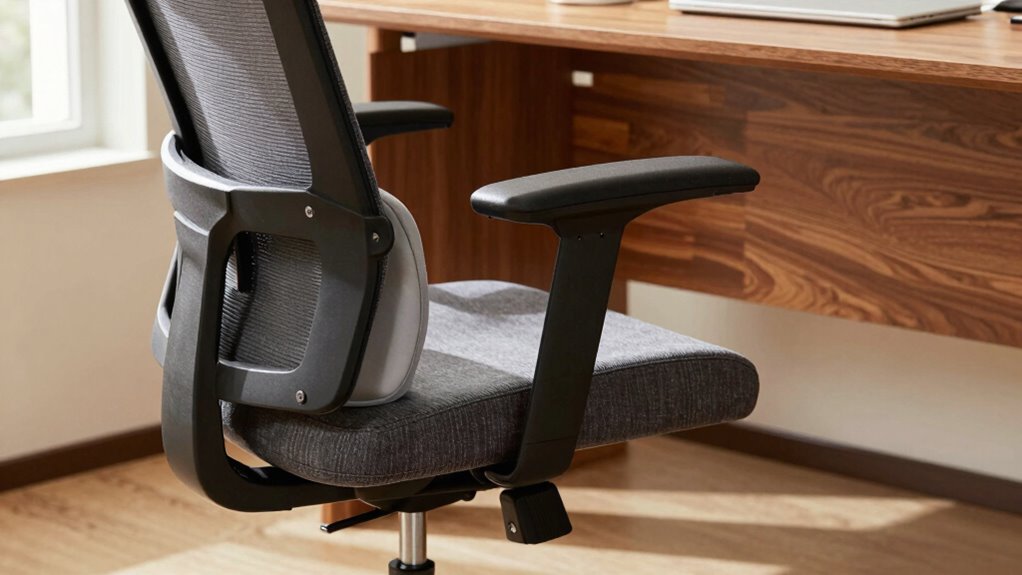
To get the best support, you need to set your chair height so your feet rest flat on the floor. Your knees should be at a comfortable angle, not too high or too low. Adjusting your seat properly helps prevent strain and keeps your posture aligned. Incorporating ergonomic principles into your setup can further enhance comfort during long work sessions. Proper chair adjustment can also reduce fatigue and improve overall well-being, especially when combined with proper posture strategies. Paying attention to ergonomic design features can make a significant difference in maintaining comfort over extended periods. Additionally, regularly checking and adjusting your chair position can help maintain dynamic sitting and prevent stiffness.
Ensure Proper Seat Height
Ensuring your chair is at the right height is essential for maintaining comfort and proper support during long work sessions. According to ergonomic principles, your feet should rest flat on the floor, and your knees should be at a 90-degree angle. Adjusting the seat height properly helps you achieve posture correction, reducing strain on your lower back and hips. If your chair is too high, your thighs may hang or press uncomfortably; if it’s too low, you might strain your legs or sit in a slouched position. Take the time to set the seat height so that your hips are level with or slightly above your knees. This alignment promotes better circulation and minimizes fidgeting, supporting sustained focus and comfort throughout your work. Proper seat height adjustment is a key factor in ergonomic seating and can significantly improve your posture. Additionally, regularly checking and adjusting your ergonomic setup can help prevent discomfort over extended periods. Maintaining an ergonomic workspace setup ensures lasting comfort and reduces the need for constant fidgeting. Paying attention to adjustable furniture features can further enhance your ergonomic alignment and comfort during long work sessions. Moreover, understanding how proper ergonomic practices influence long-term health can motivate consistent adjustments.
Maintain Comfortable Knees
Adjusting your chair height to keep your knees comfortable is essential for long-term support and reducing strain. When your seat height is correct, your knees should form about a 90-degree angle, with your feet flat on the floor. To improve leg support, consider adding a knee cushion to reduce pressure and enhance comfort. Make certain your thighs are parallel to the ground, avoiding excessive pressure on your knees. Proper leg support prevents circulation issues and fidgeting during long sessions. Visualize:
- Your knees gently bent at 90 degrees
- Feet flat for stability
- Thighs level with the hips
- A knee cushion providing extra padding.
Fine-tuning your seat height helps you maintain comfort, reduces fatigue, and keeps your knees supported throughout extended work periods. Additionally, ensuring your chair provides proper ergonomic support can further enhance comfort and prevent discomfort during long hours.
ergonomic keyboard and mouse set
As an affiliate, we earn on qualifying purchases.
As an affiliate, we earn on qualifying purchases.
Find the Right Seat Depth and Width for Comfort
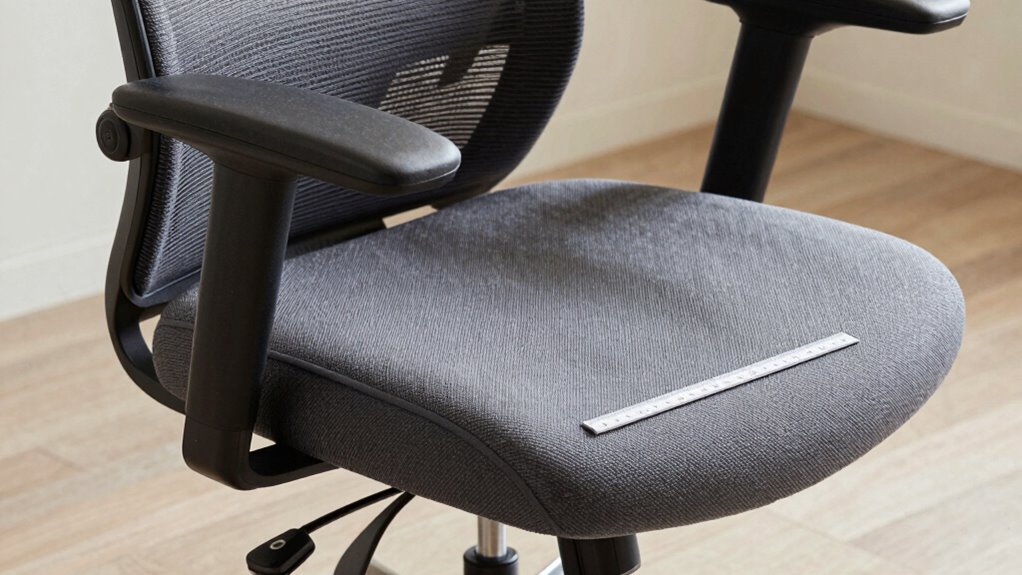
Choosing the right seat depth and width is essential for staying comfortable during long work sessions. You want a chair that allows your back to fully support your spine without pressing against the backrest or leaving gaps. When sitting, your thighs should rest flat on the seat, with about 2-4 inches of space between the edge of the seat and behind your knees. If the seat feels too deep, consider adding ergonomic cushions to reduce pressure, or adjust the seat tilt to improve comfort. The seat width should accommodate your hips comfortably without squeezing or feeling loose. Proper seat dimensions help you maintain good posture, reduce fatigue, and prevent fidgeting. Ensuring these fit well makes your long work hours much more manageable. Additionally, selecting a chair with adjustable features allows you to customize the fit for ergonomic comfort, promoting better spinal alignment and reducing discomfort during extended periods of sitting. To optimize your seating, also consider cushion placement and your overall workspace ergonomics to further enhance comfort. Paying attention to seat proportions can significantly improve your sitting experience and reduce the need for constant adjustments. A well-fitting chair with appropriate dimensions can also help prevent pressure points and circulation issues, making your work sessions more productive and comfortable.
As an affiliate, we earn on qualifying purchases.
Set Your Lumbar Support to Keep Your Back Happy
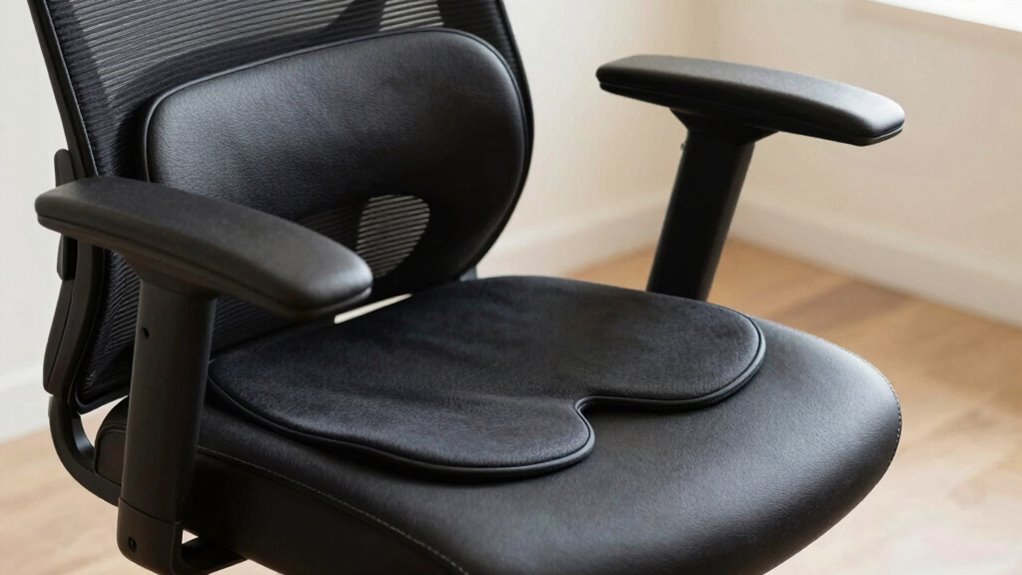
To keep your back comfortable during long sessions, you need to properly adjust your lumbar support. Make sure the support height matches the curve of your lower back, and consider using support pillows if needed. Remember to maintain a neutral spine position to reduce strain and stay comfortable all day. Additionally, choosing the right support pillows can help ensure consistent lumbar support throughout your work sessions. Ensuring your workspace has trusted resources can also provide guidance on ergonomic setups tailored to your needs. Incorporating ergonomic accessories, such as adjustable footrests or monitor stands, can further improve your overall comfort and posture during extended periods. Paying attention to luxury ergonomic products can elevate your comfort and support during long work sessions. Understanding cybersecurity tactics can also help protect your digital workspace, ensuring a secure environment for your productivity.
Adjust Lumbar Height Properly
Have you ever sat in a chair and felt that your lower back wasn’t supported properly? To fix this, adjust your lumbar height so it aligns with your natural spine curve. Imagine your lower back snugly fitting into the lumbar support, preventing slouching. To do this:
- Move the lumbar support up or down, so it directly supports your lower back’s curve.
- Ensure it’s not pressing into your spine or leaving gaps.
- Use ergonomic footrests to maintain proper leg positioning, reducing strain.
- Adjust your chair arms so they don’t push your shoulders up or cause you to lean forward.
- Remember that proper lumbar support can help indoor plant care by promoting good posture during long work sessions, reducing the likelihood of discomfort and fidgeting.
Proper lumbar height keeps your back happy during long sessions, minimizing fidgeting and discomfort. A well-aligned lumbar support is key to sustained comfort and support.
Use Support Pillows Effectively
Using support pillows effectively can make a significant difference in maintaining proper lumbar support during long work sessions. Start by carefully adjusting your support pillow placement so it aligns directly behind your lower back, filling the natural curve. This ensures your lumbar region stays supported without forcing your spine into an unnatural position. When selecting pillow firmness, opt for a medium or firm pillow that provides enough resistance without feeling too hard. A too-soft pillow won’t offer adequate support, while an overly firm one might cause discomfort. Regularly reassess your support pillow’s position and firmness throughout your session, ensuring your back remains supported and relaxed. Proper support pillow use helps prevent fatigue and promotes good posture during extended periods of sitting.
Maintain Neutral Spine Position
Maintaining a neutral spine position is essential for preventing discomfort and reducing the risk of long-term injury. To achieve this, set your lumbar support to promote an ergonomic posture that aligns your back naturally. When your lumbar support is correctly adjusted, your spine maintains its natural curves, easing pressure on your discs and muscles. Visualize your back supported by a gentle curve, like a cradle for your lower back. Imagine:
- Your hips level with your knees
- Shoulders relaxed and back
- Head aligned with your spine
- Chest slightly open for better breathing
These cues help you maintain a neutral spine, ensuring your back stays comfortable during long work sessions. Proper lumbar support is a simple but crucial step toward an ergonomic posture that keeps you pain-free.
Position Your Armrests and Monitor for Ergonomic Alignment
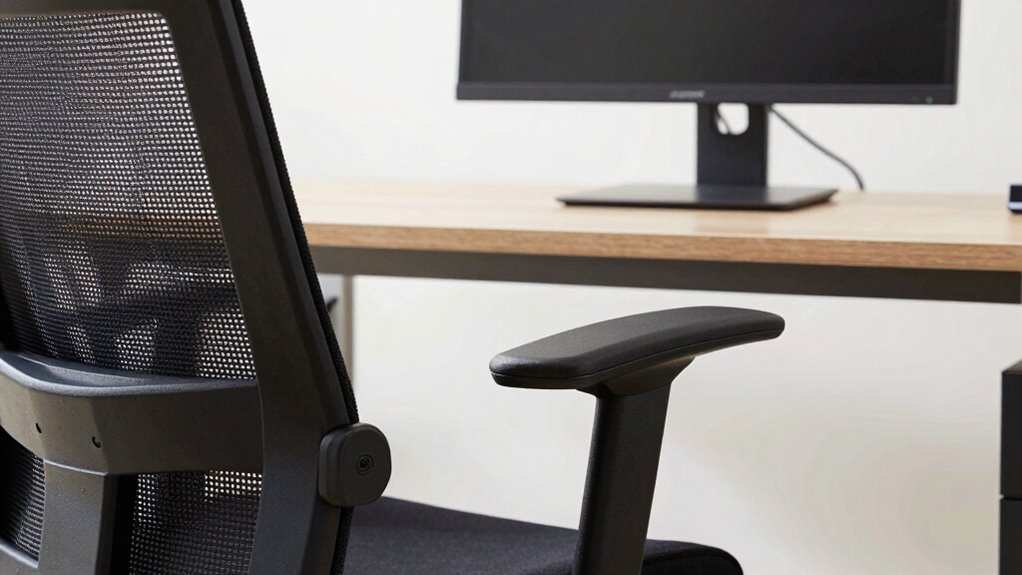
To achieve ideal ergonomic alignment, start by adjusting your armrests so they support your arms comfortably without raising or lowering your shoulders. Proper armrest positioning helps prevent tension and keeps your shoulders relaxed. Verify they are set at a height where your elbows are close to a 90-degree angle. Next, focus on monitor alignment. Position your screen directly in front of you, about an arm’s length away, with the top of the monitor at or just below eye level. This setup reduces neck strain and encourages good posture. Keep your monitor centered and avoid leaning forward or sideways. When your armrests and monitor are properly aligned, you’ll minimize fidgeting and maintain comfort during long work sessions.
Keep Your Keyboard and Screen Properly Aligned
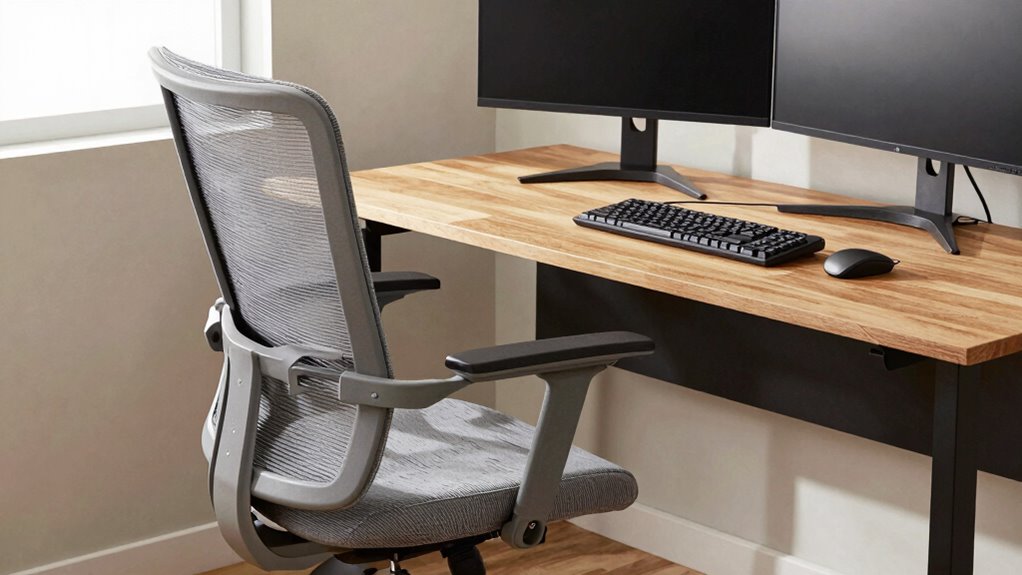
Ensuring your keyboard and screen are properly aligned prevents strain and promotes comfortable, efficient work. Focus on keyboard ergonomics and monitor placement to reduce fatigue. Position your monitor so the top of the screen is at eye level, about an arm’s length away. Keep your keyboard directly in front of you, with your wrists straight and relaxed. Imagine:
- The monitor’s center aligned with your nose or eye level
- Your keyboard flat on the desk, close enough to avoid reaching
- Your elbows bent at roughly 90 degrees with forearms parallel to the ground
- Your screen and keyboard forming a straight, comfortable line
This alignment minimizes neck and shoulder tension while supporting proper posture. Maintaining proper placement helps you work longer without discomfort and reduces the urge to fidget.
How to Incorporate Movement and Breaks Into Your Routine
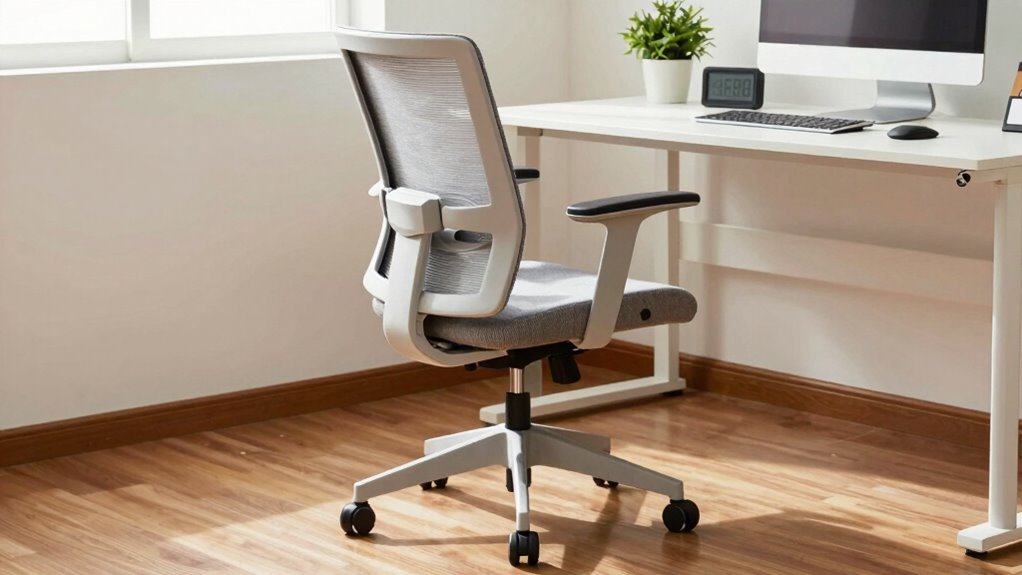
While keeping your workspace ergonomically sound helps prevent discomfort, it’s equally important to break up long periods of sitting with movement. Incorporate short stretching routines every hour to reduce muscle tension and boost circulation. Use ergonomic accessories like footrests or sit-stand desks to make movement easier and more natural. Set timers or reminders to stand up, walk around, or do simple stretches, such as shoulder rolls or neck tilts. These small breaks can refresh your focus and prevent stiffness. Remember, consistency is key—regular movement helps maintain comfort and productivity during long work sessions. Making movement a routine ensures you stay alert and minimizes the need to fidget constantly, creating a more comfortable, sustainable work environment.
What to Do If You Still Feel Discomfort After Adjustments
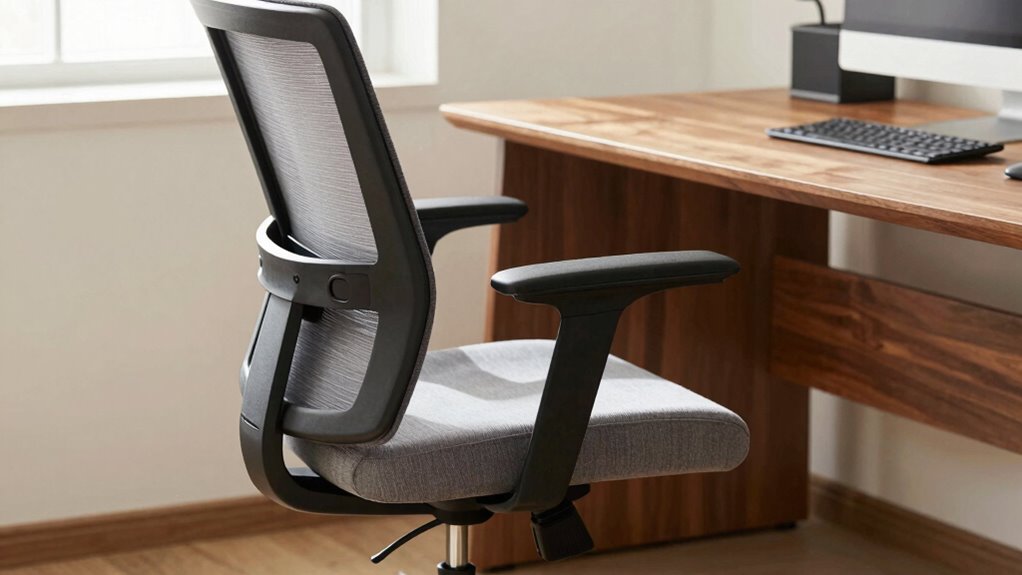
If you still feel discomfort after making ergonomic adjustments, it’s important to reassess your setup and habits rather than ignore the pain. Your body might need additional support or a different approach. Consider incorporating ergonomic accessories like lumbar cushions, footrests, or adjustable armrests to better align your posture. Focus on posture awareness by checking if your shoulders are relaxed, your back is supported, and your feet rest flat on the floor. Visualize:
- A supportive cushion hugging your lower back
- Your feet firmly planted on a sturdy footrest
- Your shoulders relaxed and away from your ears
- Your monitor at eye level to prevent neck strain
These small tweaks can considerably reduce discomfort and improve your long-term comfort. Keep listening to your body and adjust accordingly.
Frequently Asked Questions
How Often Should I Adjust My Chair During Long Work Sessions?
You should adjust your chair as needed to maintain proper sitting posture, typically every 30 to 60 minutes. Regular chair adjustments help prevent discomfort and promote good ergonomics, reducing fidgeting. Check that your feet are flat on the ground, your back is supported, and your arms are at a comfortable angle. Making small, frequent chair adjustments keeps your posture aligned and minimizes the urge to fidget during long work sessions.
Can Ergonomic Chairs Prevent All Types of Discomfort?
Think of ergonomic chairs as shields against discomfort, but they’re not magic wands. Chair material and color influence comfort and mood, yet they can’t prevent all aches. Soft mesh offers breathability, while plush fabric adds coziness. Bright colors energize, darker shades soothe. While ergonomic features reduce many issues, some discomfort still slips through—like shadows at dusk—so stay mindful and adjust your posture regularly for the best results.
What Accessories Can Improve Chair Comfort During Extended Use?
You can improve your chair comfort during long use by adding lumbar support cushions to maintain proper back alignment. Seat cushions help reduce pressure on your hips and prevent discomfort over time. Look for adjustable lumbar supports and memory foam seat cushions to customize your setup. These accessories work together to promote good posture, lessen fatigue, and keep you comfortable during extended work sessions.
How Do I Know if My Chair Setup Is Ergonomically Correct?
You’ll know your chair setup is ergonomic when you’re not constantly adjusting, and your posture correction feels natural. Sit with your feet flat, knees at a 90-degree angle, and your desk height just below your elbows. If you’re reaching or slouching, it’s a sign to fine-tune. Ideally, your monitor eye level and lumbar support keep you comfortably aligned, preventing that awkward “what’s wrong” feeling.
Are There Specific Chair Features Recommended for Prolonged Sitting?
For prolonged sitting, look for a chair with good lumbar support to maintain proper back alignment and reduce strain. Choose one with adjustable features, including height and tilt, to customize your comfort. Also, prioritize chair mobility—wheels and a swivel base allow you to move effortlessly and reach different areas without straining. These features help you stay comfortable and focused during long work sessions.
Conclusion
By fine-tuning your chair setup, you create a sturdy foundation that keeps discomfort at bay, letting you focus like a laser beam. Remember, your body deserves the comfort it craves, so don’t be afraid to make adjustments and take breaks. Think of your workspace as a well-tuned instrument—when everything’s aligned, your productivity and well-being will sing in harmony, making those long work sessions feel a little lighter on your shoulders.
Fall Picks
fall essentials
As an affiliate, we earn on qualifying purchases.