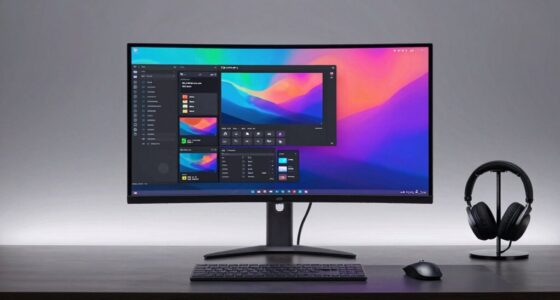

This checklist is for anyone setting up or refreshing a home office in 2026, whether you’re outfitting a dedicated workspace or making a shared desk more practical. It focuses on everyday workstation essentials that connect, position, and organize common office tech.

Get the latest gadgets delivered free with Prime
- Fast, free delivery on millions of items
- Prime Video, Amazon Music and more included
- Member-only deals all year
The sections are organized by role: first connectivity and typing, then monitor positioning and video calls, followed by power and cable management. Each one explains why the category matters and what to check before choosing the listed pick, including fit and compatibility.
Use the checklist as a starting point, not a requirement to buy every item. Compare each product’s specifications with your laptop, monitors, desk, and working habits; confirm the details that matter to your setup before ordering. The goal is a workspace that feels comfortable and well organized, without adding gear you won’t use.
USB-C Docking Station
A dock can make a laptop-centered workspace easier to connect and disconnect, but the right choice depends on the computer and peripherals you already own. The Anker Prime TB5 Docking Station is identified as a 14-in-1 Thunderbolt 5 dock, so start by checking whether your laptop supports Thunderbolt 5 and whether its connection requirements match the dock. A connector that fits physically does not by itself confirm that every feature will work as you expect; verify host compatibility in the product specifications.
Before buying, list what you plan to connect: displays, storage, wired accessories, and charging needs. Then compare that list with the dock’s documented ports and supported capabilities. A common mistake is choosing by the port count alone, without checking the type of each port or whether the dock supports the particular display setup you need. Also consider where the dock will sit and whether the cable can reach your laptop comfortably. For a tidy setup, check the footprint and cable arrangement against your desk. If you use several monitors or specialized peripherals, confirm those exact combinations with the manufacturer rather than assuming that a broad “14-in-1” description guarantees support. Match the dock to your actual devices before making it the center of your workstation.
What to look for:
- Confirm your laptop’s Thunderbolt and USB-C support.
- Match each required peripheral to a documented port.
- Verify monitor count, resolution, and refresh-rate support for your setup.
- Check charging requirements and the dock’s stated power delivery.
- Measure desk space and cable reach before placing the dock.
Anker Prime TB5 Docking Station – 14-in-1 Thunderbolt 5 Dock for Laptops
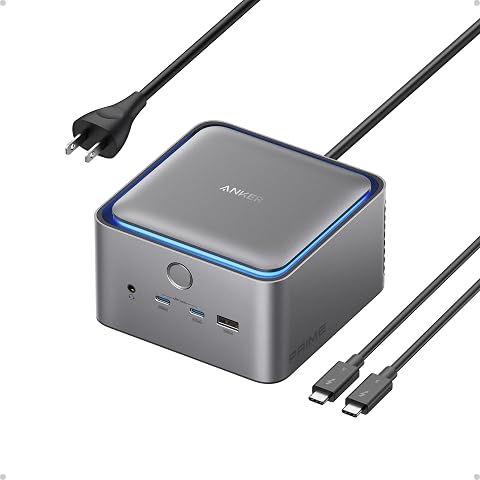
The Anker Prime TB5 is a versatile 14‑in‑1 docking station featuring a Thunderbolt 5 upstream port, two downstream Thunderbolt 5 ports, multiple USB‑C and USB‑A connections, SD/TF card readers, Ethernet, audio jack, and an HDMI 2.1/DisplayPort 2.1 output. It delivers up to 120 Gbps data transfer, supports dual 8K displays at 60 Hz, and provides up to 140 W power delivery with PD 3.1 for fast charg
Pros:
- 120 Gbps Thunderbolt 5 data transfer for rapid file moves
- Supports dual 8K displays at 60 Hz
- Power delivery up to 140 W with PD 3.1 for fast charging multiple devices
- Active cooling system prevents overheating under load
Cons:
- Only one HDMI/DisplayPort output limits native video connections
- Relatively large footprint may not suit compact desk setups
Best for: Laptop users who want one hub for several compatible peripherals.
Not ideal for: People whose laptop or display setup has unverified Thunderbolt compatibility.
Bottom line: Choose this dock only after confirming that its documented ports and capabilities match your laptop and connected devices.
Ergonomic Wireless Keyboard
A keyboard shapes how your hands and arms meet the desk throughout the workday, so comfort and layout deserve more attention than appearance alone. The Logitech Ergo K860 is a wireless ergonomic split keyboard with a wrist rest. Before choosing it, consider whether a split layout suits your typing habits and whether you are comfortable adapting to a different hand position. The wrist rest and keyboard should fit the way you sit, rather than encouraging you to reach forward or hold your wrists at an awkward angle. Personal fit matters more than assuming an ergonomic design will feel right for everyone.
Check the keyboard’s connection options and operating-system compatibility against your computer, and confirm how it is powered and how its wireless connection is established in the product details. A frequent buying mistake is focusing on the ergonomic label while overlooking desk width, preferred key layout, or the space needed for the wrist rest. Measure the area where you type, including room for a mouse, and consider whether the keyboard’s shape works with your usual pointing-device position. If possible, compare the layout with one you already find comfortable. The best choice is one you can use consistently without crowding your workspace or disrupting your familiar workflow. Check layout, connection, and desk clearance before committing to a split keyboard.
What to look for:
- Confirm wireless connection and computer compatibility.
- Check that the split layout suits your typing habits.
- Measure desk width with room for the wrist rest and mouse.
- Review key layout and any adjustment period you are comfortable with.
- Consider whether the keyboard’s shape fits your usual arm position.
Logitech Ergo K860 Wireless Ergonomic Split Keyboard with Wrist Rest

The Logitech Ergo K860 is an ergonomic wireless keyboard designed to promote natural typing posture and reduce muscle strain. It features a split keyframe, cushioned wrist rest, adjustable tilt legs, and quiet, full-size keys for comfortable and precise typing.
Pros:
- Ergonomically designed to reduce wrist and muscle strain
- Comfortable cushioned wrist rest with memory foam
- Adjustable tilt for personalized typing posture
- Wireless connectivity via Bluetooth or USB receiver
Cons:
- May be more expensive than standard keyboards
- Requires batteries or power source for wireless operation
Best for: Typists looking for a wireless split keyboard with a wrist rest.
Not ideal for: Anyone who needs a compact layout or prefers a conventional keyboard shape.
Bottom line: Make sure the split layout, wrist-rest footprint, and wireless compatibility fit your daily routine.
Adjustable Monitor Arm
A monitor arm can help make a screen easier to position, but compatibility and mounting are essential. The HUANUO Dual Monitor Stand is listed for 13–40-inch monitors and includes USB and height adjustment. Treat that screen-size range as only one part of the fit check: confirm each monitor’s weight and mounting pattern against the arm’s stated limits and specifications. Also check that your desk can accept the mounting method and has enough clearance around its edge. Confirm the mount and desk fit before ordering, especially for two displays.
A common mistake is assuming that two monitors within the listed size range will automatically work together on one stand. Screen size does not establish monitor weight, mounting compatibility, or available movement once both screens are installed. Measure your monitors and desk, then review the product documentation for supported weight, VESA patterns, clamp or mounting requirements, and clearance. Consider where the screens need to sit relative to your chair and whether the arm can accommodate that arrangement. The product title also mentions USB, so check the specifications to understand what that feature provides and whether it suits your setup. Leave room for cables to move without pulling tight as you adjust the screens. Check the full two-monitor configuration, not just each screen’s diagonal measurement.
What to look for:
- Verify both monitors’ size, weight, and mounting pattern against the specifications.
- Check desk thickness, edge shape, and mounting clearance.
- Confirm the arm’s movement range suits your preferred screen positions.
- Review what the listed USB feature provides.
- Plan cable slack for the full range of monitor movement.
HUANUO Dual Monitor Stand for 13-40 inch Monitors with USB, Height Adjustable, V
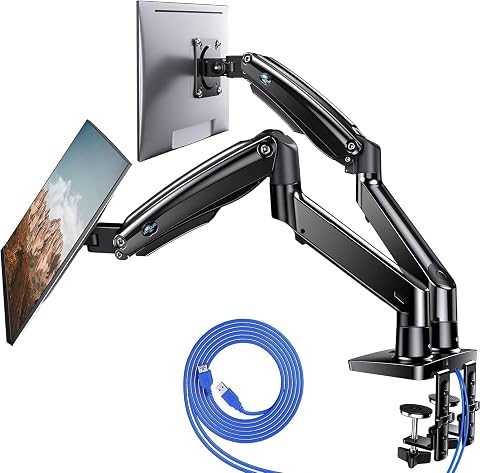
This dual monitor stand supports two screens ranging from 13 to 40 inches, each weighing up to 26.4 lbs. It features adjustable height, full motion articulation, and built-in USB ports for convenient device charging, helping to free up desk space and improve ergonomics.
Pros:
- Supports large monitors up to 40 inches and 26.4 lbs each
- Full motion adjustment for optimal ergonomic positioning
- Includes built-in USB ports for device charging
- Flexible mounting options with clamp and grommet bases
Cons:
- May be heavy to move once installed
- Requires desk with sufficient thickness for mounting
- Some users may find assembly complex
Best for: Users arranging two compatible monitors with adjustable height.
Not ideal for: Anyone whose desk or monitors fall outside the arm’s documented mounting limits.
Bottom line: Confirm monitor specifications and desk mounting fit for both screens before choosing this stand.
Webcam Privacy Monitor
A separate webcam can give a desktop or laptop setup a dedicated video-call camera, while a physical privacy cover offers a way to block the lens when it is not in use. This listed webcam is described as 1080P, with a microphone, privacy cover, and USB connection. Before buying, check that your computer supports the connection and that the webcam works with the video-call software and operating system you rely on. The product name alone does not establish compatibility with every application. Check your computer and software before adding it to a call setup.
Think through placement as well as connection. On a laptop, confirm that the webcam can sit securely without obstructing the screen or interfering with the display’s opening and closing. On a desktop monitor, check the mounting style and whether the camera can be aimed at eye level from your usual seating position. A common mistake is to focus only on the stated resolution and overlook microphone use, camera angle, cable reach, and privacy-cover clearance. Review the product details for those points, and consider whether you prefer the webcam’s microphone or a separate audio device. If privacy is a priority, make sure the cover can be used as intended in your setup. Plan camera placement and privacy before choosing a USB webcam.
What to look for:
- Confirm USB connection and operating-system compatibility.
- Check support for your preferred video-call applications.
- Review how the camera attaches to your monitor or laptop.
- Assess camera angle, cable reach, and microphone needs.
- Make sure the privacy cover can be accessed in your placement.
Webcam 1080P with Microphone & Privacy Cover for PC/Laptop, USB Plug & Play, Aut

This 1080p webcam provides sharp Full HD video at 30 fps with HDR for clear images in various lighting conditions. It features a noise-canceling microphone, privacy cover, and automatic light correction, making it ideal for video calls, streaming, and online meetings.
Pros:
- High-quality 1080p video with HDR for clear images
- Built-in noise-canceling microphone for crisp audio
- Privacy cover enhances security and dust protection
- Auto light correction for optimal image quality
Cons:
- Fixed focus may not suit all users’ needs
- Limited to USB 2.0 connectivity
- No water resistance for outdoor use
Best for: Users who want a USB webcam with a microphone and privacy cover.
Not ideal for: People who need features or compatibility not confirmed in the product details.
Bottom line: Verify software support and mounting fit so the camera, microphone, and cover work in your setup.
Surge Protector Power Strip
A power strip can bring workstation plugs together, but it should be selected around the equipment you intend to connect and the room’s power setup. The GE Surge Protector Power Strip is identified as having two tethered USB ports. Before choosing it, review the product specifications for outlet count, cord length, surge-protection details, and the electrical ratings required by your devices. The name alone does not provide those specifics, so confirm them rather than assuming they meet your needs. Check electrical specifications before plugging in office equipment.
Make an inventory of the devices that will share the strip, including their plugs and power requirements, and compare it with the documented capacity and layout. A frequent mistake is choosing a strip by its USB ports while overlooking whether the standard outlets are sufficient or whether bulky adapters will block neighboring outlets. Check where the strip will sit, how far it is from the wall outlet, and whether the cord can be routed without creating a trip hazard. The listing mentions two tethered USB ports; verify their specifications and whether their connection style works for your devices. Avoid treating a surge-protector label as a substitute for checking its stated protection and electrical limits. Match capacity, placement, and connections to the workstation you are powering.
What to look for:
- Confirm outlet count and electrical ratings in the product specifications.
- Check documented surge-protection details.
- Measure cord reach from the wall outlet to the planned location.
- Verify the two tethered USB ports meet your device needs.
- Allow room for adapters and keep the cord route clear.
GE Surge Protector Power Strip with 2 Tethered USB Ports
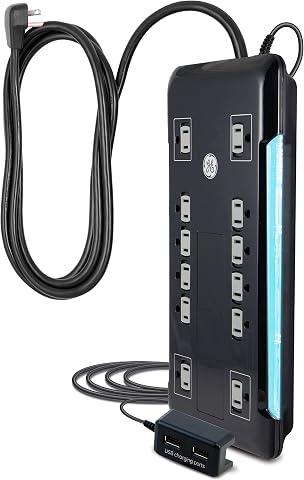
This surge protector features 12 outlets, including two USB ports for charging devices. It has an 8-foot extension cord, space-saving design, and surge protection with a 4320 joule rating, ensuring safety and reliability for home or office use.
Pros:
- Multiple outlets and USB ports for versatile charging
- Long extension cord for flexible placement
- High surge protection rating for safety
Cons:
- Limited to 120V electrical system
- No mention of smart or energy-saving features
Best for: Users who need a power strip with two tethered USB ports.
Not ideal for: Anyone whose device load or outlet needs exceed the strip’s documented limits.
Bottom line: Check capacity, protection details, and cord reach against every device you plan to connect.
Under-Desk Cable Tray
A cable tray can move loose cords and power-related clutter out of the main desk area, helping keep the workspace easier to manage. The Ascrono Original Under Desk Cable Management Tray is listed in black and measures 40.6 inches. Before buying, measure the underside of your desk to confirm that the tray’s length fits the available area and does not interfere with legs, drawers, crossbars, or other hardware. Also check the installation requirements and whether your desk material and construction support the stated mounting method. Measure before mounting to avoid a poor fit.
Think about what you plan to route through the tray. Power cords, device cables, and adapters can differ in size and shape, so review the product details and compare its usable space with your actual collection. A common mistake is judging compatibility from the tray’s length alone; desk clearance, attachment method, cable exits, and access for future changes matter too. Plan where cords will enter and leave the tray, and leave enough slack for devices or adjustable furniture to move without tugging. If your desk has a frame or an unusually shaped underside, check that the tray can be installed in the intended position. Plan cable paths and access before attaching a long under-desk organizer.
What to look for:
- Measure the available underside space against the 40.6-inch length.
- Review mounting method and desk-material compatibility.
- Check clearance from legs, drawers, frames, and crossbars.
- Compare usable tray space with your adapters and cable bundle.
- Plan cable entry points and slack for movement or maintenance.
Ascrono Original Under Desk Cable Management Tray, Black, 40.6 inches

This under desk cable management tray conceals cords, power strips, and adapters, keeping your workspace tidy and organized. Made from fire-retardant fabric, it supports up to 66 lbs and offers versatile mounting options for various desk setups.
Pros:
- Conceals cords and power strips for a tidy workspace
- Supports a large capacity for multiple devices
- Easy to install with versatile mounting options
Cons:
- Limited to a length of 40.6 inches, may not fit larger desks
- Fabric material may wear over time with heavy use
Best for: People organizing cables beneath a desk with enough mounting space.
Not ideal for: Users whose desk underside cannot accommodate the tray’s length or installation method.
Bottom line: Confirm underside clearance, mounting compatibility, and cable capacity before installing this tray.
Build the workspace in a practical order: first confirm the computer and monitor connections you need, then address the keyboard and screen positions, followed by power and cable routing. Prioritize compatibility and fit before adding accessories, and buy only the categories that solve a real problem in your setup. For each pick, check the current product specifications rather than relying on its title alone.
A comfortable home office does not have to come together all at once. Start with the most important friction point, test how the change works in your daily routine, and adjust the rest of the setup over time. With careful measuring and a few deliberate choices, you can create a workspace that feels more useful and organized without overcomplicating it.