
To find the right monitor size and distance for comfort, start by measuring your screen diagonally and sit about 1.5 to 2.5 times that length away. Adjust the monitor so it’s at eye level and roughly an arm’s length away, reducing eye strain and promoting good posture. Keep your workspace well-lit and avoid glare. Want to learn how fine-tuning these details can boost your comfort? Keep exploring for simple tips.
Key Takeaways
- The optimal viewing distance is typically 1.5 to 2.5 times the monitor’s diagonal size.
- Adjust monitor height so the top aligns with your eye level for ergonomic comfort.
- Proper distance reduces eye strain by minimizing constant focus adjustments.
- Brightness should match ambient lighting to prevent glare and eye fatigue.
- Use ergonomic accessories like adjustable stands to customize monitor positioning effectively.

VIVO Premium Single 17 to 32 inch VESA Monitor and Touch Screen Desk Stand with Rotating Base, Freestanding Pneumatic Height Adjustable Arm, 12 inch Maximum Screen Height, Black, STAND-V001R
Fits 17” to 32” Screens: Single freestanding tabletop monitor mount fitting most screens 17” to 32” in size….
As an affiliate, we earn on qualifying purchases.
As an affiliate, we earn on qualifying purchases.
Why Your Monitor Size and Viewing Distance Matter for Eye Comfort
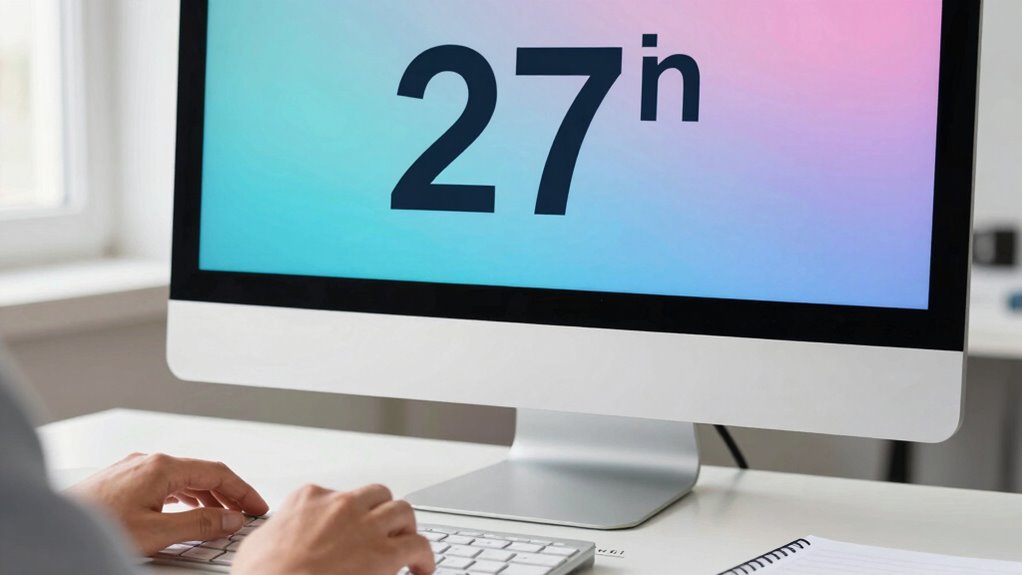
Your monitor size and viewing distance directly impact how comfortable your eyes feel during extended use. If your screen is too small or too close, you may strain your eyes and adopt an ergonomic posture that causes discomfort. Conversely, a too-large monitor or sitting too far away can lead to eye fatigue from excessive eye movement. Maintaining the right distance helps you keep your eyes relaxed and focused naturally. Adjusting screen brightness to match your environment also reduces eye strain, especially when combined with an ideal monitor size. When you choose a monitor size appropriate for your workspace and set it at a comfortable distance, you promote better ergonomic posture and minimize eye fatigue. Additionally, proper monitor setup can help optimize your overall viewing comfort. Ensuring proper monitor positioning can further improve your visual experience and reduce strain during long periods of screen time. Recognizing the importance of ergonomic principles in workspace design can make a significant difference in your long-term eye health. Incorporating regular breaks into your screen time routine can also significantly lessen eye strain and improve comfort during extended use. Being mindful of your visual ergonomics helps prevent discomfort and supports sustained productivity, making these simple adjustments crucial for your wellbeing. This simple adjustment considerably improves your overall comfort during long periods of screen time.
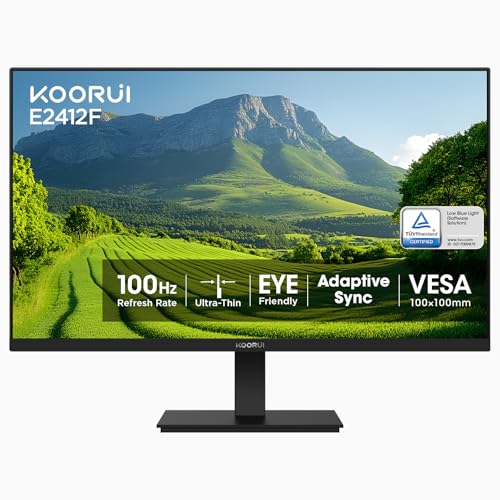
KOORUI 24-inch Computer Monitor Full HD 1920 x 1080p 100Hz VA Display 4000:1 Contrast Ratio with HDMI VGA, TÜV Rheinland Certified, 100 x 100 mm VESA Mountable, Ultra-Slim Design, Tilt, Black, E2412F
TRUE COLOR VIVID DETAIL : The 24 inch 100hz computer gaming monitor cover 99% of the SRGB color…
As an affiliate, we earn on qualifying purchases.
As an affiliate, we earn on qualifying purchases.
How to Measure and Calculate the Best Distance to Sit From Your Screen
To determine the most suitable distance to sit from your monitor, start by measuring the screen’s diagonal size in inches. This helps you establish a comfortable viewing range that supports an ergonomic posture and optimizes screen resolution. A common guideline is to sit about 1.5 to 2.5 times the screen’s diagonal length away. For example, a 24-inch monitor should be roughly 36 to 60 inches from your eyes. Use the table below to visualize different screen sizes and recommended distances:
| Screen Size (inches) | Approximate Distance (inches) | Ideal Distance (meters) |
|---|---|---|
| 20-24 | 30-60 | 0.8-1.5 |
| 27-32 | 40-80 | 1-2 |
| 34-42 | 50-105 | 1.3-2.7 |
| 43+ | 65+ | 1.7+ |
Adjust based on screen resolution to ensure clarity without strain your eyes. Considering viewing ergonomics is essential for long-term comfort and eye health during extended screen use. Proper monitor placement can greatly reduce eye fatigue and improve overall comfort. Ensuring the monitor’s height and tilt support proper ergonomic posture can help prevent discomfort over time. Additionally, incorporating natural remedies such as taking regular breaks and practicing eye exercises can promote overall visual wellness during prolonged use. Maintaining an appropriate monitor distance is also important for minimizing eye strain and enhancing viewing comfort.

2 PCS 27" Anti Glare Screen Protector for 27 Inch 16:9 Widescreen Desktop Monitor, Matte Screen Filter for Sceptre/LG/Dell/HP/Acer/ViewSonic/ASUS/Aoc/Samsung,Eye Protection & Anti Scratch film
27 inch Monitor Screen Protector Compatible with the Devices: Screen Protector for 27 Inch 16:9 Widescreen Flat or…
As an affiliate, we earn on qualifying purchases.
As an affiliate, we earn on qualifying purchases.
Common Mistakes That Cause Eye Strain and How to Avoid Them
One common mistake that leads to eye strain is sitting too close or too far from your screen, which forces your eyes to constantly adjust focus and can cause fatigue. To avoid this, maintain an ergonomic posture that supports proper alignment of your head, neck, and eyes. Also, pay attention to screen glare, which can increase eye discomfort and make focusing difficult. Position your monitor to minimize reflections from windows or lights and keep it at an appropriate distance. Poor posture and glare can both contribute to eye strain over time. Ensuring your screen is at the correct height and distance, combined with good ergonomic habits, helps reduce eye fatigue and promotes overall comfort during long viewing sessions. Additionally, understanding digital content formats can help you optimize your viewing setup for better comfort and reduced strain. Being aware of screen resolution and display quality can further enhance visual clarity, reducing the effort needed to focus. Proper monitor setup that considers these factors is essential for long-term eye health and productivity. Regular breaks and proper lighting can also significantly decrease eye fatigue during extended screen use. Incorporating ergonomic accessories, such as adjustable monitor stands or anti-glare filters, can further improve your workspace ergonomics and reduce strain.

WALI Single Monitor Mount for 13-34 inch Screens, Adjustable Gas Spring Single Monitors Arm, Regular Screen up to 32 inch, 26.4lbs, Computer Monitor Stand for Desk, VESA 75/100mm (GSMP001N), Black
Compatibility: The WALI Single Monitor Arm is designed to fit most flat or curved LCD/LED screens ranging from…
As an affiliate, we earn on qualifying purchases.
As an affiliate, we earn on qualifying purchases.
Practical Tips to Adjust Your Monitor for Comfortable Viewing
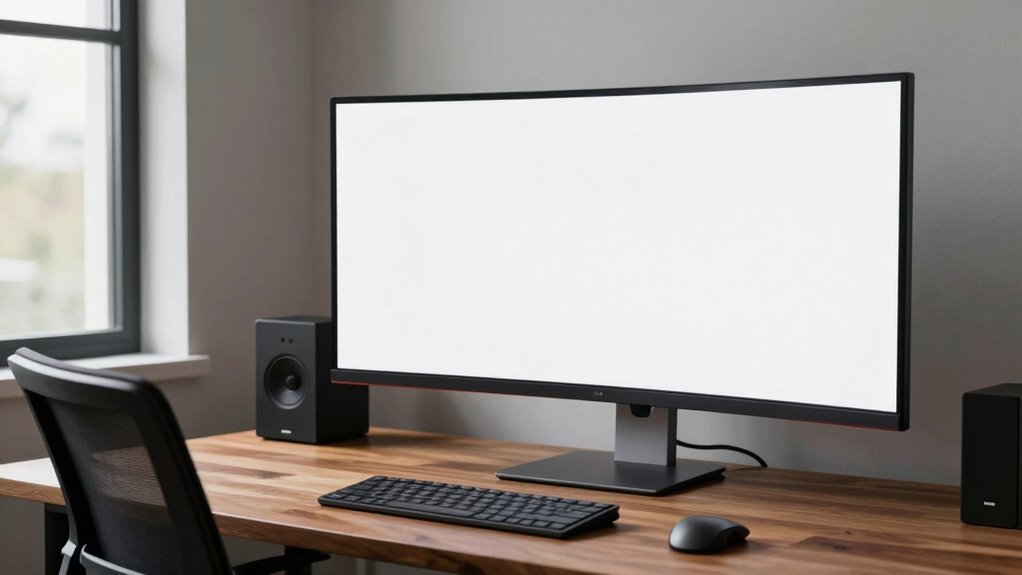
Adjusting your monitor for comfortable viewing starts with positioning it correctly. Ensure the top of your screen is at eye level and about an arm’s length away to promote ergonomic posture. You can visualize this setup with the following:
| Correct Position | Visualize this |
|---|---|
| Screen at eye level | Your eyes are level with the top of the monitor |
| Comfortable distance | About an arm’s length from your face |
| Proper tilt | Slightly tilted back for less neck strain |
| Brightness adjusted | Screen brightness matches ambient light |
Keep your posture upright, relax your shoulders, and adjust screen brightness to reduce eye fatigue. Maintaining proper monitor ergonomics is essential for preventing discomfort during long viewing sessions. Additionally, incorporating scent balance techniques like adjusting your workspace scent environment can promote relaxation and focus. Implementing personalized ergonomic adjustments can further enhance comfort and productivity. These small changes make a big difference in comfort and productivity. For optimal viewing, also consider monitor ergonomics to further enhance your setup, especially in relation to AI and Society debates on ergonomic standards and workplace adaptation.
Essential Tools and Accessories to Optimize Your Monitor Setup
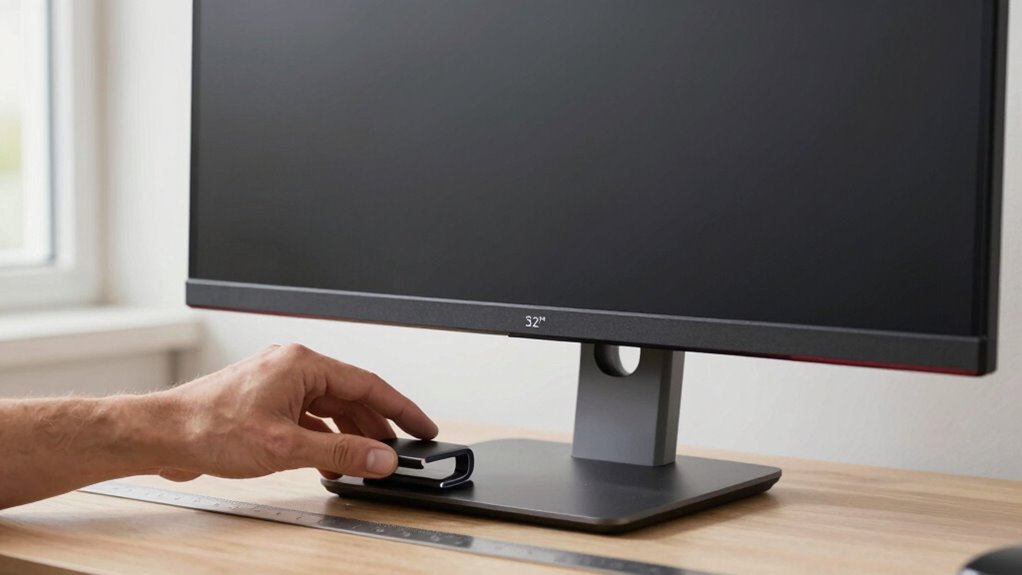
Optimizing your monitor setup goes beyond proper positioning; incorporating the right tools and accessories can considerably enhance comfort and productivity. Ergonomic accessories like adjustable stands, monitor arms, and wrist rests help you maintain proper posture and reduce strain. Ensuring your monitor is properly calibrated is also essential for accurate colors and reducing eye fatigue. Here are three essential tools to consider:
- Adjustable monitor stands or arms to customize height and angle.
- Monitor calibration tools for optimal color accuracy.
- Ergonomic accessories such as wrist rests and anti-glare filters to minimize discomfort.
These additions support your ergonomic needs, improve visual clarity, and create a more comfortable workspace, helping prevent fatigue and boost focus throughout your workday. Integrating quality protective accessories can also safeguard your equipment from damage and extend its lifespan.
Frequently Asked Questions
How Does Monitor Resolution Impact Optimal Viewing Distance?
Higher monitor resolution improves resolution clarity and pixel density, allowing you to sit closer without noticing pixelation. When resolution is greater, you can reduce your viewing distance to enjoy sharper images and finer details. Conversely, lower resolution screens require you to sit farther back to avoid seeing individual pixels. So, your ideal distance depends on the resolution and pixel density, ensuring a comfortable, crisp viewing experience.
Can Ergonomic Chair Adjustments Influence Monitor Comfort?
Yes, ergonomic chair adjustments can greatly influence your monitor comfort. By optimizing chair ergonomics, you support proper ergonomic posture, reducing strain on your neck, shoulders, and eyes. Adjust your chair height so your monitor is at eye level, and make sure your back is well-supported. These tweaks help you maintain a comfortable viewing distance, prevent fatigue, and promote overall ergonomic health during long hours at your desk.
Are There Specific Screen Coatings That Reduce Eye Strain?
Yes, certain screen coatings can help reduce eye strain. Look for monitors with glare reduction features and a matte finish, which minimize reflections and scattered light. These coatings prevent harsh glare that causes eye fatigue, making it easier to focus comfortably for longer periods. By choosing a screen with these coatings, you’ll reduce eye strain and improve your overall viewing experience, especially in bright or well-lit environments.
How Do Ambient Lighting Conditions Affect Monitor Viewing Comfort?
Ambient light greatly impacts your monitor viewing comfort. Too much ambient light causes glare, making it harder to see the screen and increasing eye strain. On the other hand, insufficient ambient light can make your screen appear overly bright, also causing discomfort. To reduce glare and improve comfort, optimize ambient lighting by using soft, diffused light sources, and consider glare reduction screens or anti-reflective coatings on your monitor.
What Are the Signs Indicating It’s Time to Change Monitor Size?
You should consider changing your monitor size when you notice increased eye strain, difficulty viewing details, or frequent headaches. Poor monitor ergonomics, like a screen that’s too small or too large, can cause discomfort. If adjusting your current setup doesn’t help, upgrading to a size better suited to your workspace and visual needs can improve comfort and reduce eye strain, making your work or leisure time more enjoyable.
Conclusion
By paying attention to your monitor size and viewing distance, you can prevent eye strain and enjoy a more comfortable experience. Imagine sitting at your desk, a 27-inch screen just the right distance so your eyes relax naturally—no fatigue at the end of the day. Small adjustments, like repositioning your monitor or using ergonomic accessories, make a big difference. Take these tips seriously, and you’ll work comfortably and protect your eyesight for the long run.