
When your smart home devices become unresponsive, glitchy, or lose connection, resetting them can save you hours of frustration. Start with quick power cycles or press reset buttons for minor issues. If problems persist, perform hard resets or update firmware and apps. Reset your hub or individual devices carefully, following manufacturer instructions to avoid data loss. Knowing when and how to reset correctly guarantees smooth operation; learn more to troubleshoot efficiently.

Get the latest gadgets delivered free — and shop member deals
- Fast, free delivery on millions of items
- Access to Prime Big Deal Days deals on October 6–7
- Prime Video, Amazon Music and more included
Key Takeaways
- Recognize device issues such as unresponsiveness or connectivity problems to determine if a reset is needed.
- Use soft reset techniques like power cycling or disconnecting/reconnecting devices to quickly resolve minor glitches.
- Perform reset button presses or hard resets when devices are unresponsive or software updates fail.
- Keep firmware and app software updated to fix bugs, improve security, and enhance device performance.
- Follow manufacturer guidelines for resetting devices and apps to prevent data loss and maintain system stability.
As an affiliate, we earn on qualifying purchases.
How Do You Know When to Reset a Smart Device?
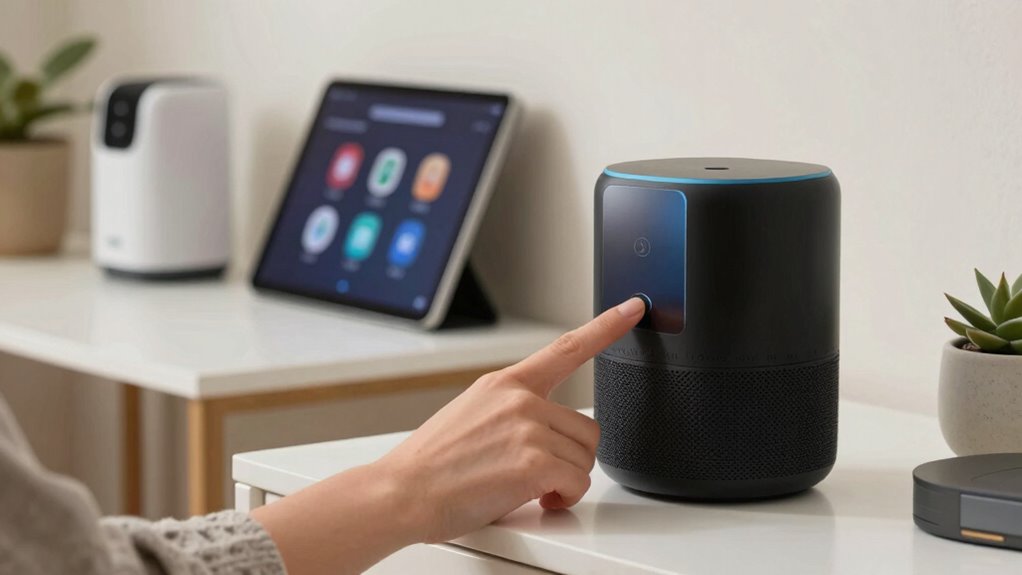
Knowing when to reset a smart device can save you time and frustration. If your device isn’t responding properly, check its device compatibility first—some devices may not work well with certain hubs or apps, leading to connection issues. Consider the reset frequency; if problems persist after multiple attempts to troubleshoot, a reset might be necessary. You should reset your device if it’s experiencing persistent connectivity issues, unresponsive behavior, or unusual performance drops. Frequent resets, however, can indicate underlying compatibility problems or firmware glitches. Always review the manufacturer’s recommendations on reset intervals to avoid overdoing it. Recognizing these signs helps you determine the right moment to reset, ensuring your smart home runs smoothly without unnecessary resets that could cause more issues. Additionally, understanding the Smart Pool Automation system components can help identify whether issues are related to the pool-specific devices or your overall smart home setup. Being aware of device troubleshooting strategies can further assist in diagnosing problems before resorting to a reset. It’s also helpful to familiarize yourself with common reset scenarios, which can prepare you for various troubleshooting situations and minimize downtime. Moreover, keeping an eye on firmware updates can prevent the need for frequent resets caused by outdated software. For example, some devices with advanced features may require specific reset procedures to restore full functionality effectively.
Wi-Fi range extender for smart home
As an affiliate, we earn on qualifying purchases.
As an affiliate, we earn on qualifying purchases.
How to Soft Reset Your Smart Home Devices Quickly
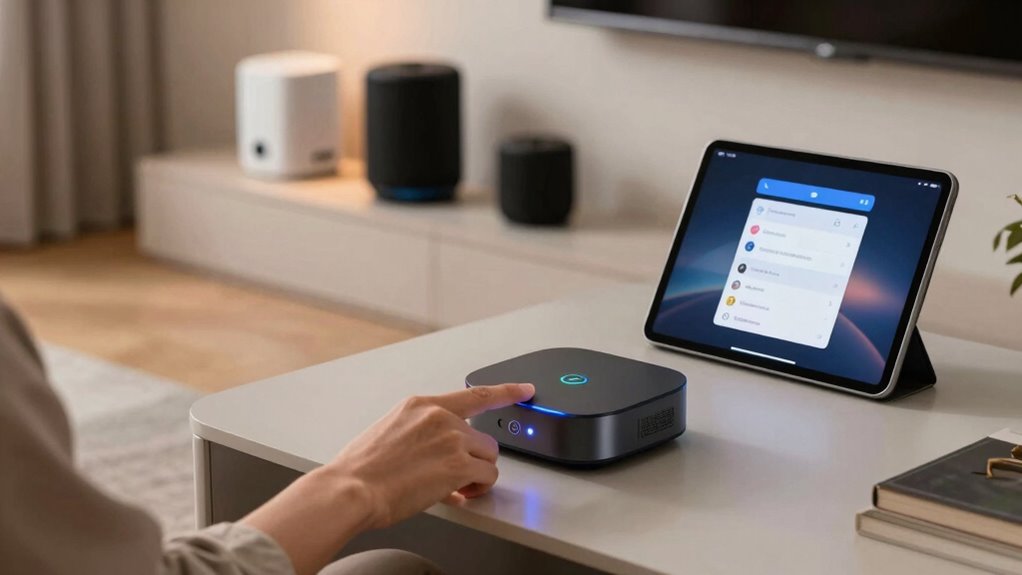
To quickly soft reset your smart home devices, you can power cycle them by unplugging and plugging them back in. Alternatively, many devices have a reset button you can press to restart them. You can also disconnect the device from your network and then reconnect it to refresh its connection. Understanding how to manage device connections can help prevent issues related to network instability that affect device performance. Additionally, ensuring your Wi-Fi network is stable and strong can reduce the need for frequent resets, similar to choosing a reputable support breakfast spot that offers reliable service and consistent quality. Being aware of timing and device behavior can also assist in troubleshooting and maintaining optimal device function. Recognizing network congestion and managing device load can further improve overall performance.
Power Cycle Devices
Power cycling your smart home devices is often the quickest way to resolve minor glitches and restore normal operation. To do this, simply unplug the device from its power source, wait about 10-30 seconds, then plug it back in. This soft reset clears temporary glitches without affecting device compatibility or settings. Regularly power cycling can help maintain device performance and prevent issues caused by frequent resets. Additionally, device firmware updates can improve stability and security, making power cycling a helpful initial troubleshooting step before more involved fixes. Using consistent testing methods can also help identify if hardware issues are affecting device performance. Moreover, understanding the privacy policy and cookie management practices of your smart devices can prevent potential security vulnerabilities. It’s also beneficial to keep an eye on device notifications for any alerts that might indicate underlying problems. However, avoid overdoing it, as excessive reset frequency might signal underlying problems. Power cycling is especially useful for devices that respond slowly or become unresponsive. It’s a simple, quick step that often restores normal function without needing a full reset or reconfiguration, saving you time and frustration during troubleshooting.
Use Reset Button
Ever wonder how to quickly reset your smart home device without unplugging it? Using the reset button offers a simple, effective solution. Locate the reset button—often a small, recessed switch—on your device. Pressing it initiates a manual reset, restoring settings without losing data. This method is perfect when you need a quick fix to resolve connectivity issues or unresponsive devices. Additionally, understanding your device’s smart thermostat protocols ensures you perform resets correctly and safely. Knowing the device-specific reset procedures can help prevent accidental data loss or misconfiguration. Being familiar with whole-home water system components can also help you troubleshoot related issues more effectively.
Feel empowered knowing you can:
- Save time by avoiding full power cycles
- Restore functionality instantly with a manual reset
- Avoid frustration from complex unplugging routines
- Maintain device settings during the reset
- Gain control over troubleshooting with ease
The reset button is your quick go-to for troubleshooting, making device problems manageable in seconds.
Disconnect and Reconnect
Have you ever needed a quick way to fix a sluggish or unresponsive smart home device? Sometimes, a simple device disconnection is all it takes. To do this, unplug the device or turn it off using the app. Wait a few seconds, then reconnect it to power or turn it back on. This process resets the device’s connection without a full reset. Once reconnected, ensure it’s back on your network by checking your Wi-Fi or hub connection. The goal is to restore a solid network reconnection, which often resolves minor glitches. This soft reset clears temporary issues, helping your device function smoothly again. It’s a quick, effective troubleshooting step that saves you time and keeps your smart home running seamlessly. Regularly firmware updates can also help prevent such issues from recurring. Additionally, maintaining a robust network setup supports consistent device performance.
smart home hub firmware update kit
As an affiliate, we earn on qualifying purchases.
As an affiliate, we earn on qualifying purchases.
Troubleshooting Firmware and App Glitches With Reset Techniques
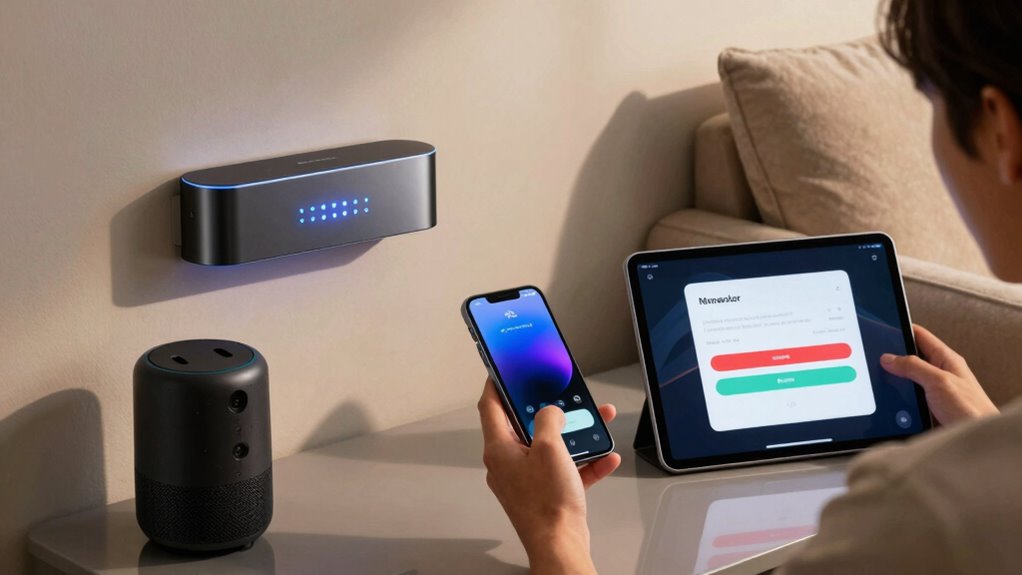
When firmware or app glitches occur, resetting can often fix the issue quickly. You might need to refresh your device’s firmware or perform an app reset to restore proper function. These techniques are simple yet effective ways to troubleshoot common smart home problems. Regularly reviewing your requirements traceability can help prevent future issues by ensuring all components are properly documented and aligned. For those working with smart kitchen appliances, understanding the kitchen equipment involved can help prevent future issues. Additionally, being familiar with the vintage audio revival can inspire innovative solutions and appreciation for reliable, timeless technology.
Firmware Refresh Techniques
Firmware refresh techniques are essential for resolving persistent firmware or app glitches in your smart home devices. Sometimes, a simple firmware update can restore smooth operation, especially when your device struggles with compatibility issues or lags. Updating the firmware can fix bugs, improve security, and enhance features. Before proceeding, verify your device is compatible with the latest firmware version to prevent further issues. Incorporating device compatibility guidelines into your troubleshooting routine can help ensure successful updates and prevent additional problems. Additionally, keeping your device’s software current can mitigate environmental interference that may cause connectivity issues.
- Feel the relief of a seamless, glitch-free experience
- Reclaim control over your smart home system
- Eliminate frustrating disconnects and errors
- Restore confidence in your device’s performance
- Enjoy the peace of mind that comes with updated security
App Reset Procedures
Resetting your app can often resolve stubborn firmware and app glitches that interfere with your smart home devices. If you notice issues like delayed responses or connection errors, an app reset might help restore proper device compatibility. Before resetting, check how often you perform this step—frequent resets can sometimes cause more problems, so use it as a troubleshooting tool rather than a routine fix. To reset the app, close it completely and clear its cache or data in your device settings. Reopen the app and reconnect your devices. If issues persist, consider uninstalling and reinstalling the app. Remember, resetting too often can lead to sync issues, so use this step judiciously when other troubleshooting methods haven’t worked.
As an affiliate, we earn on qualifying purchases.
When and How to Perform a Hard Reset on Your Devices
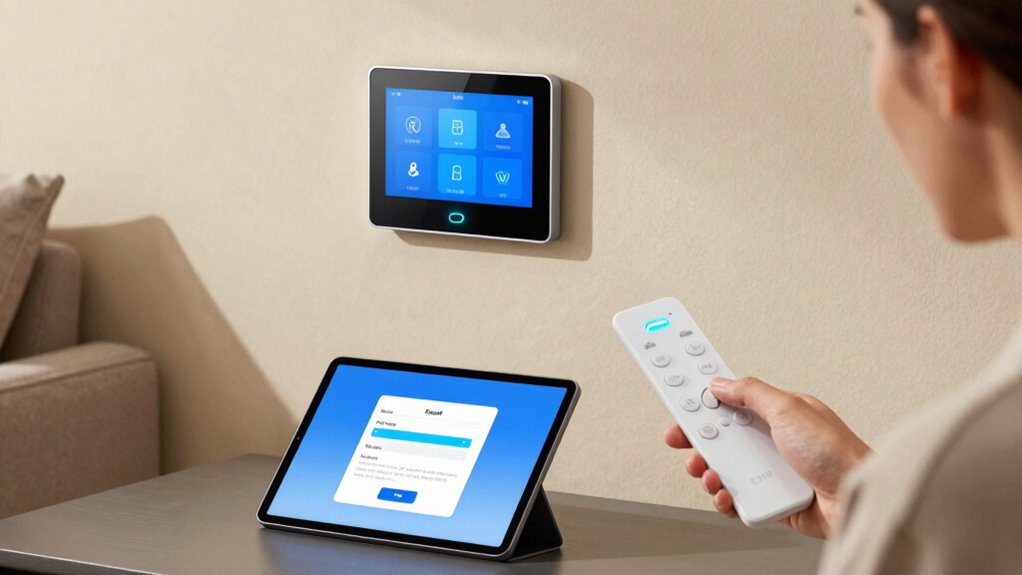
Sometimes, your smart device might become unresponsive or behave unpredictably, making a hard reset the best way to restore normal function. You should consider performing a hard reset when your device isn’t responding, experiencing frequent glitches, or if software updates haven’t fixed issues. Before proceeding, check device compatibility to guarantee the reset won’t cause data loss or damage. Keep in mind that frequent resets can impact device longevity, so use them sparingly.
Perform a hard reset when:
- Your device freezes or becomes unresponsive
- You’ve tried softer resets without success
- You notice persistent connectivity issues
- Software updates haven’t fixed bugs
- You want a clean start after troubleshooting
Knowing when and how to reset can save you hours of frustration.
How to Reset Your Smart Hub or Bridge to Fix Connectivity
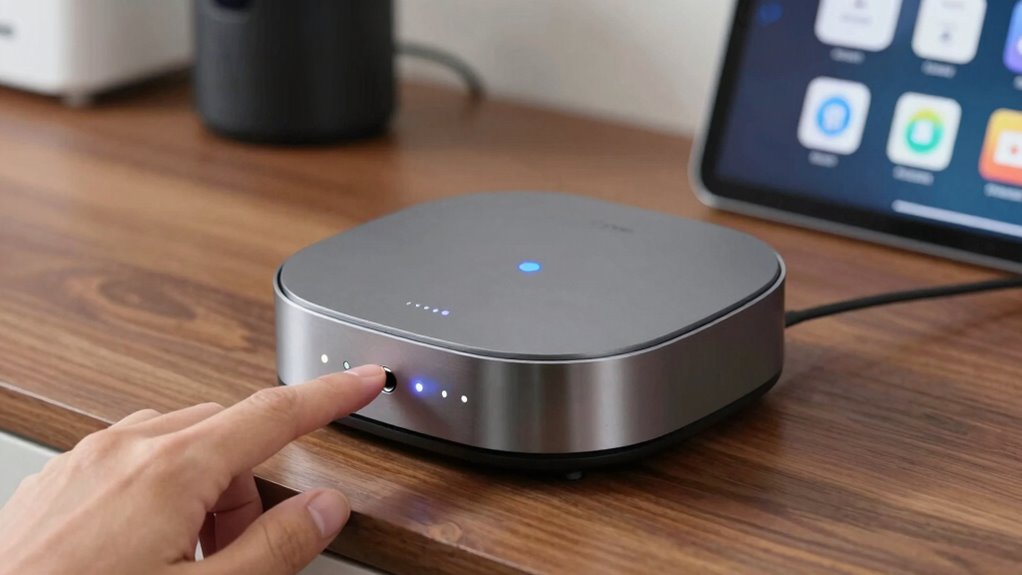
If your smart home devices aren’t communicating properly or seem unresponsive, resetting your smart hub or bridge can often resolve the problem. Start by unplugging the device from power and wait about 10 seconds. Some hubs have a dedicated reset button—press and hold it for 10-15 seconds until the LED indicators flash or change color. For others, a simple power cycle suffices. Reconnect the hub and wait for it to fully reboot, ensuring it’s reconnecting to your Wi-Fi network. This reset clears temporary glitches causing connectivity issues. Once the hub restarts, check if your devices are responding correctly. Resetting your smart hub is a quick step to restore stable connectivity, saving you time troubleshooting more complicated network issues.
Reset Individual Devices Without Disrupting Your Entire System

To reset an individual smart device without affecting your entire system, start by locating the device’s power source or reset button. Carefully check device compatibility before resetting, ensuring it supports the reset process without causing issues. Remember, frequent resets can lead to instability, so only reset when necessary. When done correctly, this approach saves time and avoids unnecessary disruptions.
Reset individual smart devices carefully to maintain system stability and avoid unnecessary disruptions.
Consider these emotional triggers:
- Regain control over a stubborn device
- Prevent system-wide failures
- Minimize downtime with quick resets
- Feel confident troubleshooting on your own
- Maintain harmony in your smart home setup
Best Practices for Reconfiguring Devices After Reset
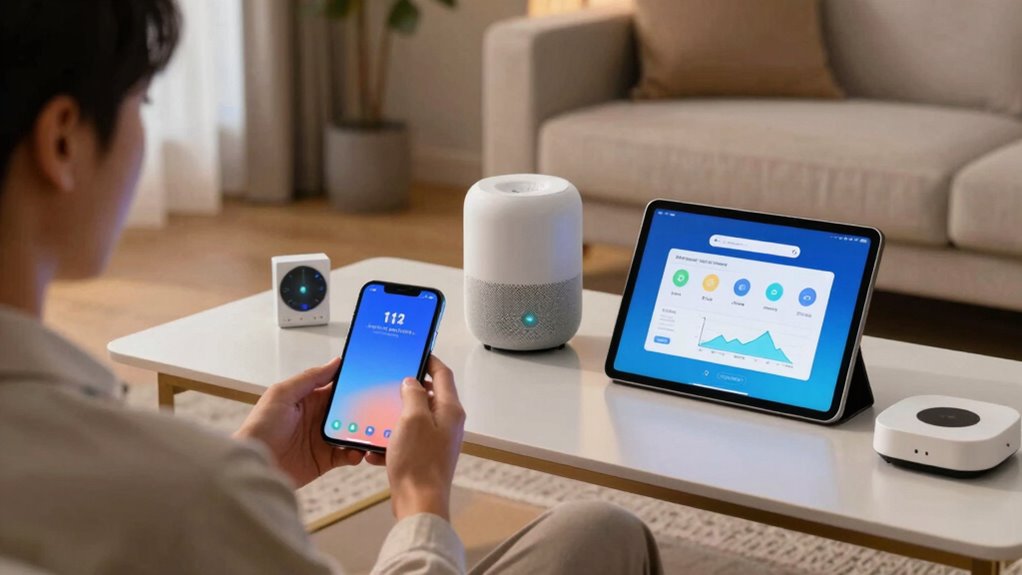
After resetting a device, reconfiguring it correctly guarantees smooth integration into your smart home system. First, check device compatibility to ensure it works seamlessly with your existing setup. Confirm that firmware is up to date before reconnecting, as outdated software can cause issues. Timing matters—perform resets when your network is stable and avoid rush periods to prevent misconfigurations. When reconfiguring, follow the manufacturer’s instructions precisely, paying attention to network settings and device-specific options. Use secure Wi-Fi connections to avoid connectivity hiccups. Keep a record of your reset and reconfiguration steps, so you can troubleshoot faster if needed. Proper reconfiguration after a reset minimizes errors, maintains system stability, and guarantees your devices work harmoniously within your smart home ecosystem.
When to Factory Reset and How to Do It Safely
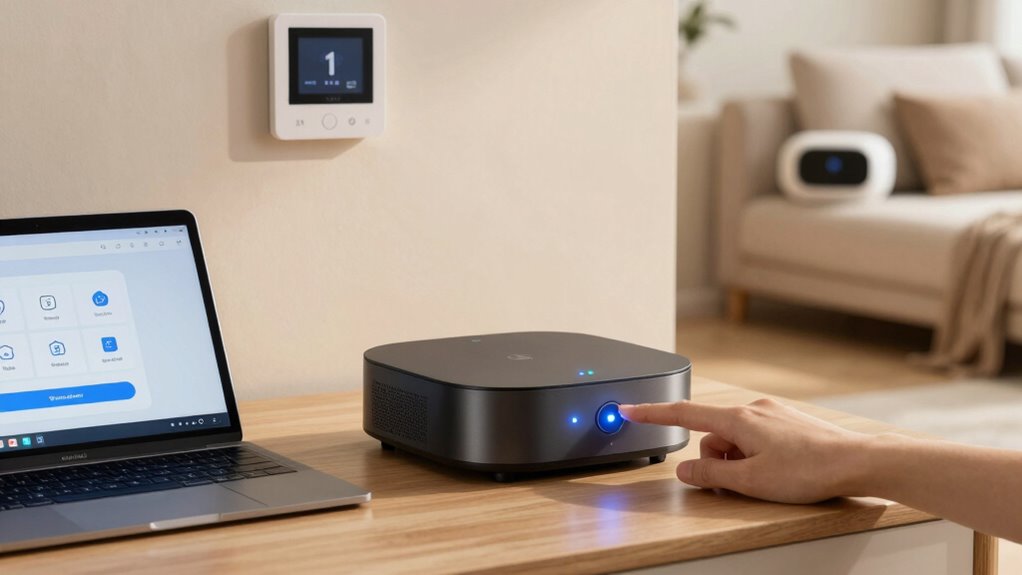
Factory resetting a device should be your last resort when troubleshooting persistent issues or preparing it for a new user. You should consider a reset when you’ve exhausted simpler solutions, and issues seem unresolvable. Before resetting, verify device compatibility to confirm the reset won’t cause more problems. Keep in mind that frequent resets can lead to more issues, so don’t overuse this step.
Ask yourself:
- Does the problem persist after updates?
- Is the device unresponsive or behaving erratically?
- Have I tried all troubleshooting tips?
- Is the device still under warranty?
- Am I prepared for reconfiguring it?
If yes, proceed carefully. To do it safely, follow manufacturer instructions, back up settings if possible, and ensure you understand the reset process thoroughly.
Common Reset Mistakes and Troubleshooting Tips
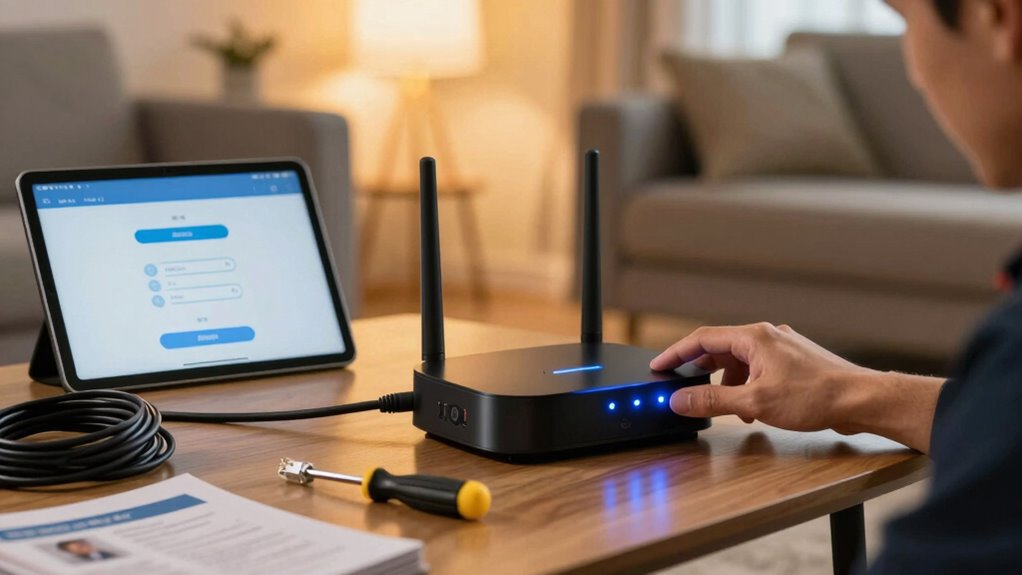
Resetting your device might seem straightforward, but common mistakes can lead to more problems or even render the device unusable. One mistake is ignoring device compatibility; not all devices respond well to certain reset methods, so check compatibility before proceeding. Another pitfall is resetting too often, which can cause unnecessary wear or confusion about the device’s status. Be cautious about the reset frequency—frequent resets might be a sign of deeper issues needing troubleshooting rather than quick fixes. Additionally, rushing through the process without reading instructions can cause incomplete resets, leading to frustrating troubleshooting. Always follow manufacturer guidelines carefully, and only reset when necessary. By avoiding these common mistakes, you’ll reduce the risk of complicating your smart home setup and ensure smoother troubleshooting.
Frequently Asked Questions
Can Resetting a Device Void Its Warranty?
Resetting a device can affect warranty implications, especially if it’s done improperly or repeatedly. Some manufacturers have strict reset policies that might void your warranty if you reset the device outside recommended procedures. Always check the device’s warranty terms before resetting, and follow the reset instructions carefully. If you’re unsure, contact customer support to avoid unintentionally voiding your warranty and guarantee your device remains protected.
How Long Should a Reset Process Typically Take?
The reset process usually takes about 30 seconds to a few minutes, depending on the device. You should expect a quick reset duration that minimizes troubleshooting time. As you follow the reset steps, stay patient and avoid interrupting the process. Most devices notify you when the reset is complete, so you can quickly move on to reconfiguration or testing, saving you valuable troubleshooting time.
Will Resetting Delete All My Personalized Settings?
Resetting your smart home device may delete some personalized settings, but it depends on the device. Usually, factory resets restore default settings, so you’ll need to reconfigure your preferences afterward. Keep in mind, performing a reset might impact your warranty, especially if it’s done improperly. To avoid losing important data or affecting warranty implications, check your device’s manual or contact support before proceeding with a reset.
Is It Necessary to Unplug Devices Before Resetting?
Think of resetting your smart device like giving it a quick nap—it’s best to unplug the device first. Unplugging ensures a complete reset, preventing electrical issues or glitches. While some devices can be reset without unplugging, it’s generally safer and more effective to unplug, especially if you’re unsure about the reset necessity. This simple step helps avoid potential damage and guarantees your device resets properly.
Are There Risks of Data Loss During a Reset?
Yes, there’s a risk of data loss during a reset. To safeguard your information, you should perform data backup before starting the reset process. Follow reset precautions carefully, such as saving important files or settings, to prevent losing valuable data. Being prepared helps you avoid frustration and ensures you can quickly restore your smart home devices without losing essential information.
Conclusion
Mastering reset techniques can save you hours of frustration. For example, if your smart thermostat isn’t responding, a quick soft reset might do the trick. Just like Sarah, who struggled with connectivity, a hard reset fixed her system and restored comfort in minutes. Knowing when and how to reset your devices guarantees smooth operation and saves time. Keep these tips handy—you’ll troubleshoot smarter, not harder, every time.
Fall Picks
fall essentials
As an affiliate, we earn on qualifying purchases.