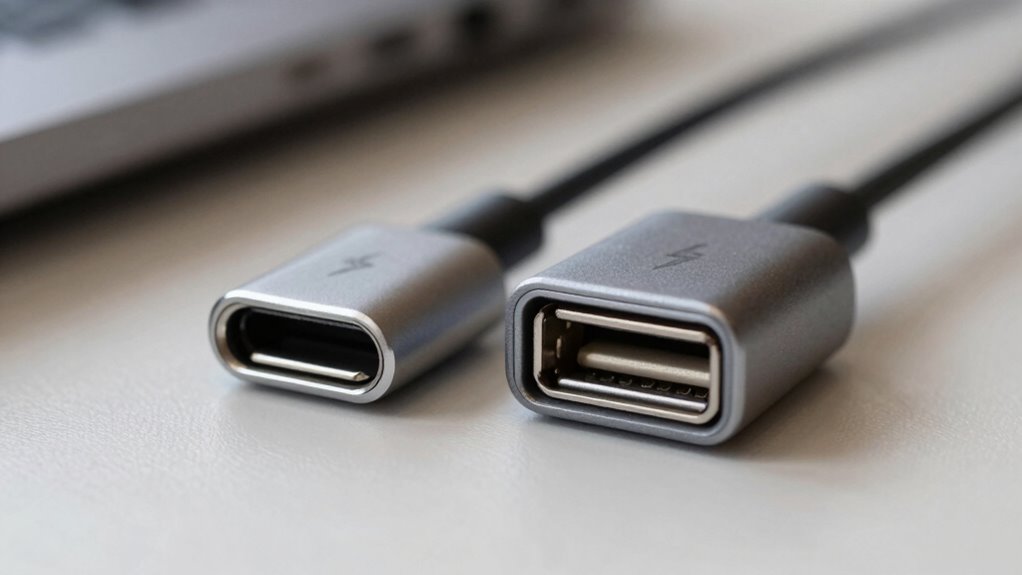

USB‑C and Thunderbolt ports look alike and use the same connector, but they serve different roles. USB‑C is common for charging and data transfer speeds up to 10 Gbps, while Thunderbolt offers faster speeds up to 40 Gbps and supports daisy chaining high-performance devices. Recognizing symbols like a lightning bolt or labels such as “Thunderbolt 4” helps you identify each port’s capabilities. Keep exploring to better understand how to choose the right connection for your needs.

Get the latest gadgets delivered free with Prime
- Fast, free delivery on millions of items
- Prime Video, Amazon Music and more included
- Member-only deals all year
Key Takeaways
- USB‑C is a versatile connector supporting various standards; Thunderbolt uses the same port but offers higher speeds and capabilities.
- Symbols like a lightning bolt identify Thunderbolt ports, while USB‑C ports may lack specific markings.
- Thunderbolt supports faster data transfer (up to 40 Gbps) and daisy chaining, unlike standard USB‑C.
- Both ports can deliver power, but Thunderbolt typically supplies higher wattage for fast device charging.
- Recognizing port labels and symbols helps prevent connection issues and ensures compatibility between devices.
As an affiliate, we earn on qualifying purchases.
What Are USB‑C and Thunderbolt Ports?
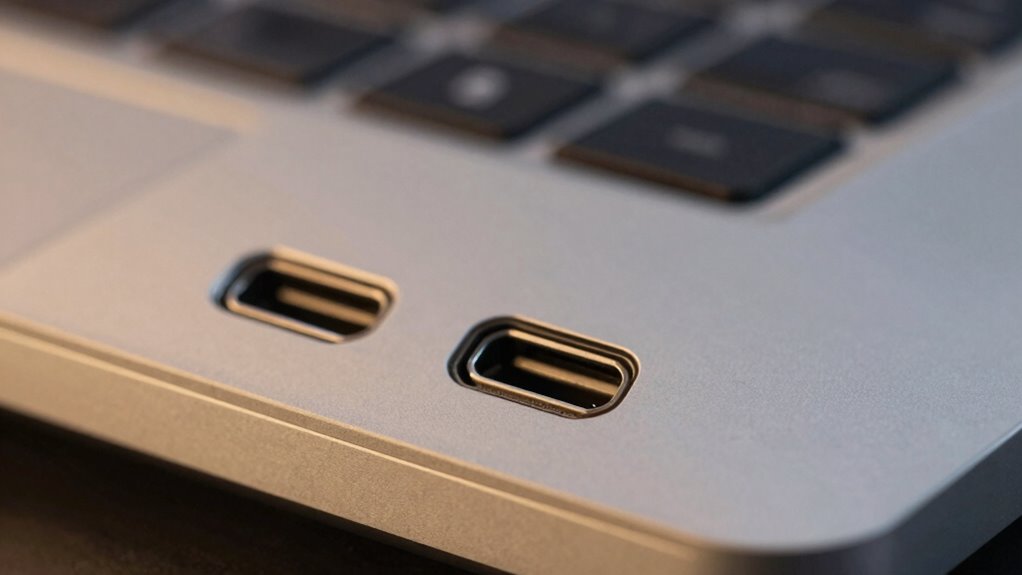
USB-C and Thunderbolt ports are both types of connection interfaces used to transfer data, video, and power between devices. USB-C is a versatile connector that supports power delivery, allowing you to charge devices and transfer data efficiently. It’s compatible with many gadgets, from smartphones to laptops, and offers a straightforward, reversible design. Thunderbolt ports, often using the same USB-C connector, deliver faster data transfer speeds and enhanced power delivery capabilities. This makes Thunderbolt ideal for high-performance tasks like video editing or large file transfers. While both ports handle power delivery and data transfer, Thunderbolt’s strengths lie in its speed and advanced features, which set it apart from standard USB-C connections. Additionally, technology standards evolve rapidly, influencing compatibility and performance options for users. Understanding these basics helps you choose the right port for your needs, especially as industry advancements continue to shape future device capabilities.
Thunderbolt 4 external hard drive
As an affiliate, we earn on qualifying purchases.
As an affiliate, we earn on qualifying purchases.
How Do USB‑C and Thunderbolt Differ in Speed and Features?
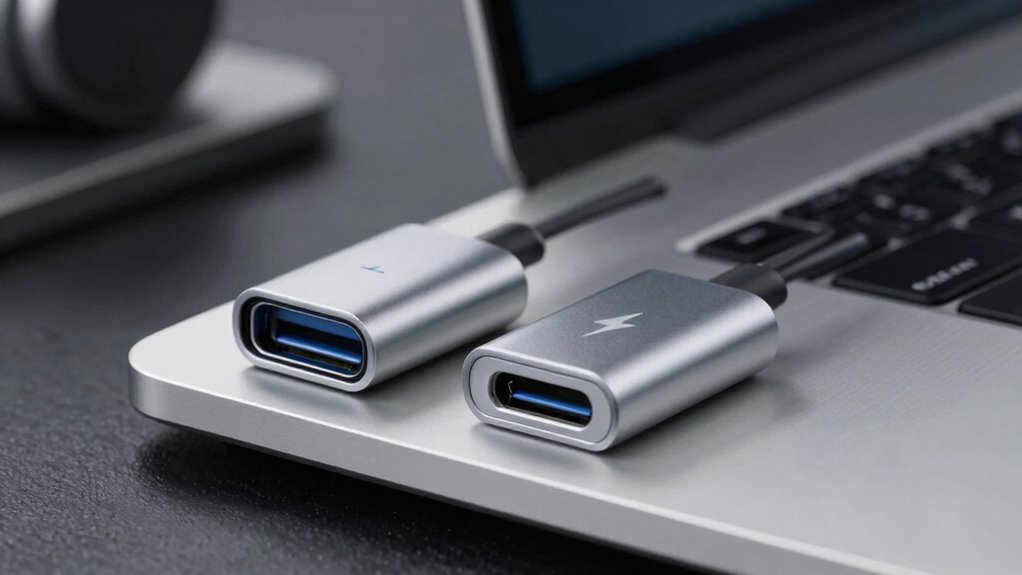
While both USB‑C and Thunderbolt ports use the same physical connector, they differ greatly in speed and features. USB‑C typically offers data transfer speeds up to 10 Gbps with USB 3.1 or 3.2, while Thunderbolt 3 and 4 can transfer data at speeds up to 40 Gbps. This makes Thunderbolt ideal for demanding tasks like high-resolution video editing or fast backups. In regarding power delivery, both ports can supply power to devices, but Thunderbolt often supports higher wattages—up to 100W—enabling faster charging and powering larger peripherals. Thunderbolt also supports daisy chaining multiple devices, a feature not available with standard USB‑C. These differences mean Thunderbolt provides superior speed and advanced features, but USB‑C remains more common and versatile for everyday use. Additionally, compatibility standards play a crucial role in determining device interoperability and future-proofing.
As an affiliate, we earn on qualifying purchases.
How Can You Tell If a Port Supports USB‑C, Thunderbolt, or Both?
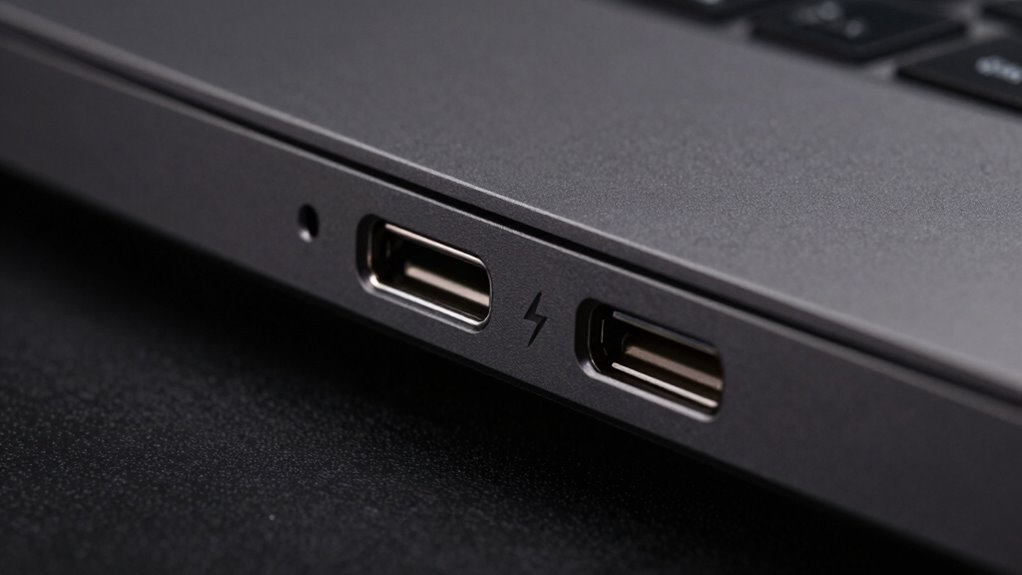
You can often identify port support by looking at the symbols and logos next to it. Device compatibility indicators on your device or manual can also tell you whether a port supports USB‑C, Thunderbolt, or both. Additionally, pay attention to physical differences in the ports, as Thunderbolt ports may have unique features or markings. Recognizing port symbols and logos can help determine their supported technologies more easily. Furthermore, understanding port standards can aid in ensuring compatibility and optimal performance. Knowing the privacy policies related to your device may also inform you about data handling and security features associated with these ports. Being familiar with compatibility indicators can also assist in avoiding connection issues and maximizing device functionality. Checking manufacturer specifications can provide definitive information about port capabilities and supported protocols.
Port Symbols and Logos
Ever wonder how to quickly identify if a port supports USB‑C, Thunderbolt, or both? The answer lies in port symbols and logo design. USB‑C ports typically feature a simple, universal symbol—an oval shape with a “C” underneath. If a port supports Thunderbolt, you’ll see a lightning bolt logo next to the port, indicating its high-speed capabilities. Some ports combine symbols, such as a USB‑C logo with a small lightning bolt or a Thunderbolt icon, signaling compatibility with both standards. Pay attention to these symbols; they’re your visual cues. Clear and distinct logo design helps users easily recognize each port’s capabilities, so you don’t have to guess whether it supports just USB‑C or Thunderbolt features. Recognizing these symbols is especially helpful because port symbols and logos can vary between manufacturers, making visual identification crucial. Understanding symbol consistency across devices can greatly reduce confusion when connecting peripherals.
Device Compatibility Indicators
To determine if a port supports USB‑C, Thunderbolt, or both, look for specific device compatibility indicators. These indicators provide visual cues that help with port identification, making it easier to understand its capabilities. For example, Thunderbolt ports often display a lightning bolt icon alongside the USB‑C symbol, signaling Thunderbolt compatibility. Some ports may have labels such as “Thunderbolt 3” or “Thunderbolt 4” printed nearby, confirming support. In contrast, a simple USB‑C port without extra markings usually supports only USB standards. Pay close attention to the symbols and text around the port, as they serve as essential device compatibility indicators that prevent confusion and ascertain you connect the right device to the right port. Additionally, compatibility indicators can sometimes include color coding or specific branding to further clarify port functionalities, helping you quickly identify the supported standards at a glance. Being aware of these visual cues, including port markings, ensures you select the appropriate port for your device needs. Recognizing the different standards supported by these ports can help optimize device performance and compatibility.
Physical Port Differences
Physical port differences can help you distinguish whether a port supports USB‑C, Thunderbolt, or both. Look at the connector shapes—USB‑C ports have a symmetrical, small, oval shape, making them easy to identify. Thunderbolt ports often use the same shape but may feature a lightning bolt icon nearby, indicating Thunderbolt support. Some ports support both standards and look identical, so check for specific symbols or labels. Pay attention to port placement on your device; they’re usually found along the edges, but the arrangement varies by device. Sometimes, a port may support USB‑C and Thunderbolt simultaneously, but visual cues like symbols or labels are your best clues. Recognizing these physical differences helps guarantee you connect the right device with confidence. Additionally, understanding port compatibility can prevent connection issues and ensure optimal performance. Being familiar with port recognition can also save you time and frustration during device setup and troubleshooting.
high-speed data transfer cable Thunderbolt
As an affiliate, we earn on qualifying purchases.
As an affiliate, we earn on qualifying purchases.
Are Usb‑C Devices Compatible With Thunderbolt Ports?
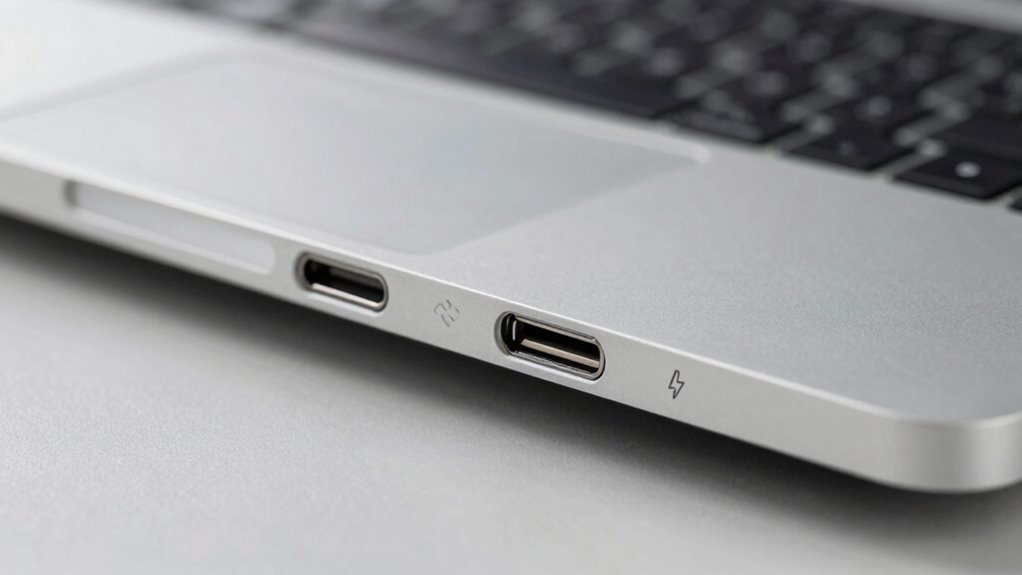
While USB‑C ports and Thunderbolt ports often look alike, their compatibility isn’t always straightforward. USB‑C devices may not work seamlessly with Thunderbolt ports due to differences in device compatibility and port standards. Some USB‑C devices are designed only for power and data transfer, not Thunderbolt’s high‑speed capabilities. Others are Thunderbolt‑certified and will work perfectly, but you must verify this. To understand compatibility better, consider these points:
- Not all USB‑C devices support Thunderbolt features
- Thunderbolt ports can support USB‑C devices, but only if they’re Thunderbolt‑compatible
- Device compatibility depends on the specific port standards implemented in your hardware
- Recognizing port compatibility is essential to ensure your devices function correctly and avoid potential issues.
- Additionally, hardware standards evolve over time, making it important to stay updated on your device specifications.
- Checking certification labels on devices can help determine if they support Thunderbolt or just USB‑C functionalities.
- Understanding performance differences can help users select the right port for their specific needs.
- Being aware of these distinctions can help prevent device malfunctions and improve overall user experience.
What Are the Common Uses for USB‑C and Thunderbolt?
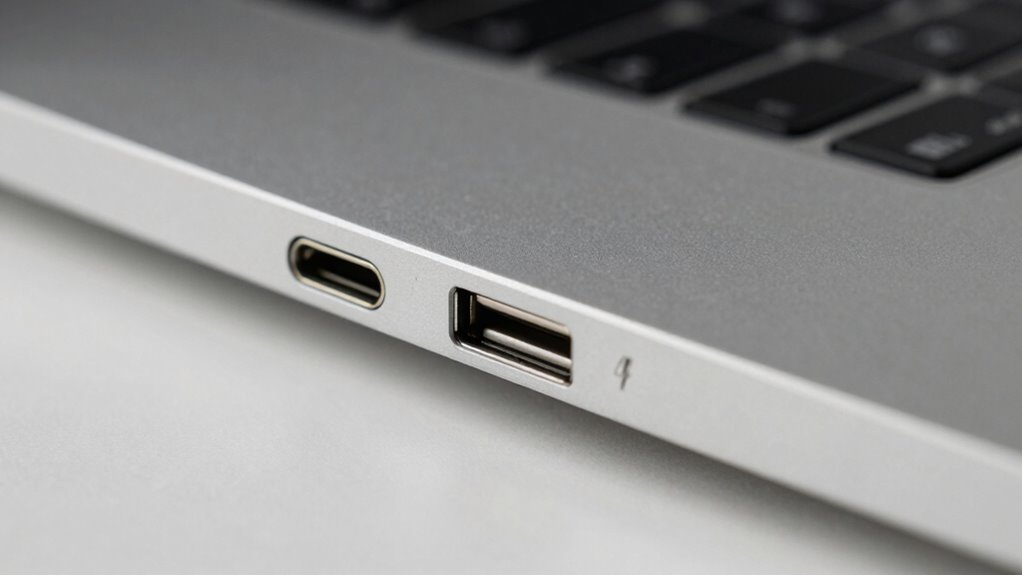
USB-C and Thunderbolt are versatile ports widely used to connect a variety of devices, making them essential in modern technology setups. You’ll find them commonly used for charging stations, where they supply power to smartphones, tablets, and laptops efficiently. They also excel in data transfer, enabling quick and reliable movement of files between your devices, whether you’re backing up data or syncing content. Thunderbolt, in particular, supports high-speed data transfer, making it ideal for professional workflows involving large files or multiple monitors. USB-C‘s widespread compatibility makes it suitable for everyday tasks like connecting peripherals, external drives, and displays. Additionally, power delivery capabilities allow these ports to efficiently handle both charging and data transfer simultaneously, simplifying device connectivity. The compact design of these ports contributes to sleeker device profiles and easier cable management. These features enhance device versatility and make USB‑C and Thunderbolt ports highly flexible options for a variety of electronic needs. Overall, these ports streamline your setup by combining charging, data transfer, and video output into a single, compact connection.
How to Choose the Right Port for Your Devices
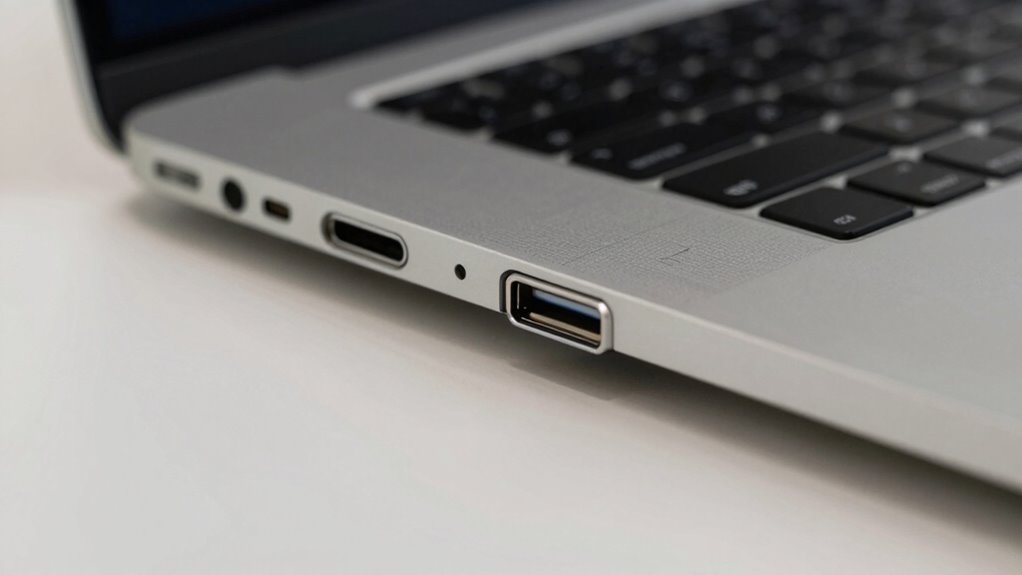
Choosing the right port depends on your specific device needs and usage priorities. To select effectively, consider factors like port versatility and device compatibility. If you need a single port for multiple functions, USB-C offers broad versatility, supporting data transfer, charging, and video output. However, guarantee your devices are compatible, as Thunderbolt provides faster speeds but may require specific hardware. Ask yourself:
Choosing the right port ensures device compatibility and optimal performance for your needs.
- Will I need to connect high-speed peripherals or external displays?
- Do my devices support Thunderbolt or just USB-C?
- Is future-proofing important for my setup?
Understanding these aspects helps you avoid mismatched ports and ensures seamless performance across your devices. Choosing the right port isn’t just about current needs; it’s about future compatibility and maximizing your device’s potential.
What’s Next for USB‑C and Thunderbolt Technology?
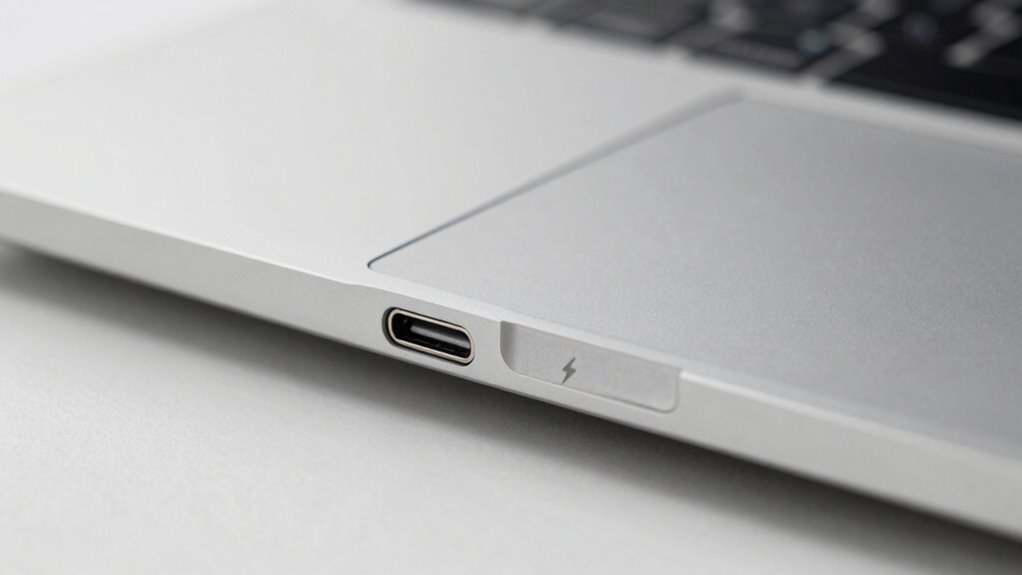
Advancements in USB-C and Thunderbolt technologies are shaping the future of device connectivity, offering faster speeds, greater versatility, and enhanced power delivery. Future standards aim to unify these ports, reducing confusion and improving compatibility across devices. Expect higher data transfer rates and more robust power options, making devices more efficient. Additionally, wireless alternatives are gaining traction, promising to replace cables altogether for certain applications. While wired connections will remain essential for high-performance tasks, wireless tech like Wi-Fi 6E and upcoming standards will complement USB-C and Thunderbolt, offering seamless, cable-free experiences. These innovations will guarantee your devices stay connected more effortlessly, with smarter, faster, and more flexible options on the horizon.
Frequently Asked Questions
Can Usb‑C Ports Support Video Output and Charging Simultaneously?
Yes, USB‑C ports can support both video output and charging simultaneously. Many USB‑C ports feature Power Delivery, allowing you to charge devices while using the port for video output, such as connecting to a monitor. Just verify your device and cable support these features, as not all USB‑C ports do. Check the specifications to confirm support for power delivery and video output to get the most functionality.
Are There Licensing Fees for Manufacturers to Include Thunderbolt Support?
Like a secret handshake, Thunderbolt support requires manufacturers to pay licensing fees, which can include licensing costs and manufacturer fees. These costs are part of Intel’s licensing program, so they must decide if the benefits of Thunderbolt’s faster speeds and versatility outweigh the expenses. If you’re buying devices, keep in mind that not all USB-C ports support Thunderbolt without these additional licensing fees, influencing device features and pricing.
How Do I Identify the Maximum Data Transfer Speed of My Port?
You can identify the maximum data transfer speed of your port by checking its data specifications or port identification. Look for labels like “USB 3.1,” “USB 3.2,” or “Thunderbolt 3” on the port or device documentation. These labels indicate the supported speeds — for example, USB 3.2 supports up to 20Gbps, while Thunderbolt 3 reaches 40Gbps. Consulting your device manual or manufacturer’s website also provides clear details.
Can I Use a Usb‑C to Thunderbolt Adapter Without Performance Loss?
Imagine connecting two puzzle pieces—your USB‑C to Thunderbolt adapter may seem seamless, but performance considerations matter. While many adapters are compatible, some may cause performance loss because they can’t fully support Thunderbolt speeds. Check the adapter’s compatibility to guarantee it handles Thunderbolt protocols. If it’s designed specifically for Thunderbolt, you’ll maintain ideal data transfer speeds; otherwise, expect some performance hiccups.
What Are Future Developments Expected for Usb‑C and Thunderbolt Standards?
You can expect future compatibility and standard evolution for both USB-C and Thunderbolt as technology advances. Manufacturers are likely to enhance data transfer speeds, power delivery, and device versatility. New versions may unify features, making ports more streamlined and easier to understand. As standards evolve, you’ll see increased interoperability, ensuring your devices work seamlessly across generations, and reducing confusion about port capabilities and performance.
Conclusion
Understanding the differences between USB-C and Thunderbolt helps you avoid flying blind when choosing devices. By knowing which port suits your needs, you can make smarter decisions and save time and frustration. Remember, it’s all about finding the right fit for your tech setup rather than trying to fit a square peg in a round hole. With this knowledge in your back pocket, you’ll be better equipped to navigate the tech world with confidence.
Halloween Picks
halloween
As an affiliate, we earn on qualifying purchases.