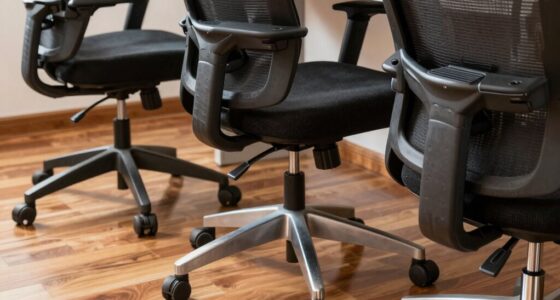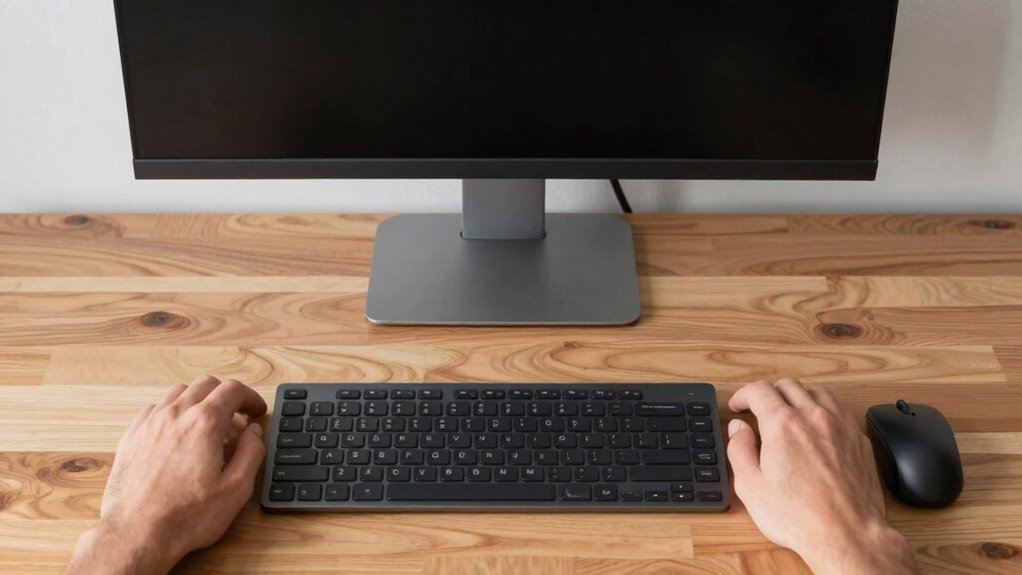

To set up your desk ergonomically, position your monitor directly in front of you at arm’s length with the top at eye level to prevent neck strain. Keep your keyboard and mouse at a height that keeps your elbows close to your sides and bent at about 90°, with wrists straight. Adjust lighting to reduce glare and match screen brightness. For more tips to improve your workspace, keep exploring how to make your setup more comfortable and healthy.
Key Takeaways
- Position your monitor directly in front at eye level, about an arm’s length away, to prevent neck strain and eye fatigue.
- Keep your keyboard and mouse at a height that allows your elbows to stay close to your sides and bent at roughly 90°.
- Maintain a neutral wrist position, keeping wrists straight and aligned with your forearms, to reduce strain and injury risk.
- Adjust your chair height so your hips are level or slightly higher than your knees, supporting proper posture.
- Use ergonomic accessories like monitor stands, wrist supports, and footrests to enhance alignment and comfort during work.

HUANUO FlowLift™ Dual Monitor Stand, Fully Adjustable Gaming Monitor Desk Mount for 13–32″ Computer Screens, Full Motion VESA 75×75/100×100 with C-Clamp & Grommet Base, Each Arm Holds 4.4 to 19.8 lbs
Compatible with Wide Screens – To ensure compatibility with the dual monitor mount, your each monitor must meet…
As an affiliate, we earn on qualifying purchases.
As an affiliate, we earn on qualifying purchases.
How to Position Your Monitor for Maximum Comfort
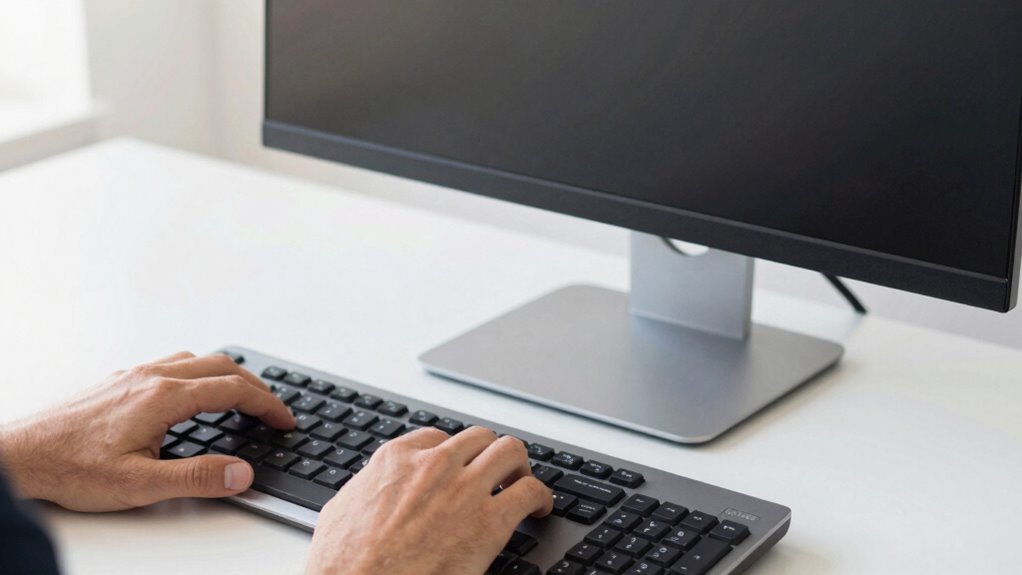
To guarantee maximum comfort and reduce strain, you should position your monitor correctly. Focus on monitor placement to ensure your screen is directly in front of you, about an arm’s length away. Your monitor should be at eye level alignment so that you don’t tilt your head up or down. This helps prevent posture issues and promotes good ergonomics. Adjust the monitor so the top of the screen is roughly at your eye level, allowing you to view content comfortably without craning your neck. Keep the screen free of glare by avoiding reflections from windows or lights. Proper monitor placement minimizes eye fatigue and helps maintain a relaxed, neutral head position throughout your workday. Additionally, using ergonomic principles in your setup can further enhance comfort and prevent musculoskeletal problems. Incorporating proper lighting can also reduce glare and eye strain, contributing to a healthier workspace. Being aware of visual ergonomics can further optimize your setup for comfort and efficiency. Remember, an ergonomically positioned monitor is key to a healthier, more comfortable workspace. For example, adopting consistent positioning habits can make a significant difference in overall comfort and productivity.

AboveTEK Keyboard Wrist Rest – Adjustable Angle & 25-Inch Length, Foldable Ergonomic Memory Foam Support for Computer, Laptop & Gaming – Non-Slip, Relieves Forearm & Elbow Pain for Typing & Mouse Use
Fully Adjustable Angle & Length: Unlike standard wrist rests, this keyboard wrist rest features a fully adjustable angle…
As an affiliate, we earn on qualifying purchases.
As an affiliate, we earn on qualifying purchases.
Adjust Your Monitor Height for an Ergonomic Setup
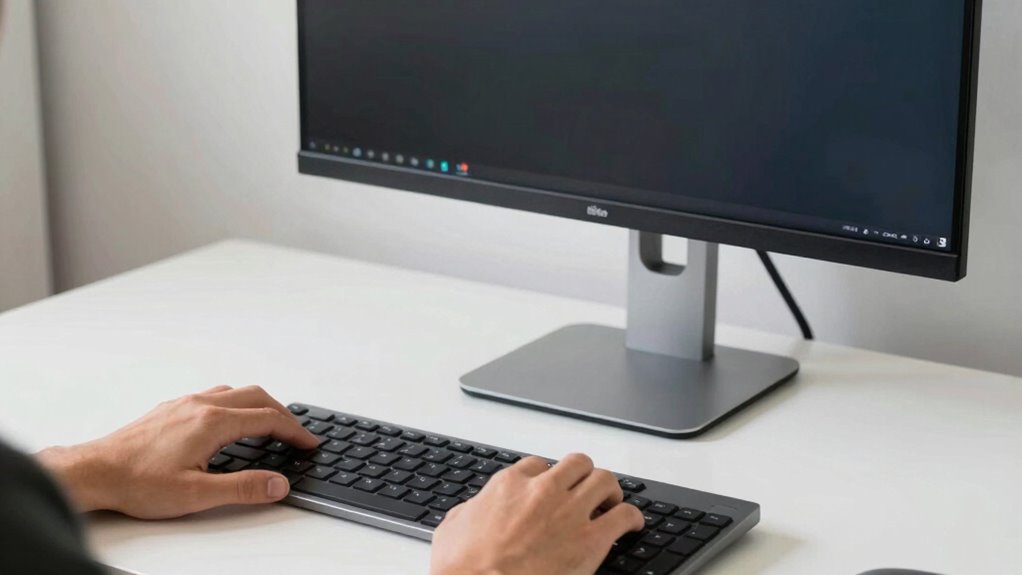
Adjusting your monitor height is essential for maintaining proper posture and reducing strain. An ergonomic monitor setup ensures your eyes are level with the top third of the screen, preventing neck fatigue. To achieve this, raise or lower your monitor so that you don’t have to tilt your head up or down. Use a monitor stand, adjustable arm, or stack books if needed. Keep the monitor about an arm’s length away for maximum viewing comfort. Proper monitor height minimizes eye strain and encourages a neutral neck position. Remember, an ergonomic setup isn’t just about comfort—it helps prevent long-term musculoskeletal issues. Regularly check and adjust your monitor height as needed to maintain a suitable ergonomic workstation. Incorporating adjustable monitor stands can make fine-tuning your setup easier and more precise, and considering ergonomic principles can optimize your entire workstation for comfort and health. Additionally, ensuring your entire workspace aligns with ergonomic guidelines can further enhance comfort and prevent discomfort over time.

TRALT Office Chair – Ergonomic Desk Chair with Adjustable Lumbar Support, Mesh Computer Chair, Executive Chairs for Home Office Comfortable Lumbar Support (Black)
Ergonomic Office Chair: Experience unparalleled support with our ergonomic office chair, designed to provide comprehensive assistance for your…
As an affiliate, we earn on qualifying purchases.
As an affiliate, we earn on qualifying purchases.
Set Your Keyboard and Mouse for Optimal Wrist and Elbow Alignment
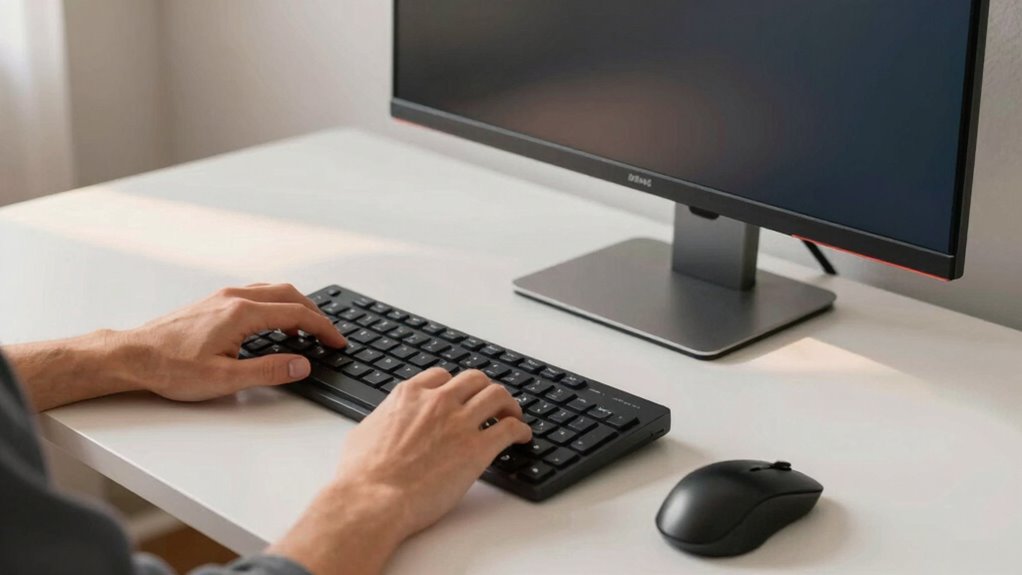
To prevent strain, keep your wrists in a neutral position while typing and using your mouse. Adjust the mouse distance so it’s easily reachable without stretching, and keep your elbows slightly flexed to reduce tension. Properly setting these points helps maintain comfort and avoid long-term injuries. Additionally, ensuring your joint health remains optimal can contribute to sustained ergonomic comfort over time. Incorporating balance and motivation into your routine can promote better posture and overall well-being during long periods of desk work. Paying attention to ergonomic principles can further enhance comfort and prevent discomfort during extended work sessions. Maintaining awareness of posture awareness can also help reinforce healthy habits and reduce fatigue. Regular movement and stretching throughout the day further support physical wellness and prevent stiffness.
Keep Wrist Neutral Position
Maintaining a neutral wrist position is essential for reducing strain and preventing repetitive stress injuries. To achieve this, verify your keyboard and mouse are set so your wrists stay in an ergonomic wrist position. Keep your wrists straight and aligned with your forearms, avoiding bending up, down, or to the sides. Use wrist supports if needed, but avoid resting heavily on them while typing or using the mouse. Position your keyboard at a height that allows your elbows to be close to your body and your wrists to remain neutral. Adjust your workspace so you don’t have to flex or extend your wrists excessively. Proper workspace setup can help prevent poor ergonomics from contributing to discomfort or injury. Ensuring your equipment placement supports neutral wrist alignment can further reduce strain. Prioritizing a wrist neutral position helps reduce fatigue, discomfort, and long-term injury risk. Additionally, taking regular breaks to stretch your hands and wrists can promote circulation and decrease tension.
Adjust Mouse Distance
Ensuring your mouse and keyboard are positioned correctly can considerably reduce strain on your wrists and elbows. Keep your mouse close enough so that your hand remains in a natural, relaxed position without reaching forward. Use a comfortable mouse pad to support your hand positioning and prevent unnecessary movement. Your elbow should stay close to your body and slightly bent, avoiding any stretching or bending too much. Adjust the distance so that your forearm remains parallel to your desk, minimizing tension. Here’s a quick guide:
| Mouse Positioning | Keyboard Positioning |
|---|---|
| Keep close to your body | Keep wrist straight |
| Use mouse pad | Maintain elbows close |
| Hand relaxed | Avoid reaching forward |
| Comfortable distance | Ensure natural arm angle |
Additionally, paying attention to ergonomic principles can help you optimize your workspace and prevent discomfort during long periods of work.
Maintain Elbow Slightly Flexed
Keeping your elbow slightly flexed helps prevent strain and promotes natural movement. Proper elbow positioning ensures your arm stays relaxed and reduces tension in your shoulder and neck. Aim for a gentle bend—about 90 degrees—so your forearm is parallel to the floor. This position enhances arm comfort during extended typing or mouse use. Adjust your keyboard and mouse height so your elbows stay close to your sides without feeling forced or stretched. Avoid locking your elbows or letting them droop; both can cause discomfort over time. Maintaining a slight flex helps keep your muscles engaged without overexertion. Ergonomic setup plays a crucial role in preventing discomfort during long work sessions. Regularly check your arm and elbow position to ensure they remain relaxed and aligned. Incorporating muscle engagement techniques can further improve your overall comfort and reduce fatigue during long work hours. Additionally, paying attention to proper posture can help sustain these benefits and promote long-term comfort, aligning with principles of holistic health practices that emphasize body awareness and balance. For sustained comfort, it’s also helpful to periodically adjust your workspace to avoid repetitive strain.
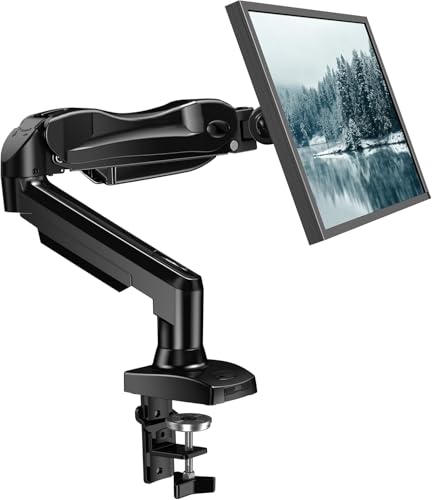
HUANUO FlowLift™ Single Monitor Mount, 13 to 32 Inch Monitor Arm, Adjustable Monitor Stand, Vesa Mount with Clamp and Grommet Base – Fits 4.4 to 19.8lbs LCD Computer Monitors
Great Adaptability: This HUANUO single monitor arm fits 13-32 inch monitors, holds 4.4-19.8 lbs, suitable for VESA patterns…
As an affiliate, we earn on qualifying purchases.
As an affiliate, we earn on qualifying purchases.
Find the Right Elbow Angle to Reduce Strain
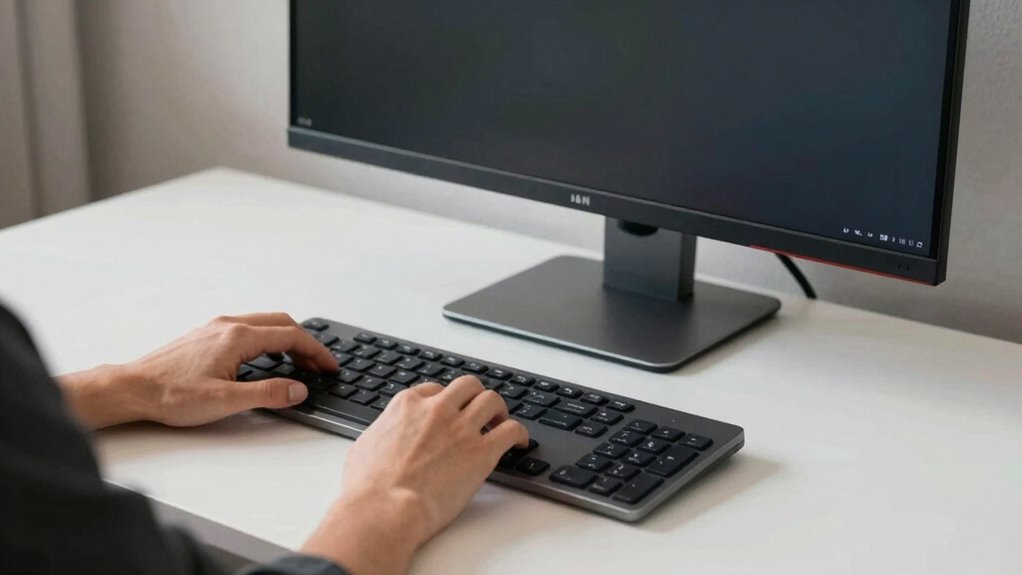
Finding the right elbow angle is essential for reducing strain during long hours at your desk. Aim for a comfortable elbow flexion of about 90 degrees, where your forearms are parallel to the floor. This position minimizes unnecessary tension and helps prevent fatigue. If your elbows are too straight or too bent, you may experience discomfort or strain reduction issues over time. Adjust your chair height or keyboard position to maintain this ideal angle. Keep your shoulders relaxed and avoid elevated or hunched positions. Proper elbow flexion supports better blood flow and reduces muscle tension, making your work more comfortable and sustainable. Ensuring your workspace is ergonomically optimized can further enhance your comfort. Taking care of your elbow positioning now prevents long-term strain and promotes better ergonomic habits. Paying attention to posture awareness can also play a crucial role in maintaining comfort throughout the day. Additionally, regularly changing your position can help prevent stiffness and promote circulation.
How to Improve Lighting and Screen Brightness for Better Posture
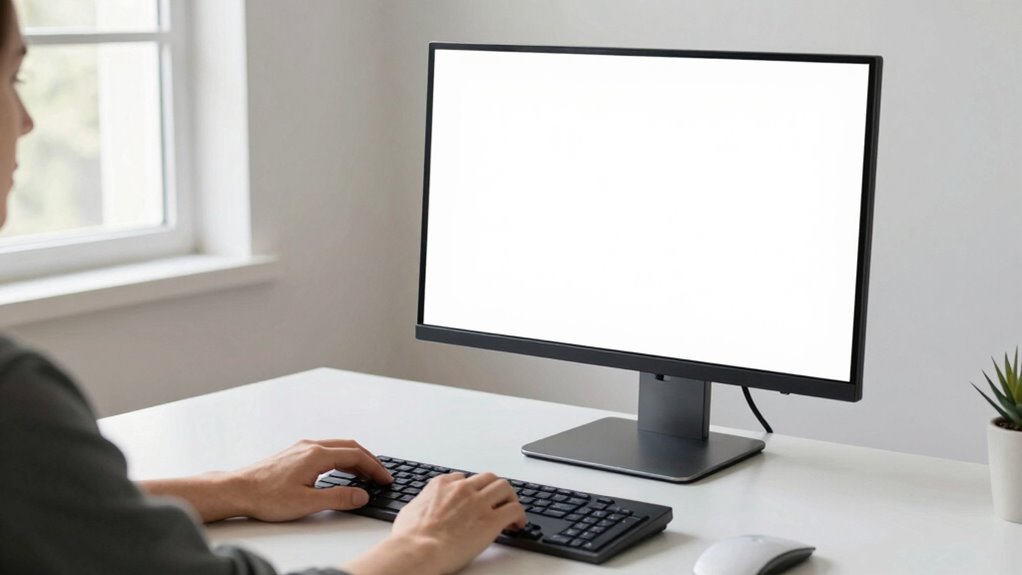
Proper lighting and screen brightness are essential for maintaining good posture, as they help reduce eye strain and prevent you from leaning forward or hunching over to see your work clearly. To achieve this, follow lighting tips like positioning your desk lamp to avoid glare and using natural light when possible. Adjust your screen brightness so it matches the ambient light in your workspace; too bright or too dim screens cause you to strain your eyes. Regular screen brightness adjustment ensures comfortable viewing and helps you maintain a neutral head position. Keep your workspace well-lit without harsh reflections, and tweak your monitor settings to reduce eye fatigue. These simple steps support better posture and prevent discomfort during long hours at your desk.
Common Mistakes That Cause Discomfort at Your Desk
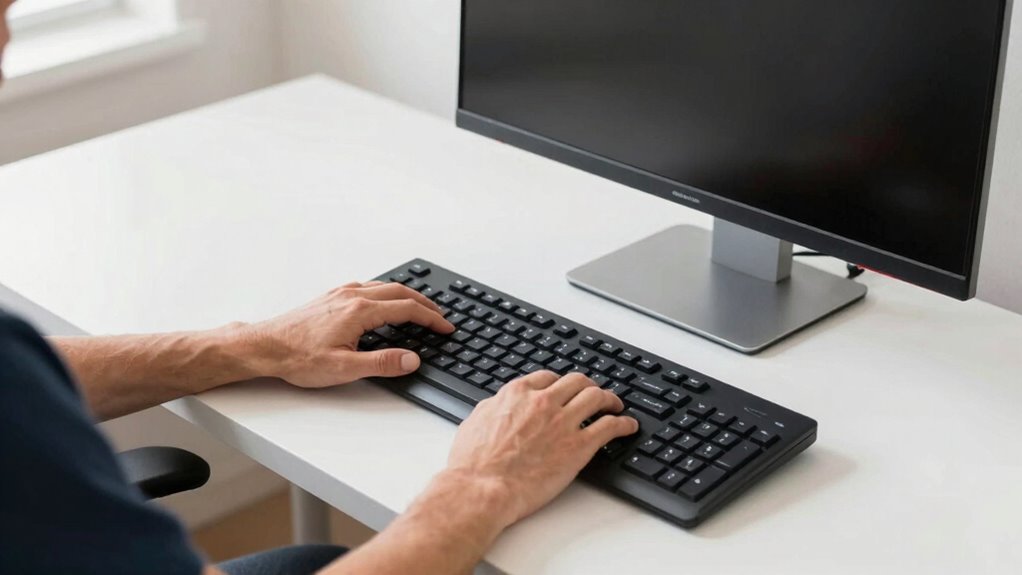
Ignoring common mistakes at your desk can quickly lead to discomfort and long-term health issues. Poor keyboard positioning often reduces keyboard comfort, causing you to strain your wrists or shoulders. Additionally, neglecting elbow support results in awkward angles that increase fatigue. For example, if your elbows are too high or low, you’ll experience unnecessary tension. To visualize, consider this table:
| Mistake | Impact | Solution |
|---|---|---|
| Improper keyboard height | Wrist strain, discomfort | Adjust keyboard to elbow level |
| Lack of elbow support | Shoulder tension, fatigue | Use armrests or support pads |
| Poor monitor alignment | Neck and eye strain | Position screen at eye level |
Avoid these mistakes to improve comfort and prevent pain during long work hours.
Tips for Creating an Ergonomic Workspace in Small Spaces
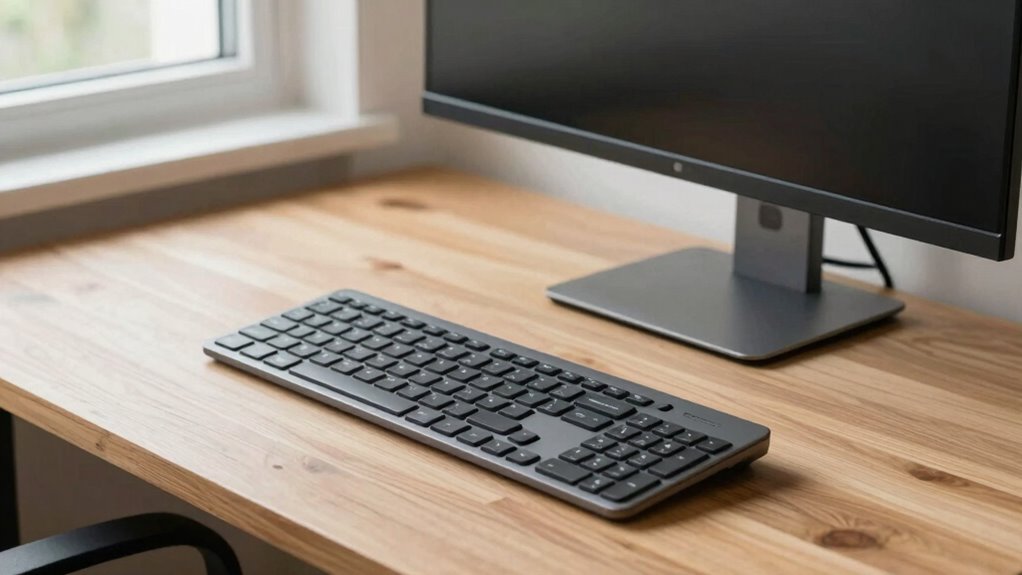
To make the most of your small workspace, focus on maximizing vertical space for storage and organization. Incorporate multi-functional furniture that saves room while supporting your ergonomic needs. Keep clutter to a minimum by organizing efficiently, so your workspace remains comfortable and productive.
Maximize Vertical Space
Have you considered how much additional space you can free up by making the most of your vertical area? By adjusting your monitor tilt, you can optimize your screen position without taking up extra desk space. Keep your monitor at eye level to reduce neck strain and improve comfort. Additionally, set your keyboard height so your arms remain relaxed and your wrists stay neutral. Using wall-mounted shelves or vertical file organizers can help store supplies vertically, freeing up valuable surface area. Mounting a monitor arm allows you to position your screen at the perfect height and angle, maximizing your vertical workspace. These simple adjustments make your small workspace more functional, comfortable, and organized, helping you work efficiently without clutter.
Use Multi-functional Furniture
Choosing multi-functional furniture is a smart way to maximize small workspace areas. It helps you conserve space while maintaining an ergonomic setup. Look for ergonomic furniture pieces that serve multiple purposes, like a desk with built-in storage or a fold-out workstation. These options keep your workspace organized and reduce clutter. Consider a height-adjustable desk that doubles as a standing desk or a chair with adjustable arms for better elbow support. Compact, multi functional furniture pieces can also include wall-mounted fold-out desks or storage ottomans that double as seating. By selecting versatile furniture, you create an efficient, comfortable environment without sacrificing valuable space. This approach ensures that every inch of your workspace contributes to productivity and ergonomic health.
Organize Clutter Efficiently
Ever notice how clutter can quickly turn a small workspace into chaos? To keep things organized, focus on cable management by using clips, sleeves, or under-desk trays to prevent cords from tangling. This not only reduces visual clutter but also minimizes tripping hazards. Incorporate smart storage solutions like wall-mounted shelves, desk organizers, or multi-purpose furniture with built-in compartments to maximize limited space. Clear away unnecessary items regularly, keeping only essentials within arm’s reach. Label cords and storage containers for quick identification. By streamlining your workspace with effective cable management and clever storage solutions, you create a more ergonomic environment that boosts productivity and reduces stress. A tidy desk encourages better posture and helps you focus on your tasks without distraction.
Recommended Ergonomic Accessories for Better Support
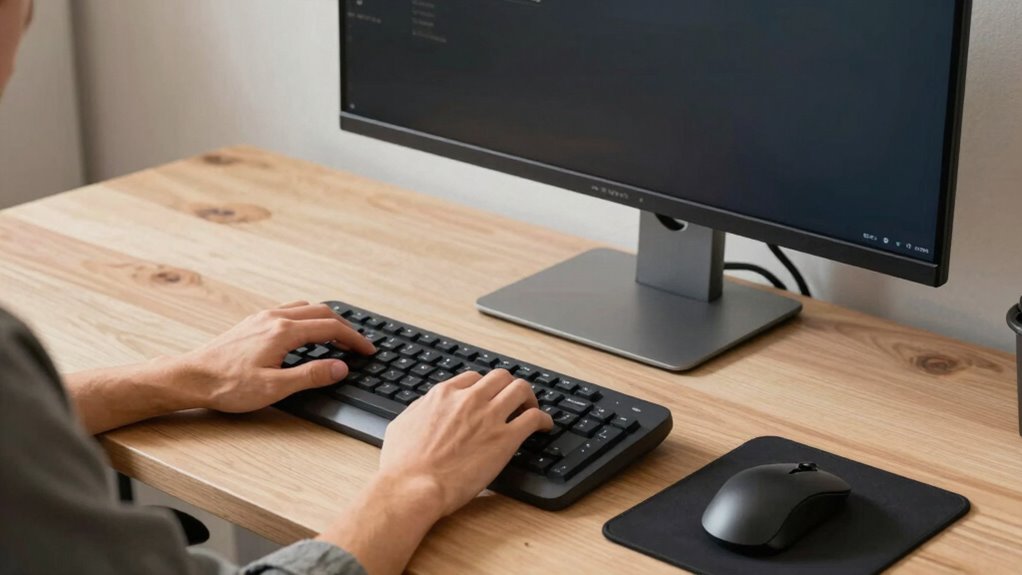
To guarantee your workspace supports your body comfortably, incorporating the right ergonomic accessories is essential. Ergonomic support tools help reduce strain and improve posture during long hours at your desk. Consider adding a keyboard tray to keep your wrists straight, and a monitor stand to elevate your screen to eye level. An ergonomic mouse reduces wrist tension, while a footrest promotes proper leg positioning. These accessories work together to enhance comfort and prevent discomfort. Using ergonomic accessories ensures your setup aligns with your body’s natural posture, making your workday healthier and more productive. Investing in these ergonomic support tools can markedly improve your overall comfort and reduce fatigue, helping you stay focused and pain-free throughout your work session.
What to Do If Your Desk or Chair Isn’t Adjustable
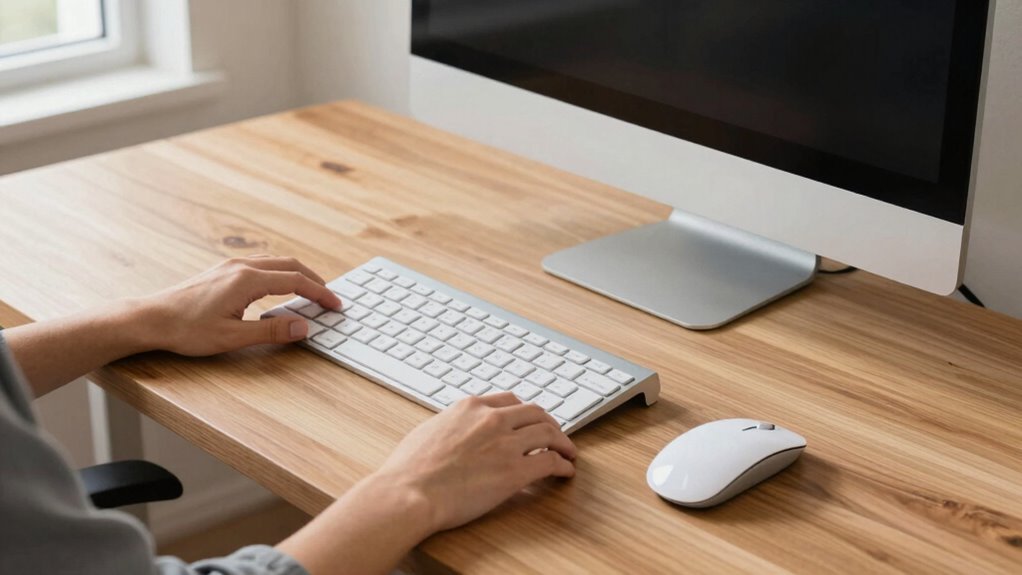
If your desk or chair isn’t adjustable, you can still improve your comfort by using external supports like cushions or footrests. Adjust your seating position to maintain proper posture and reduce strain. These simple changes can make a significant difference in your overall workspace ergonomics.
Use External Supports
When your desk or chair isn’t adjustable, external supports can make a significant difference in achieving proper ergonomics. Using tools like ergonomic cushions or supportive pads helps you maintain better posture and comfort. These supports can elevate your seating or provide added lumbar support, reducing strain. Consider adding:
- Ergonomic cushions to improve seat height and back support
- Footrests to keep your feet flat and reduce pressure on your legs
- Lumbar supports to maintain natural spine curvature
- Armrest pads to reduce shoulder and elbow strain
These external supports are simple solutions that compensate for non-adjustable furniture, helping you stay comfortable during long work hours. They promote proper alignment and reduce discomfort, making your workspace more ergonomic despite limited furniture adjustability.
Adjust Your Seating Position
Even with external supports in place, your seating position plays a key role in maintaining comfort and proper ergonomics. If your chair isn’t adjustable, focus on posture correction through seating adjustment. Sit back fully in the chair, ensuring your lower back is supported. Keep your feet flat on the floor or on a footrest, and avoid crossing your legs. Adjust your seat height so that your hips are level or slightly higher than your knees. If the chair height can’t be changed, use cushions or rolled towels to improve support. Regularly check and correct your posture to prevent strain and discomfort. Small seating adjustments can make a significant difference in maintaining proper alignment and reducing fatigue throughout your workday.
How Good Ergonomics Boosts Your Productivity and Overall Well-Being
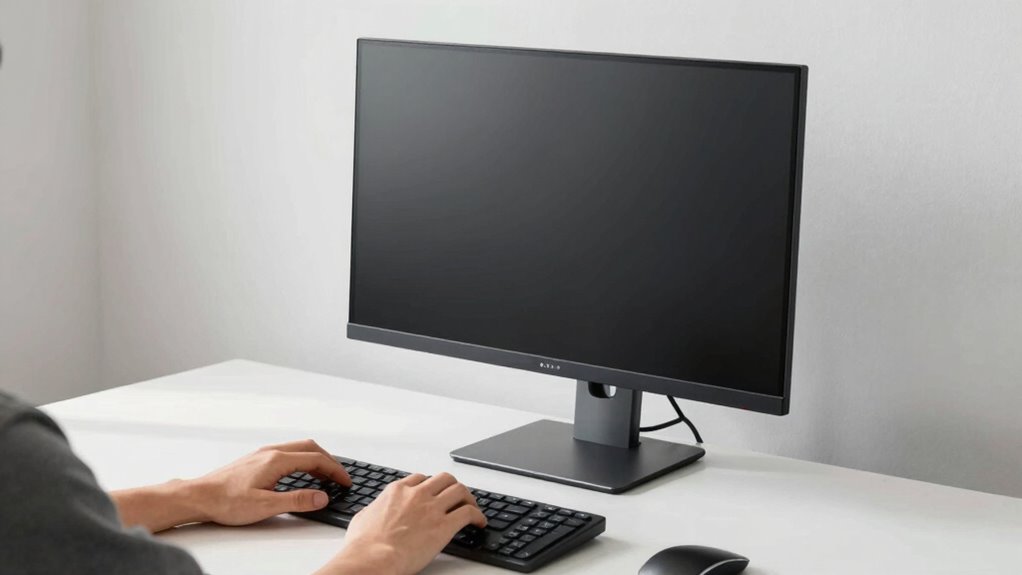
Good ergonomics at your desk can substantially enhance both your productivity and overall well-being. When you optimize keyboard placement and elbow positioning, you reduce strain and fatigue, allowing you to work longer and more comfortably. Properly aligned keyboard and elbows help prevent repetitive stress injuries and improve focus. Additionally, ergonomic setups boost your mood and energy levels, making work feel less exhausting. To maximize benefits, consider:
- Keeping your keyboard directly in front of you at a comfortable height
- Maintaining elbows close to your sides with relaxed shoulders
- Ensuring your wrists are straight and not bent during typing
- Adjusting your chair and desk to support proper posture
Implementing these simple adjustments creates a healthier workspace, leading to increased efficiency and overall improved well-being.
Frequently Asked Questions
How Often Should I Take Breaks to Prevent Ergonomic Strain?
You should take a break every 30 to 60 minutes to prevent ergonomic strain. During these breaks, do stretching routines and practice posture awareness to reduce tension and improve circulation. Stand up, move around, and stretch your arms, neck, and back. Regular breaks help maintain good ergonomics, prevent discomfort, and boost your focus throughout the day. Remember, consistency is key for long-term comfort and health.
Can Ergonomic Setups Help Reduce Specific Conditions Like Carpal Tunnel Syndrome?
Ergonomic setups can definitely help reduce conditions like carpal tunnel syndrome by providing proper wrist support and encouraging correct posture. Using ergonomic cushions and wrist supports keeps your wrists aligned and minimizes strain during prolonged typing or mouse use. Adjust your keyboard angle and position your monitor correctly to avoid unnecessary stress. These small adjustments make a big difference in preventing repetitive strain injuries and promoting long-term comfort.
What Are the Signs Indicating My Workspace Needs Ergonomic Adjustments?
Did you know that poor ergonomics can cause discomfort in over 80% of office workers? If you notice persistent neck, shoulder, or wrist pain, it’s a red flag that your workspace needs adjustments. Pay attention to your posture awareness—are you slouching or reaching too far? Organize your workspace so everything’s within easy reach, and regularly assess your setup to prevent strain and maintain comfort.
How Do Different Chair Types Impact Overall Desk Ergonomics?
Different chair types considerably impact your overall desk ergonomics by affecting chair comfort and posture support. Ergonomic chairs with adjustable features help you maintain proper spinal alignment and reduce strain, while basic chairs may lack the necessary support, leading to discomfort and poor posture. Choose a chair that fits your body, provides ample support, and allows adjustments for height and lumbar support to optimize your workspace and prevent discomfort.
Are There Exercises to Complement Ergonomic Adjustments for Better Comfort?
Yes, you can enhance your comfort with stretching routines and posture exercises. Incorporate shoulder rolls, neck stretches, and chest openers to relieve tension. Regularly do seated spinal twists and back extensions to improve posture. These exercises help counteract stiffness from prolonged sitting, boost circulation, and support ergonomic adjustments. Make them a daily habit to stay comfortable and maintain good alignment while working at your desk.
Conclusion
By following these simple ergonomic tips, you’ll set yourself up for comfort and productivity. Remember, a well-arranged workspace keeps discomfort at bay and lets you focus on what matters most. Don’t wait for aches to become a headache—take action now and create a workspace that works for you. It’s worth the effort, because when your setup is right, you can truly hit the ground running every day.