TL;DR

Get the latest gadgets delivered free — and shop member deals
- Fast, free delivery on millions of items
- Access to Prime Big Deal Days deals on October 6–7
- Prime Video, Amazon Music and more included
Wireless home security cameras send video over Wi-Fi, but many still need a power cable; only battery models are fully wire-free. Before choosing a replacement, check signal strength, recording options, detection features, privacy controls, and whether its power and smart-home setup fit your home. A camera’s resolution or battery claim alone cannot tell you how useful it will be in daily use.
A camera can send crisp video across your Wi-Fi and still go dark because its battery needs charging or its signal drops at the garage. That’s the small but telling difference between wireless video and a wire-free camera.
If you’re replacing a familiar model such as the Ring Spotlight Cam Plus Battery, its status may vary by seller and location, so treat it as a starting point rather than a guaranteed purchase. This guide helps you match a replacement to your entryway, yard, or indoor room by comparing power, Wi-Fi, storage, alerts, and privacy.
“Wireless” usually means video travels over Wi-Fi; many cameras still need outlet power.
Check Wi-Fi strength at the intended mounting point and verify outdoor weather protection.
Battery life changes with temperature, signal, recording frequency, and live-view use.
Confirm local or cloud recording, clip retention, subscriptions, and outage behavior before buying.
Compare replacement candidates by their use case and current specifications; the listed alternatives do not have verified shared specs.
What “wireless” means before you choose a camera
Wireless home security cameras send video over Wi-Fi, so they can be installed without a video cable running to a recorder. Many still need a wall outlet for power; only battery-powered models avoid a continuous power cable. Some cameras store clips on a memory card or hub, while others upload them to cloud storage.[1]
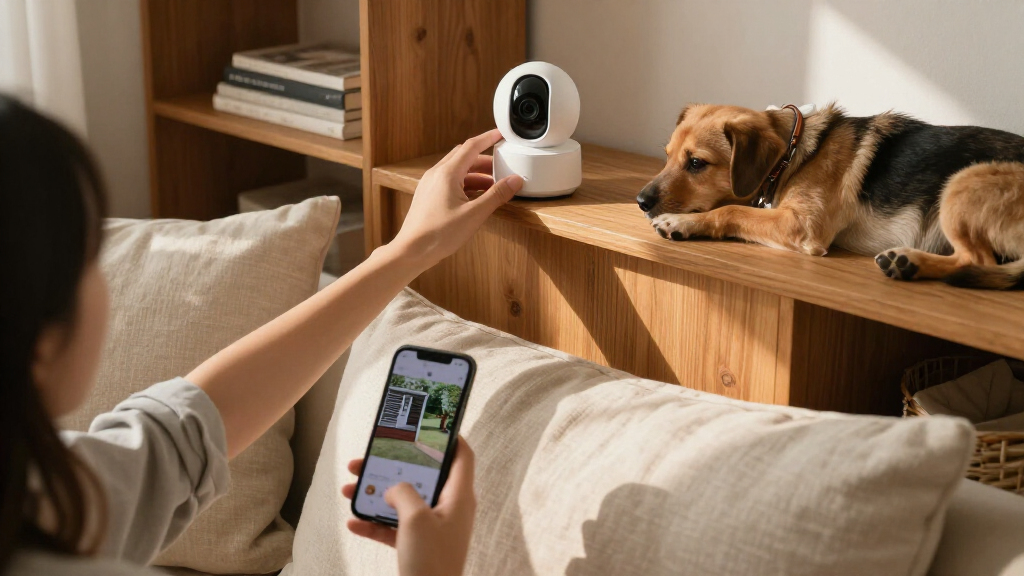
Think of Wi-Fi as the road the footage travels on and power as the fuel that keeps the camera running. The two are separate. A plug-in camera above a bookshelf may have no video cable at all, yet still need an outlet tucked behind the furniture.
That distinction matters when replacing a battery spotlight camera. A battery model may be easier to mount near a gate, while a plug-in indoor camera may suit a hallway with an outlet nearby. For outdoor use, check weather protection as well as the location’s Wi-Fi signal.[1]
Compare replacement cameras by the job they need to do
Start with the job and mounting location, because the listed alternatives do not share verified specifications here. Their overlap score is zero, so treat them as different use-case candidates rather than direct, feature-matched substitutes. For example, an indoor pan-and-tilt camera aimed at a dog cannot automatically replace an outdoor camera watching a driveway.
| Candidate | Could fit when you need | What to verify first |
|---|---|---|
| Tapo 2K Pan Tilt Security Camera for Baby Monitor, Dog Camera (2-Pack) | Indoor monitoring across a room, such as checking on a pet | Whether indoor placement, power, recording, and app features match your needs |
| Rraycom 5G/2.4G Wireless Outdoor Security Camera System (4 Pack) | Coverage across several outdoor viewpoints | Supported Wi-Fi bands, included recording setup, weather rating, and power method |
| Blink Outdoor 4 Wireless Smart Security Camera System | A battery-oriented outdoor setup | Battery upkeep, hub or subscription needs, detection options, and compatibility |
| Ring Outdoor Cam (Stick Up Cam), Weather-Resistant HD Security Camera | A weather-resistant camera in the Ring product family | Power variant, mounting options, recording terms, and fit with your existing setup |
These candidates are category-fit possibilities, not confirmed replacements with matching specifications. Product details, subscription terms, and integrations can change, so check the current listing and manufacturer documentation before buying. If your old camera’s key feature was a built-in spotlight, verify that the replacement has one rather than assuming the brand or outdoor label guarantees it.
Check Wi-Fi and power before you pick a mounting spot
A wireless camera needs dependable Wi-Fi where it sits, not just a strong signal beside your router. Distance, walls, and network congestion can all weaken the connection, while outdoor cameras also need suitable weather protection.[1] A camera at the far end of a brick garage may struggle even when phones work fine in the kitchen.
Before mounting, test the intended spot with the phone and network you plan to use. If live video stutters there, the camera may also struggle to send clips or alerts. Moving it a few feet, changing the router position, or adding a compatible access point can improve the path.
- Mark the view: Choose the door, path, or gate you want to watch, then avoid pointing into a neighbor’s private space.
- Check signal: Stand at the mounting point and try a video call or stream; note interruptions and dead spots.
- Check power: Confirm that an outlet is close enough for a plug-in camera, or that you can comfortably remove and recharge a battery model.
- Check the weather: For outdoor installation, verify the camera’s weather-resistance rating and whether the planned position exposes it to rain or direct sun.
For instance, a front porch camera may have excellent Wi-Fi and a nearby outlet, making a plug-in model practical. A detached shed may have neither; a battery camera could be easier to place, but it still needs a stable connection to send remote alerts.
Choose battery or plug-in power with upkeep in mind
Battery power buys placement freedom, while plug-in power avoids regular charging. Battery life varies with temperature, recording frequency, signal strength, and how often you use features such as live view.[1] A busy porch that records every passing car can use power faster than a quiet side entrance.
A battery camera may suit a gate with no nearby outlet, especially if you can reach it safely for charging. A plug-in camera works well in a covered entry where power is already available. Solar accessories can reduce charging visits on some models, but they depend on compatible hardware and enough sun.
Picture two homes in winter: one camera watches a quiet backyard and records few events; another faces a busy sidewalk and sends repeated alerts. Their batteries may need attention at different intervals, even if the advertised claim is the same. Treat battery-life figures as estimates, not a calendar promise.
Choose power by the chore you can live with: charging and checking a battery, or routing and protecting a power cable.
Match video detail and night vision to the scene
Resolution helps, but it does not decide image quality by itself. Field of view, lighting, lens quality, and camera placement affect whether you can identify a person or read a package label.[1] A high-resolution view of a distant, dim driveway may show less useful detail than a well-placed camera aimed at the front step.
Infrared night vision can show a scene in darkness, usually in a monochrome image. Color night vision generally needs some ambient light or a built-in spotlight. If you want to see a jacket color at the door, consider the lighting around the entrance along with the camera’s advertised resolution.
More resolution also uses more storage and bandwidth. If your internet plan or storage space is limited, a higher number on the box may bring little benefit. For a narrow doorway, framing the package drop zone often matters more than capturing the entire street.
Pick alerts and recording that match what you need to know
Motion alerts report activity the camera detects; they do not guarantee every event will be noticed or recorded. Models may detect general motion or try to distinguish people, animals, vehicles, and packages, but performance varies by model and settings.[1] A camera facing a tree that sways in the wind may buzz your phone all afternoon.
Activity zones let you exclude parts of the image, such as a busy road, so alerts focus on your walkway. More specific detection can cut nuisance notifications, but it may also miss an event if the subject is obscured or outside the zone. Try the settings for several days and adjust them to the actual scene.
Then check how recording works. Some cameras save event clips; others may support continuous recording. Confirm clip-retention time and whether cloud recording needs a paid plan. A memory card or hub can keep recordings locally without cloud storage, though remote access and other features may differ by system.[1]
Know what happens when Wi-Fi or power fails
An internet outage can interrupt remote viewing, cloud recording, and notifications, even if the camera still has power. A camera with local storage may continue recording during an internet interruption if its model supports that function. Check the exact behavior in the manufacturer’s current documentation.[1]
A power outage creates a different problem: plug-in cameras may stop unless they have a backup power source. Battery cameras can stay on, but they may still lose remote access if the router loses power. Think of the camera, router, and recording service as three links; a break in one can change what you can see.
For example, if your internet drops while you’re away, an SD-card camera might save footage locally but send no phone alert until service returns—or it may not send the alert at all. If that distinction matters, ask whether recordings are stored on the camera, on a hub, or in the cloud, and what continues during an outage.
Protect footage and keep the camera private
Secure the account that controls the camera with a unique password and two-factor authentication where available. Look for encrypted connections, clear data-retention controls, and a way to disable the camera or microphone. Keep the camera software and home router updated.[1]
Privacy also depends on where the lens points. Avoid recording places where neighbors or passersby reasonably expect privacy, and check local rules before recording audio or sharing footage. A camera aimed down your own path can often cover the delivery area without capturing a neighbor’s windows.
- Use a unique password for the camera account instead of reusing your email password.
- Turn on two-factor authentication if the maker offers it.
- Review retention settings so clips do not stay stored longer than you want.
- Limit the view and microphone to the coverage you actually need.
- Install updates for both the camera and router when available.
Local storage can reduce dependence on a cloud plan, but a memory card can be lost or damaged with the camera. Cloud storage may make remote access easier, but it brings questions about subscriptions, retention, and account security. Choose the tradeoff that fits your household.
Estimate storage, subscriptions, and compatibility costs
The ongoing cost is more than the camera itself. You may need a cloud subscription, extra storage, replacement batteries, or a compatible hub, depending on the model and features you use.[1] A low-maintenance plan for one front door may look different from a multi-camera setup recording a busy yard.
| Choice | What it can offer | What to check |
|---|---|---|
| Cloud storage | Remote access to saved clips through the service | Subscription requirement, retention period, and service limits |
| Memory card or local hub | Recording stored in the home | Supported capacity, remote access, and what happens if the device is damaged |
| Event clips | Storage focused on detected activity | Detection settings, clip length, and retention rules |
| Continuous recording | Broader timeline coverage when supported | Storage demand, power needs, and whether the model actually supports it |
Before choosing, confirm the camera supports your home’s Wi-Fi band, phone operating system, smart-home platform, and any recorder or hub you own. Standards such as Matter aim to improve device interoperability, but camera support and available features vary; check current compatibility instead of assuming brands will work together.[1]
Use a replacement checklist before ordering
A short checklist can prevent a camera that looks right online from being wrong for your home. Write down the old camera’s essential job, then compare candidates against the actual mounting spot and daily routine. For example, a parent checking a nursery needs different coverage and privacy controls from a homeowner watching a driveway.
- Name the scene: Front door, driveway, nursery, pet area, or several outdoor angles.
- Choose power: Nearby outlet, removable battery, or a supported solar accessory.
- Confirm the connection: Supported Wi-Fi band and signal at the planned spot.
- Pick the recording method: Cloud, memory card, hub, event clips, or continuous recording if supported.
- Check detection and lighting: Person or package alerts, activity zones, infrared, ambient light, or spotlight.
- Verify fit with your setup: Phone app, smart-home system, hub, subscription terms, and any existing cameras.
- Review privacy: Field of view, microphone controls, account protections, and local rules.
Use the checklist to compare the Tapo, Rraycom, Blink, and Ring candidates by the job each could serve. Their names alone do not establish equivalent features, so inspect the current specifications for the specific version you’re considering.
Get the coverage you need without overbuying
A useful camera covers a clear decision point: did someone leave a parcel, enter the gate, or come through the side door? One well-placed camera can answer that better than several cameras aimed too widely. The tradeoff is coverage versus detail; a broad view sees more ground, while a narrower view can make a person at the door larger in the frame.
For a front door, consider the delivery spot, faces approaching, and whether the lens can see the step after dark. For a driveway, account for vehicle headlights and the distance to the far end. In a nursery or pet room, place the camera so it can monitor the area without pointing at private spaces unnecessarily.
Walk the scene at daytime and after dark before you commit to a permanent mount. A porch light can create glare, while a tree branch may trigger motion alerts whenever the wind picks up. A small change in angle can turn a stream of vague alerts into a useful view of the doorstep.
Frequently Asked Questions
Do wireless security cameras need to be plugged in?
Some do. Wireless usually describes how video travels over Wi-Fi, while the camera may still use a power cable. Battery-powered models avoid continuous outlet power, but need charging or another supported power option.
Can a wireless camera record without Wi-Fi or internet?
It depends on the model and its storage setup. A camera with supported local storage may keep recording during an internet outage, but remote viewing, cloud recording, and phone notifications can stop. Check whether the camera, router, and recorder need power for local recording to continue.
Do I need a subscription to save camera recordings?
Not always. Some cameras support a memory card or local hub, while others rely on cloud storage or limit features without a plan. Check clip retention, remote access, and subscription terms for the specific model.
How long does a battery-powered security camera last between charges?
There is no single interval that applies to every home. Temperature, Wi-Fi strength, how often the camera records, and live-view use all affect battery life. A busy entrance can need more frequent charging than a quiet side yard.
Can outdoor cameras record my neighbors or audio?
Rules vary by location, especially for audio recording and sharing footage. Aim cameras to cover your own entryways and property while avoiding places where neighbors or passersby reasonably expect privacy. Check local requirements before recording audio.
Conclusion
Choose a camera for the exact place you need to watch, then verify power, signal, recording, privacy, and ongoing upkeep before you order. The right setup should give you a clear view of the moment that matters—and leave your phone quiet when the only thing moving is a branch.
Fall Picks
fall essentials
As an affiliate, we earn on qualifying purchases.