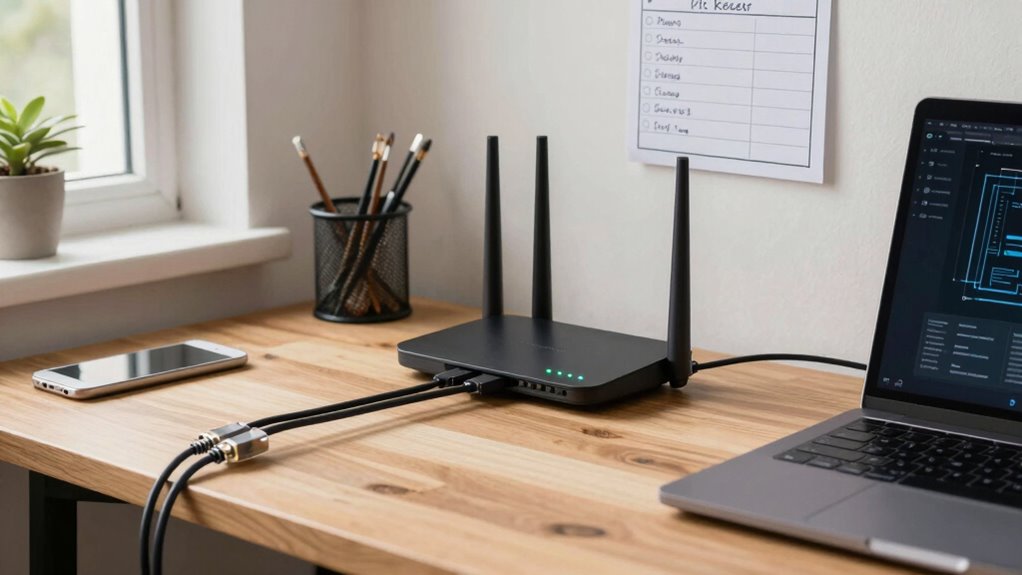

To make your home network more reliable, start by placing your router centrally, elevated, and away from interference from walls and electronic devices. Regularly update firmware, use strong passwords, and choose the best Wi-Fi channels. Test your speed and monitor performance to catch issues early. Expand coverage with mesh systems or extenders, and secure your network to prevent unauthorized access. Keep these steps in mind, and you’ll discover more tips to optimize your setup.
Key Takeaways
- Properly position your router centrally, elevated, and away from interference sources for optimal signal coverage.
- Regularly update firmware, change default passwords, and enable strong encryption to enhance security.
- Use Wi-Fi analyzers to select less congested channels and optimize frequency band settings.
- Prioritize critical devices and assess bandwidth needs to prevent lag and buffering.
- Expand coverage with mesh systems or extenders, and perform regular speed tests to monitor performance.
Troubleshooting Common Home Network Issues
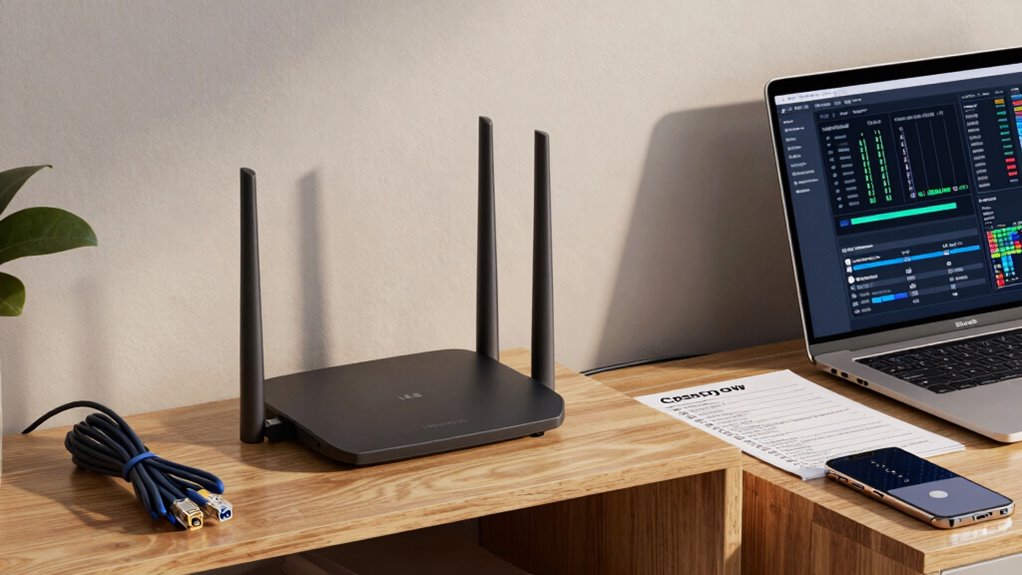
When your home network isn’t working properly, it can be frustrating and disruptive. One common fix is checking your router placement. Place your router in a central location, elevated off the floor, and away from obstructions like thick walls or metal objects. This guarantees a stronger, more stable signal throughout your home. Another key step is device prioritization—identify which devices need the fastest speeds and prioritize them in your network settings. For example, streaming devices or work-from-home equipment should get higher priority to reduce lag and buffering. Additionally, understanding the impact of interference from nearby electronic devices can help you position your router more effectively. Research shows that router placement significantly influences signal strength and reliability. Proper frequency selection can also minimize interference and optimize performance. The use of channel management tools can further enhance your network’s stability by reducing congestion. These simple adjustments can markedly improve your connection quality. By optimizing router placement and managing device prioritization, you’ll troubleshoot many common network issues before they become major problems.
How to Assess Your Home Network Needs
Evaluating your home network needs starts with understanding how you use your devices and the internet. Consider the types of devices in your home—smartphones, laptops, smart TVs, or IoT gadgets—and their compatibility with your current network setup. Think about your internet activities: streaming, gaming, remote work, or smart home management. This understanding helps you prioritize your bandwidth and speed requirements more effectively. Also, plan for future scalability; your needs might grow as you add new devices or upgrade services. Assess whether your current equipment can handle increased demand or if you’ll need to expand or upgrade. Conducting a network assessment can reveal areas where your current setup may be insufficient or outdated, guiding necessary improvements. Being aware of network security considerations can help protect your devices and data as your network grows and evolves. By clearly understanding your device compatibility and future scalability, you can make informed decisions about your network’s capacity, ensuring reliable performance now and down the road. Additionally, understanding your home network setup can help identify potential bottlenecks and improve overall reliability.
Optimizing Your Router and Modem for Better Performance
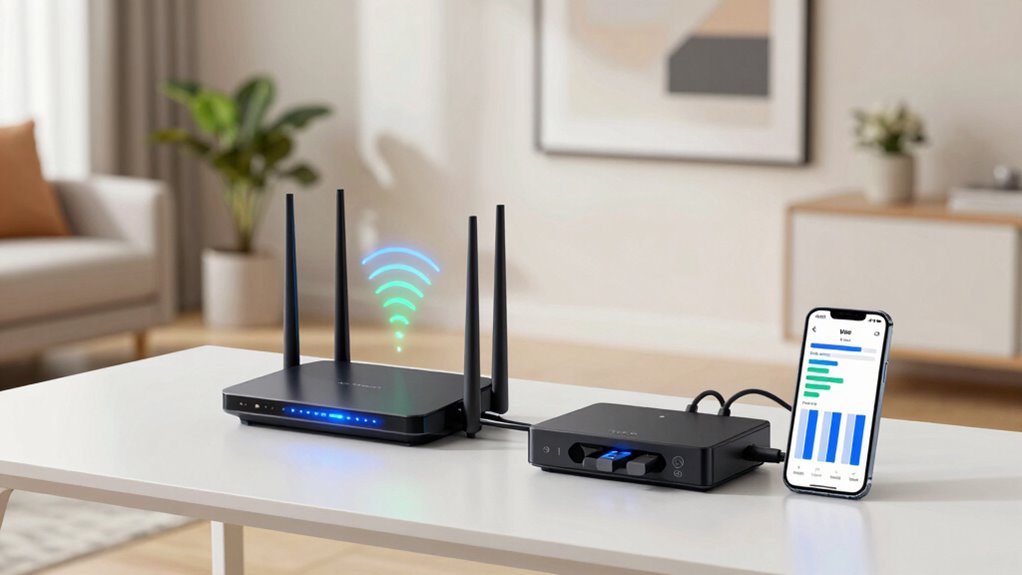
To improve your home network’s performance, start by optimizing your router and modem settings. Proper router placement is key—position it in a central, open location away from thick walls and interference from electronics. Elevate the router off the floor and avoid placing it near metal objects. Ensure your modem is compatible with your internet plan; using an outdated or incompatible modem can bottleneck speeds. Check with your provider or manufacturer for recommended models. Update your router firmware regularly to fix bugs and improve stability. Adjust settings like channel selection to reduce interference, especially if neighbors’ networks overlap. Additionally, being aware of the impact of filter sizing and flow on your overall system can prevent bottlenecks and ensure consistent performance throughout your home. Monitoring your network capacity helps identify potential issues before they affect your connection quality. Paying attention to bandwidth management can further optimize your network’s reliability and speed. Understanding the signal strength and coverage areas can help you position your equipment more effectively, leading to a more reliable, faster home network. Implementing proper network segmentation can help prioritize critical devices and improve overall system performance. These simple adjustments help maximize your equipment’s potential, leading to a more reliable, faster home network.
How to Test Your Internet Speed and What the Results Mean
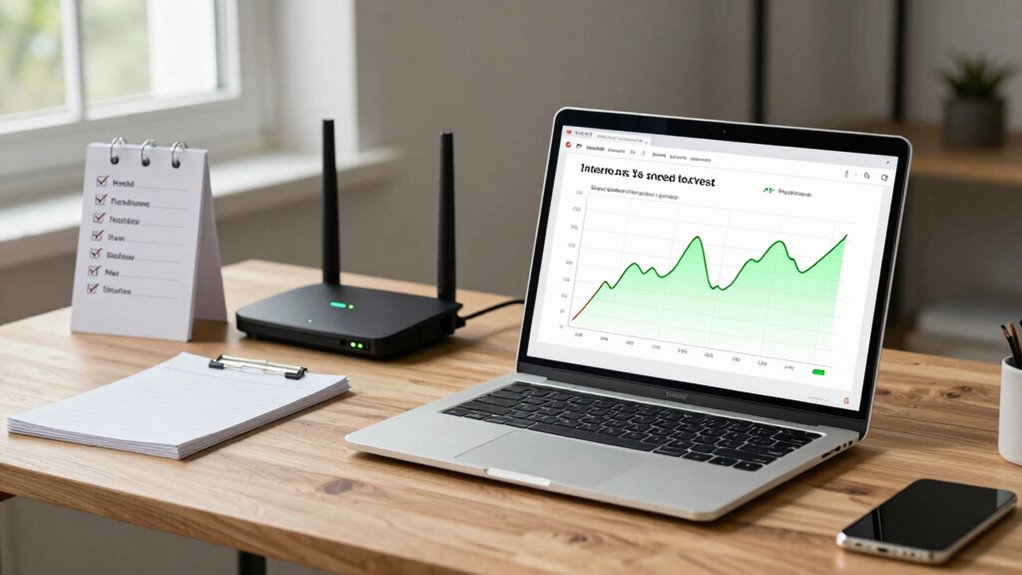
After optimizing your router and modem settings, it’s time to verify if those adjustments are making a difference. Perform a speed test using a reliable service to check your download, upload, and ping rates. This helps you understand your current internet performance. During the test, pay attention to the latency measurement, which indicates the delay between your device and the server. High latency can cause lag, even if download speeds are fast. To get accurate results, run the test multiple times at different times of day. Compare your results to your internet plan’s advertised speeds. If your speeds are considerably lower or latency is high, it may signal a need for further troubleshooting or a service upgrade. Regular testing keeps your network reliable and responsive. Additionally, understanding how network congestion impacts your speeds can help you schedule tests during less busy times for more accurate assessments. Recognizing the importance of internet stability can also guide you in maintaining consistent connectivity. Monitoring your connection quality over time can help you identify patterns and potential issues before they become significant problems. Incorporating network diagnostics can further assist in pinpointing specific issues affecting your network performance.
How to Minimize Wi-Fi Interference and Improve Signal Strength
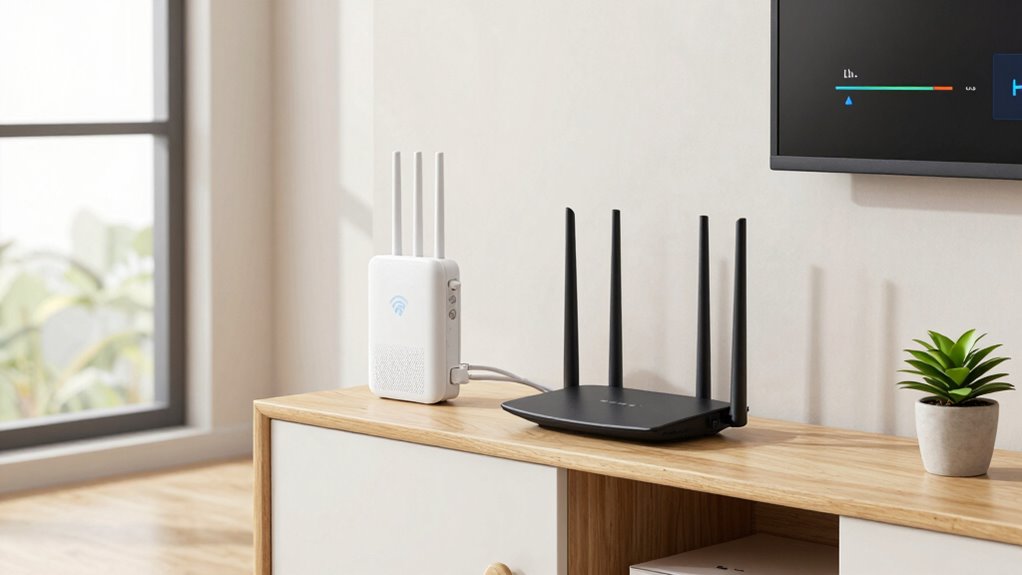
Wi-Fi signals can easily be disrupted by interference from other electronic devices, neighboring networks, and physical obstructions. To minimize signal interference, start by choosing the right frequency band. Most routers operate on 2.4 GHz and 5 GHz bands; switching to the less congested band can improve signal strength. Place your router in a central, open location away from cordless phones, microwaves, and Bluetooth devices, which can cause interference. Avoid placing it near thick walls or metal objects that block signals. Use a Wi-Fi analyzer tool to identify crowded channels and switch to a clearer one. Regularly update your router’s firmware to enhance performance. Additionally, considering battery capacity when selecting a backup power source can help ensure your network remains stable during outages. Being aware of radio frequency interference sources in your environment can further improve your connection quality. For even better results, consider using mesh network systems to expand coverage and reduce dead zones. These steps help ensure your Wi-Fi connection remains strong and reliable, reducing disruptions caused by signal interference.
Securing Your Home Network With Strong Passwords and Settings
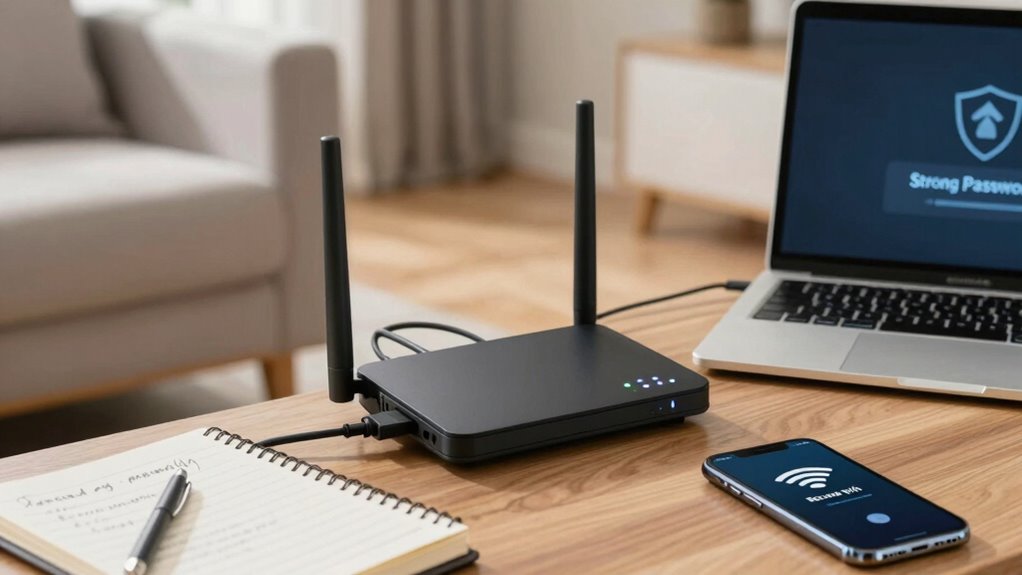
To keep your home network secure, start by creating strong, unique passwords that are hard for others to guess. Don’t forget to change default settings on your router, as they’re often not secure. Finally, enable network encryption to protect your data from potential intruders. Additionally, regularly updating your router’s firmware can prevent vulnerabilities and enhance your network’s security. Incorporating Cryptid Mysteries into your outdoor spaces can also contribute to a more secure environment by reducing clutter and creating clear pathways.
Create Strong Passwords
Creating strong passwords is essential for protecting your home network from unauthorized access. To guarantee your network stays secure, focus on password complexity and effective password management. Use a mix of uppercase and lowercase letters, numbers, and symbols to make your passwords harder to crack. Avoid common words or patterns, and never reuse passwords across accounts. Here are some tips:
- Create unique passwords for different devices and accounts
- Use a reputable password manager to keep track of your passwords
- Change default passwords immediately after setup
- Aim for at least 12 characters for added strength
- Regularly update your passwords to stay ahead of potential threats
Change Default Settings
Since default settings are often well-known and easily exploitable, it’s crucial to change them as soon as you set up your home network. Default passwords and router configurations are common targets for hackers. By customizing your router’s settings, you reduce the risk of unauthorized access. Take control and guarantee your network is secure.
Here’s a quick emotional reminder:
| Risk | Impact | Solution |
|---|---|---|
| Default passwords | Unauthorized access | Change to strong, unique passwords |
| Default configurations | Vulnerability | Customize settings for security |
| Easy to guess | Data theft | Use complex router passwords |
| Unprotected network | Privacy breach | Enable proper settings now |
Act now to protect your digital life.
Enable Network Encryption
After changing your default settings, the next step is to activate network encryption. This step is essential for improving your wireless encryption and boosting overall network security. By enabling encryption, you prevent unauthorized access and protect your personal data. To do this, log into your router’s admin panel and select the wireless security settings. Make sure to choose WPA3 or WPA2 if WPA3 isn’t available. Then, set a strong, unique password to further secure your network. Here are some key tips:
- Use a complex, unpredictable password
- Enable WPA3 or WPA2 encryption
- Disable WPS if not needed
- Regularly update your router firmware
- Limit access with MAC address filtering
This guarantees your home network remains safe from intruders and maintains reliable performance.
Extending Your Wi-Fi Coverage With Mesh Systems or Extenders
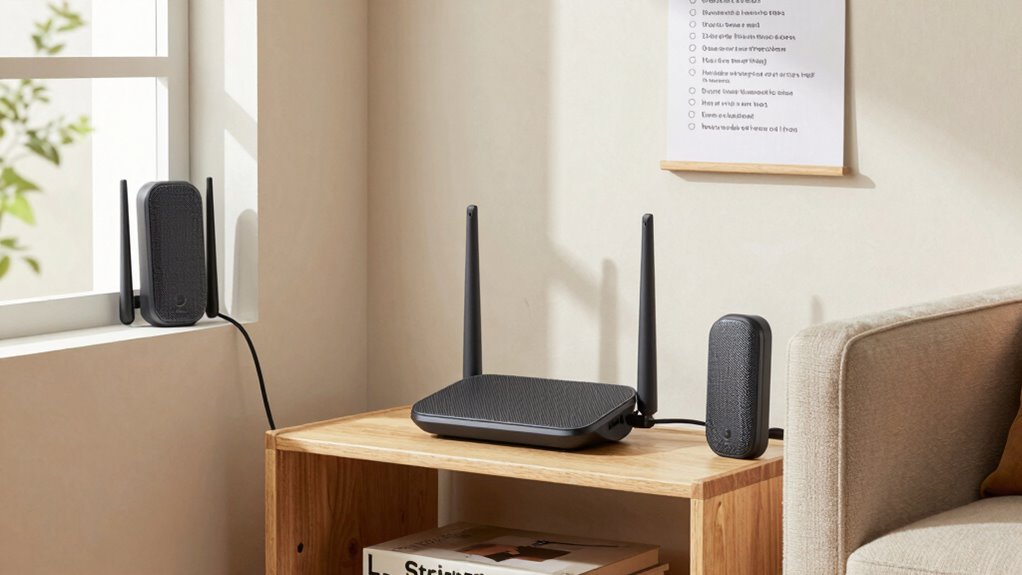
If your Wi-Fi signal isn’t reaching every corner of your home, expanding coverage with mesh systems or wifi extenders can make a significant difference. Mesh systems create a seamless network by connecting multiple units, ensuring consistent coverage throughout large or multi-story homes. Wifi extenders, on the other hand, amplify your existing signal by repeating it into dead zones. Both options are easy to set up and improve reliability by reducing dead spots and buffering. Choose a mesh system if you want a unified network with simple management, or opt for wifi extenders if you need a quick, budget-friendly solution. Proper placement of these devices is key to maximizing coverage. Enhancing your Wi-Fi coverage ensures all your devices stay connected smoothly, no matter where you are in your home.
Frequently Asked Questions
How Often Should I Update My Home Network Equipment?
You should update your home network equipment regularly, ideally every three to six months. This guarantees your device firmware stays current, fixing security vulnerabilities and improving performance. Keep an eye on network monitoring tools to detect issues early, prompting timely updates. Regular updates protect your network, enhance stability, and keep your Wi-Fi running smoothly, so make it a habit to check for firmware updates and monitor your network frequently.
What Are the Signs of a Compromised Wi-Fi Network?
If you notice unfamiliar devices connected to your Wi-Fi or experience slow speeds, your network might be compromised. Signs of a network intrusion include unexpected pop-ups, frequent disconnects, or unauthorized access attempts. You should regularly check your device list and secure your network with strong passwords. If you suspect unauthorized access, change your Wi-Fi password immediately and update your security settings to prevent further breaches.
Can My Home Wiring Affect Wi-Fi Performance?
Imagine your home wiring as the roads that connect your city. If those roads are bumpy or blocked, it slows down your traffic—your Wi-Fi signals. Poor wiring can cause weak wired connectivity and signal interference, disrupting your internet speed and stability. Guaranteeing your wiring is in good condition keeps your network flowing smoothly, just like well-maintained roads ensure your city runs efficiently.
How Do I Choose the Best Router for My Needs?
To select the best router, look for one that supports the latest wireless standards like Wi-Fi 6 or Wi-Fi 5 for faster speeds and better coverage. Consider your home’s size and layout to determine ideal router placement, avoiding obstructions and placing it centrally. Check reviews for reliability, and make certain it has enough bandwidth for your devices. This way, you’ll enjoy a stable, high-speed connection tailored to your needs.
Are There Affordable Ways to Upgrade My Network Security?
You can boost your network security affordably by focusing on password management and device encryption. Coincidentally, many free tools help you generate strong passwords and securely store them, reducing risks. Enabling device encryption on your computers and smartphones adds an extra layer of protection without extra cost. Regularly updating your firmware and Wi-Fi passwords also keeps intruders at bay, making your network much more secure without breaking the bank.
Conclusion
By following this simple checklist, you’ll enjoy a more reliable home network. Regularly troubleshooting issues, optimizing your equipment, and securing your connection not only boost performance but also protect your privacy. Many experts believe that a well-maintained network reduces downtime and frustration—so, invest a little time now, and you’ll experience seamless browsing, streaming, and gaming. A reliable network truly transforms your digital experience into a smoother, more enjoyable one.