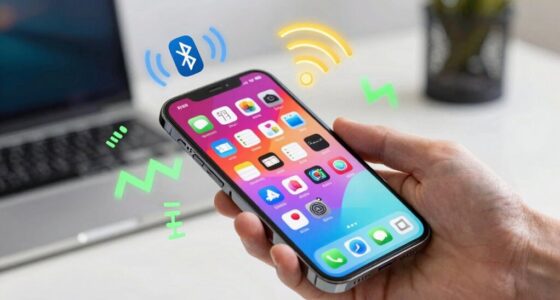

Background apps, location services, Bluetooth, Wi-Fi, NFC, and high screen brightness quietly drain your phone’s battery even when you’re not actively using them. Disabling unnecessary background activities, turning off location when not needed, and shutting off wireless features can extend your device’s battery life. Adjusting screen brightness and auto-lock settings also helps conserve power. If you want tips on how to optimize these settings and keep your battery lasting longer, keep exploring these options.
Key Takeaways
- Disable unnecessary background app refresh and auto-updates to prevent apps from running and syncing in the background.
- Turn off location services for apps that don’t need precise GPS data to reduce power drain.
- Reduce screen brightness and shorten auto-lock timers to conserve energy from display usage.
- Turn off Bluetooth, NFC, and Wi-Fi when not in use to prevent unnecessary wireless connectivity power drain.
- Enable airplane mode or Do Not Disturb during inactivity or when wireless features are unnecessary to extend battery life.

Battery Saver Dapan (Battery Saving & Level Management & Smartphone Optimization)
The battery lasts a long time in the power-saving settings for ultimate
As an affiliate, we earn on qualifying purchases.
As an affiliate, we earn on qualifying purchases.
How Background Apps and Notifications Drain Your Battery
Background apps and notifications can considerably drain your phone’s battery because they run continuously in the background, even when you’re not actively using your device. When apps access background data without your knowledge, they consume power by updating content or syncing information. Many apps request extensive app permissions, which can enable them to run in the background more aggressively than necessary. If you don’t review these permissions regularly, apps might access features like camera, microphone, or location, increasing battery drain. To conserve power, check which apps are allowed to run in the background and restrict unnecessary permissions. Disabling background data for certain apps ensures they won’t update or sync unnecessarily, helping you extend your battery life without sacrificing essential functions.

Ultimate Salesforce Data Cloud for Customer Experience: Explore, Implement, and Elevate B2C Experiences Through Customer Data Innovations Using … Tools Specialist — Jira & Salesforce)
As an affiliate, we earn on qualifying purchases.
As an affiliate, we earn on qualifying purchases.
Why Location Services Use Power: and How to Turn Them Off
Location services are one of the biggest power consumers on your phone because they constantly access GPS and other sensors to determine your position. This process, called location tracking, guarantees apps can provide relevant data like maps or nearby suggestions. However, high GPS accuracy requires more power, especially when your device constantly updates your location in the background. To save battery, consider turning off location services for apps that don’t need precise data or disabling location tracking altogether when not in use. You can do this through your device’s settings, often under Privacy or Location options. Limiting location updates reduces power drain without sacrificing essential features, helping your battery last longer. Disabling unnecessary sensors can further improve battery life by reducing background activity. Understanding how sensor activity impacts power consumption can help you optimize your device’s performance and extend its battery life even further. Additionally, adjusting location accuracy settings can balance functionality with energy efficiency.

Screen Brightness Dimmer
Easy to use.
As an affiliate, we earn on qualifying purchases.
As an affiliate, we earn on qualifying purchases.
How Bluetooth, Wi-Fi, and NFC Affect Battery Life: and How to Disable Them
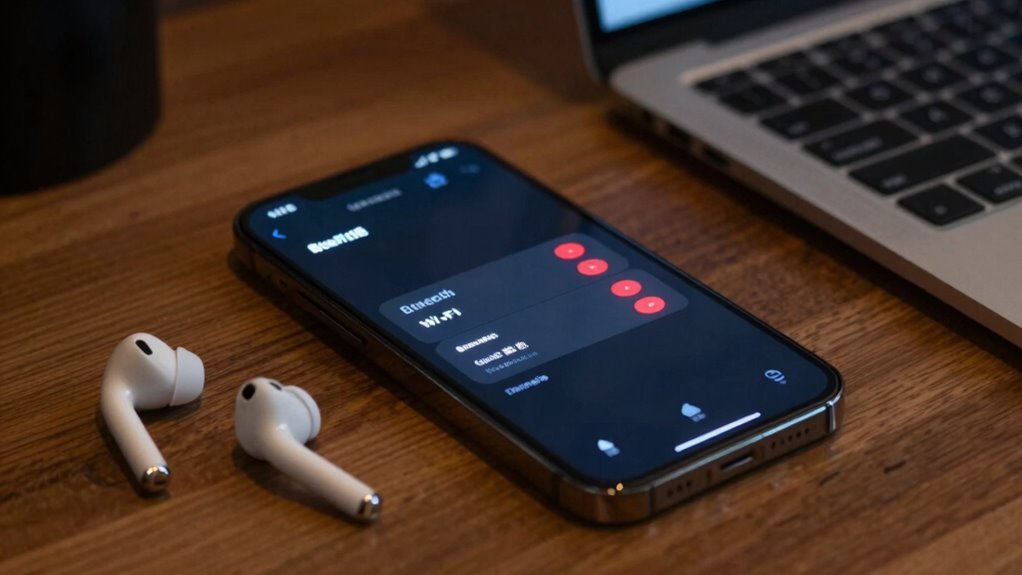
Bluetooth, Wi-Fi, and NFC are major contributors to your phone’s battery drain because they constantly search for and maintain connections with other devices or networks. To save power, turn these features off when not in use. You can do Bluetooth management easily by disabling Bluetooth from the quick settings. NFC disabling is also simple; just turn off NFC in your device settings to prevent unnecessary power use. Wi-Fi can be turned off when you’re not connected or browsing, especially if you’re using mobile data. Use the table below to see how these features impact battery life:
| Feature | When to Disable | Effect on Battery |
|---|---|---|
| Bluetooth | Not in use | Significant drain |
| Wi-Fi | Not connected or browsing | Moderate drain |
| NFC | No contact needed | Minor drain |
| Bluetooth mgmt | During idle or inactivity | Saves power |
| NFC disabling | When not sharing data | Extends battery |
Additionally, managing background activity for these features can further improve battery life by preventing unnecessary power consumption. Turning off unnecessary connectivity features can make a noticeable difference in battery longevity over the course of the day. Modifying power management settings can help optimize your device’s battery performance effectively. Being aware of battery-saving techniques can also contribute to longer device usage throughout the day. For example, adjusting device settings to limit background processes can further conserve energy and extend your device’s usability.

UGREEN 2-in-1 USB Bluetooth WiFi Adapter, AX900 + Bluetooth 5.4 WiFi 6 Adapter for Desktop PC with 5GHz/2.4GHz Dual Band, 6dBi High Gain Antenna, Built-in Driver for Windows 10/11
WiFi 6 AX900 + BT5.4: Experience WiFi 6 speeds up to 600 Mbps (5GHz) + 287 Mbps (2.4GHz)…
As an affiliate, we earn on qualifying purchases.
As an affiliate, we earn on qualifying purchases.
How to Adjust Screen Brightness and Auto-Lock for Better Battery Life

Adjusting your screen brightness and auto-lock settings can make a significant difference in extending your phone’s battery life. Lowering your screen brightness reduces power consumption, especially if you often use your device outdoors or in bright environments. Use auto-brightness if your device offers it, so your screen adjusts automatically to lighting conditions. Setting a shorter auto-lock timer ensures your screen turns off quickly when not in use, preventing unnecessary drain. To optimize battery life, manually reduce screen brightness and set auto-lock to 30 seconds or 1 minute. These adjustments minimize the time your display stays active unnecessarily, saving power without sacrificing usability. Regularly reviewing these settings helps guarantee your phone conserves battery throughout the day.
How Do Not Disturb and Other Features Impact Your Phone’s Battery
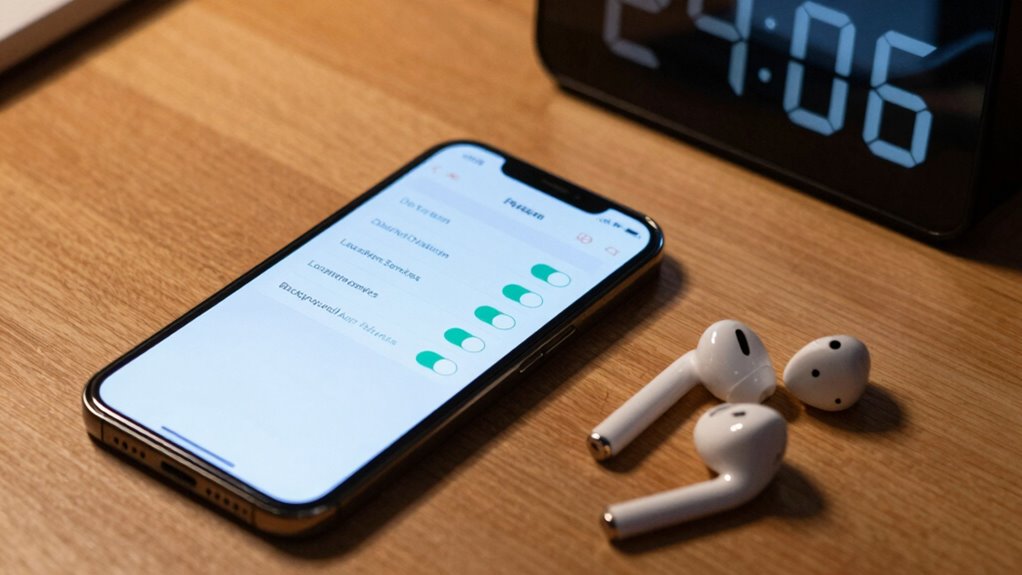
While features like Do Not Disturb can help reduce interruptions, they can also impact your phone’s battery life. When you activate silent mode, your phone stops vibrating and disables sound alerts, which slightly conserves power. However, if you rely on silent mode instead of turning off notifications altogether, your phone may still wake frequently to check for messages, draining the battery over time. Turning on airplane mode disables all wireless communications—cell, Wi-Fi, and Bluetooth—significantly reducing power consumption. Using airplane mode when you don’t need connectivity can extend your battery life, especially in areas with poor signal. Similarly, enabling Do Not Disturb can prevent apps from running in the background, helping your battery last longer. These features, when used strategically, can make a noticeable difference.
How to Check and Optimize Your Battery Usage for Longer Phone Life
Start by checking which apps and features consume the most battery to identify potential drains. Then, adjust your power settings to limit background activity and extend your phone’s battery life. Keeping an eye on usage and tweaking settings can make a noticeable difference in how long your phone lasts. Additionally, disabling unnecessary background processes can further improve battery performance. Regularly reviewing power management options helps ensure your device conserves energy during periods of low activity. Being aware of classic arcade games that run in the background or use excessive resources can also help optimize your device’s battery life. Understanding the spiritual purpose behind your device usage can also motivate you to adopt more mindful digital habits. Monitoring background app refresh settings allows you to prevent apps from updating unnecessarily when not in use.
Monitor Battery Usage
Ever wonder which apps or features are draining your phone’s battery the most? Monitoring your battery usage helps you identify power hogs and improve battery health. To do this effectively, check your device’s settings regularly. Here are three key steps:
- Review app activity to see which ones consume the most power.
- Note how much battery your screen, location, and background apps use.
- Adjust your charging habits to avoid overcharging, which can harm battery health.
- Consider enabling battery optimization features to extend your device’s lifespan. Additionally, understanding power consumption can help you make more informed decisions about app management and device settings to further conserve energy. Recognizing how power management impacts overall device performance can help you develop better habits for maintaining your phone’s longevity. Being aware of device efficiency can guide you toward more effective energy-saving practices.
Adjust Power Settings
Adjusting your phone’s power settings is a simple way to extend battery life and keep your device running smoothly. Start by selecting a power plan that prioritizes energy efficiency, such as a battery saver mode, which limits background activity. Next, review your display timeout setting—reducing this time helps conserve power by turning off the screen sooner when not in use. You can usually find these options in your device’s settings under battery or display sections. Optimizing your power plan ensures your phone uses energy wisely, while lowering the display timeout minimizes unnecessary screen activity. Implementing necessary cookies for system functions can also help maintain optimal device performance. These small adjustments can markedly improve battery longevity, especially when you’re away from chargers or need your phone to last through a busy day. Additionally, monitoring power-hungry apps that run in the background allows you to further reduce unnecessary battery drain. To further enhance battery life, consider disabling automatic app updates that can run in the background without your knowledge. Being aware of system processes can help you identify and stop unnecessary tasks that drain power without your awareness.
Frequently Asked Questions
Can Disabling These Settings Affect My Phone’s Functionality?
Disabling certain settings can affect your phone’s functionality, especially privacy settings and background activity. Turning off background activity may make apps load slower or stop updates, while disabling some privacy options could limit app features or notifications. However, if you’re careful and only turn off unnecessary settings, you’ll likely preserve most essential functions. Just remember, balancing battery life with usability is key to a smooth experience.
How Often Should I Review My Battery Usage?
You should review your battery usage weekly to keep your device performing perfectly. This practice helps you identify which apps are draining your battery, especially during battery refresh or app updates. Regular reviews let you make mindful modifications, turning off unnecessary notifications or background activities. Staying proactive guarantees your phone stays charged longer, preventing power problems and prolonging device lifespan—making your mobile experience more manageable and enjoyable.
Are There Any Settings That Drain Battery Without Visible Indicators?
Yes, background processes and location services can drain your battery without obvious signs. When apps run in the background or access your location constantly, they use power without showing visible indicators. To save battery, review app permissions and disable location services for apps that don’t need it. Also, close or limit background processes to prevent unnecessary power drain, ensuring your phone lasts longer throughout the day.
Does Turning off Notifications Improve Battery Life Significantly?
Turning off notifications can boost your battery life by up to 15%, helping your phone last longer each day. Effective notification management reduces unnecessary alerts, so your device doesn’t wake up or refresh apps as often. By limiting app refresh frequency and disabling non-essential notifications, you conserve energy. This simple step keeps your battery healthier and extends usage without sacrificing important updates or messages.
What Are Some Hidden Battery-Consuming Features I Should Be Aware Of?
You should be aware that background processes and app permissions can secretly drain your battery. Background processes run even when you’re not using apps, consuming power. Similarly, apps with extensive permissions, like location or camera access, may continue to operate in the background, eating up battery life. To conserve power, limit app permissions and regularly close or disable unnecessary background processes. This proactive approach helps extend your phone’s battery life considerably.
Conclusion
By turning off these quiet battery drainers, you’ll keep your phone running smoothly—no need for a trusty steed like in days of yore. Regularly review your settings to prevent unnecessary power drain, and enjoy longer battery life without sacrificing performance. It’s a simple wizardry that guarantees your device stays ready for whatever adventures lie ahead. Stay vigilant, and your phone will serve you faithfully, just like a knight’s loyal steed in the digital age.